Wrong items shipped create a chain reaction. You waste time on returns, refunds, and support chats. You also lose repeat customers.
Barcode order picking fixes the root issue: the picker stops guessing and starts verifying every order item with a scan. The system confirms the SKU and quantity. It also flags the wrong product right away.
This guide shows a simple barcode picking workflow you can set up in a small shop or a small warehouse. You’ll learn how to prepare a pick list, scan items during picking, scan again before you seal the box, and mark the order as fulfilled. You can start with a phone camera or a basic barcode scanner.
- What Is Barcode Picking & Why It Works
- Step 1 — Prepare Your Pick List & SKUs
- Step 2 — Set Up Your Barcode Scanner / Device
- Step 3 — Barcode-Driven Picking Workflow
- Step 4 — Packing & Quality Check (Scan Before Seal)
- Step 5 — Final Verification & Marking Order as Fulfilled
- Handling Exception Cases
- Why Kladana Supports Barcode Picking Easily
- Frequently Asked Questions on Barcode-Driven Picking
What Is Barcode Picking & Why It Works
If you only remember one rule, make it this one: barcode order picking works because every pick becomes a quick scan-based confirmation against the pick list.
Definition & benefits (accuracy, speed)
Barcode picking (also called a barcode picking system or barcode-driven order picking) means you scan each product barcode while you pick. The system checks the scan against the pick list and confirms you took the right item.
What it improves in real work:
- Accurate order picking: you catch the wrong SKU at the shelf, not after delivery.
- Packing accuracy: you can scan again at the pack table to confirm “scan & pack”.
- Faster fulfillment process: less manual double-checking and fewer pauses for “Is this the right variant?”.
- Lower error rate: handwritten notes and manual typing create avoidable mistakes; barcode scanning cuts that risk.
- Cleaner inventory tracking: scans feed the system with consistent item IDs, which helps stock records stay in sync (especially with mobile scanning).
Common pitfalls with manual picking
Manual picking breaks in predictable places:
- Similar items get mixed up (same brand, different size/colour, look-alike packaging).
- Messenger orders miss details (variant, bundle content, free gift, substitute rules).
- Paper pick lists drift from reality (stock changed, items moved, the list is outdated).
- Quantity errors happen when you pick multiples and rely on counting under pressure.
- No audit trail: if a customer complains, you can’t quickly prove what was picked and packed.
🤓 NB: Competitor guides often say “scan to reduce mistakes.” That’s true, but the real gain comes from where you scan. The most reliable flow is: scan while picking + scan again before sealing (pick + pack verification).
Step 1 — Prepare Your Pick List & SKUs
Before you touch a scanner, you need one thing: a pick list that clearly tells the picker what to take, in what quantity, and from where.
Generate a pick list from the order
A pick list is a short working list of order items for the picker. It should be pulled from your order system, not rewritten by hand.
A beginner-friendly pick list includes:
- Order number + customer name (or channel),
- Item name + SKU,
- Quantity to pick,
- Variant details (size/colour/model) if you sell variants,
- Location (bin/shelf) if you use locations,
- Notes (fragile, gift wrap, substitution rules).
💡 Tip: Keep one order = one pick list. Mixing several orders on one paper page is where wrong items start.
Ensure each SKU has a scannable barcode
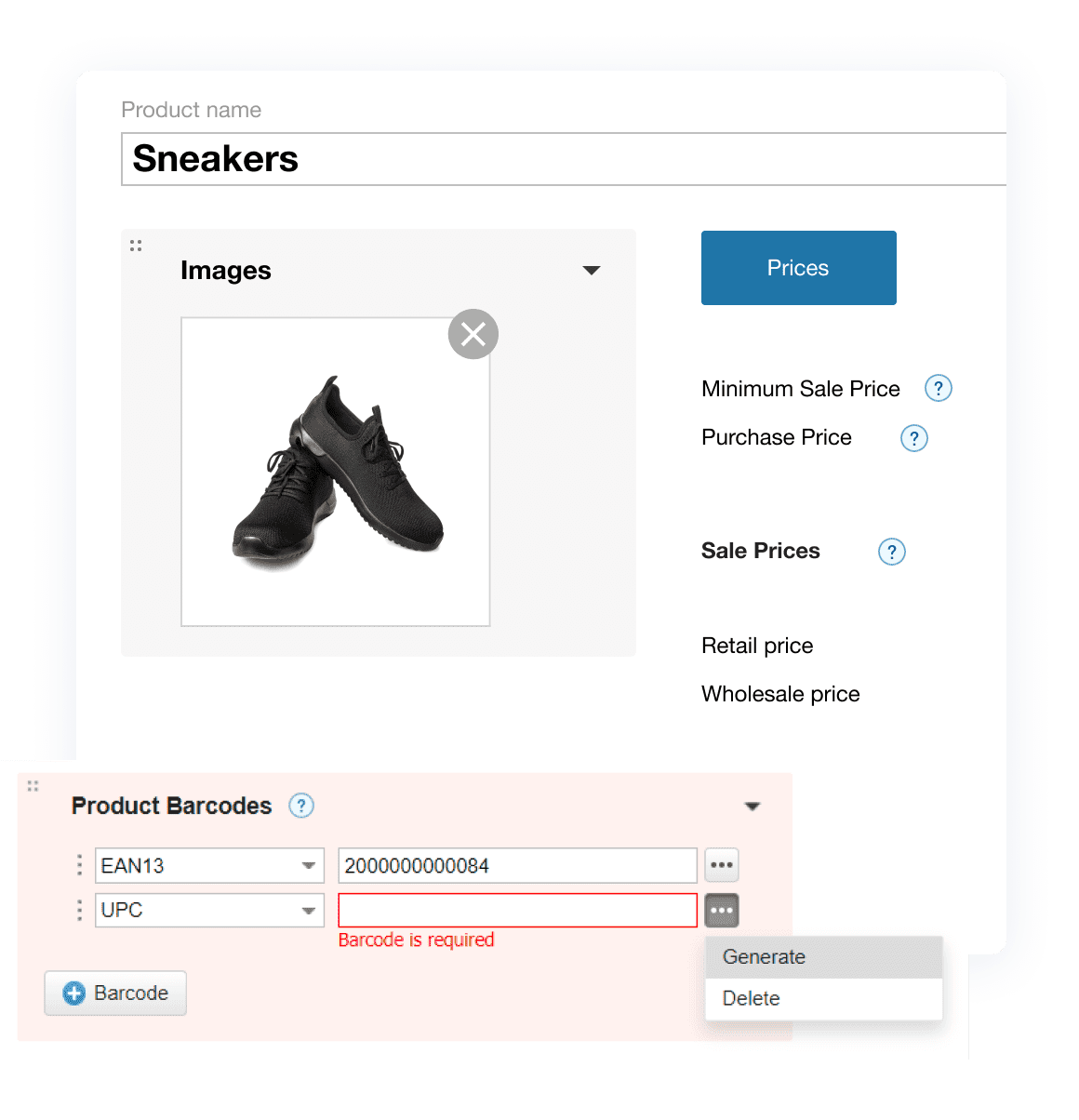
Barcode order picking depends on one rule: one SKU = one barcode.
Do this setup once:
- Make sure every product has a unique SKU (no duplicates).
- Assign a barcode to each SKU:
- Use existing manufacturer barcodes when possible;
- If you sell your own goods, generate and print your own barcodes.
- Print labels that match your storage reality (item label, bin label, or both).
💡 Tip: If you’re starting from messy product names, don’t rename everything at once. Start with your top 50–100 selling items. That gives quick results without a big cleanup project.
Mini checklist (setup done):
- Each active SKU has a barcode.
- Barcodes scan on your device (test 10 random items).
- Pick list shows SKU + quantity (and location, if used).
- Variants are clear (no “Blue / blue / BLU” duplicates).
Next, we’ll choose the device and set it up so scans go straight into your picking flow.
Step 2 — Set Up Your Barcode Scanner / Device
Your goal here is simple: when you scan a barcode, the code is captured fast and correctly inside your picking screen.
Choose the scanning option that fits your setup
You have three common options for a barcode picking system:
1) Smartphone scanning (lowest cost)
- Works for low to medium daily order volume.
- Good for mobile scanning in small storage rooms.
- Watch-outs: camera focus, low light, cracked screens.
2) Handheld Bluetooth scanner (best balance)
- Faster than a phone camera.
- Easy to carry while picking.
- Good for regular picking workflow and “scan & pack”.
3) USB scanner at the packing desk (best for scan-before-seal)
- Plugs into a computer like a keyboard.
- Great for packing confirmation at one station.
- Not ideal for walking the shelves.
📝 Side note for beginners: Start with a phone or one Bluetooth scanner. Upgrade only after you’ve fixed the workflow.
Connect the scanner to your system and test it
Do a 2-minute test before the first real order:
- Open any field where a barcode should be entered (search box, scan field, SKU input).
- Scan an item barcode.
- Check what appears on screen:
- The numbers/letters should match the barcode exactly;
- The scan should add an “Enter” at the end (common on scanners). If it jumps to the next field too early, change the scanner suffix setting.
Quick troubleshooting
- Nothing appears: wrong input field, Bluetooth not paired, low battery.
- Wrong characters: wrong keyboard layout on the device.
- Double scans: button stuck, scanner set to repeat.
- Scans work on PC but not on phone: scanner paired to another device nearby.
Start barcoding in Kladana
Generate and scan barcodes, print thermal labels, and reduce picking mistakes. Try it on a free trial.
Step 3 — Barcode-Driven Picking Workflow
Now you can run barcode order picking where the system confirms every scan against the pick list, so the wrong item is blocked before it reaches the box.
Basic flow: scan → confirm → move to packing
Use this simple sequence for barcode-driven order picking:
- Open the order and its pick list.
- Go to the first location (or follow the list order).
- Scan the item barcode.
- Confirm the system matches the SKU on the pick list.
- Repeat until all order items are picked.
- Move picked items to the pack station (one order at a time).
Rule that prevents mix-ups: keep picked items for one order in one tote/box/tray. Label it with the order number.
How to handle variants and look-alike items
Variants are where manual picking fails most often. Barcodes fix this if each variant has its own SKU and barcode.
Good practice:
- Put the variant detail in the SKU name (e.g., “T-Shirt / M / Black”).
- Store similar variants in separate bins or clearly labeled shelves.
- Scan the item even if you “know” it’s right.
If you don’t have unique barcodes for variants yet, don’t start barcode picking half-way. Fix the SKU/barcode mapping first, at least for your top sellers.
Picking multiple quantities of the same SKU
Quantity mistakes happen when pickers scan once and assume they counted right.
Use one of these two rules:
- Scan-per-unit: scan each unit as you pick it (best for small quantities, high-value items).
- Scan-then-confirm-quantity: scan once, then enter quantity, then re-check the count (best for bulk picks).
If your order volume is growing, scan-per-unit is usually safer for packing accuracy. It also makes training easier: “scan every item you touch.”
📖 Recommended Reads
Want more practical barcode tips and examples? Browse the Barcoding section on the Kladana blog.
Step 4 — Packing & Quality Check (Scan Before Seal)
Picking is only half the job. Packing is where the last mistake can still slip in, so scan again before you seal the box. This is the safest way to pick and pack with barcode scanning, because packing is the last place to catch mistakes.
Scan each item at the pack station
Set up one clear packing spot. Then use this “scan & pack” routine:
- Put the pick tote (one order) on the table.
- Open the order on screen.
- Take the first item and scan the barcode.
- Place it into the box only after the system confirms it.
- Repeat for all order items.
- Add inserts (invoice, thank-you card, return note).
- Seal the box after the final confirmation.
This second scan is a safety net. It catches:
- wrong item picked from a nearby bin;
- items swapped between two open orders;
- missing pieces in bundles/kits.
Confirm quantities and special order notes
Before sealing, check three things:
- All items show as “scanned/packed”.
- Quantities match the pick list.
- Notes are done (fragile sticker, gift wrap, substitution approved).
Quick packing checklist
- Order number matches the tote/box label.
- Every SKU scanned at packing.
- Quantities match (no “almost”).
- Notes completed (wrap/fragile/free gift).
- Shipping label applied to the correct box.
Step 5 — Final Verification & Marking Order as Fulfilled
The last step is to close the loop in your system so you always know what was packed, what shipped, and what is still pending. In an order fulfillment barcode flow, the order is not complete until every item is scanned and confirmed.
Final verification before you ship
Do one quick check before the parcel leaves your hands:
- The order shows all items picked and packed.
- No “missing scan” warnings.
- Shipping label matches the order (name/order number).
- The package count matches what you ship (1 of 1, 2 of 2).
If you ship multiple parcels per day, this step prevents the common mistake: the right items in the wrong label.
Mark the order as fulfilled and update status
Once packing is confirmed, mark the order as fulfilled (or shipped, depending on your flow). This is important for two reasons:
- It creates a clear fulfillment process history (helpful for returns and disputes)
- It keeps your team aligned: everyone sees what’s done and what still needs picking
💡 Tip: Use simple statuses that match real work:
- New / To pick,
- Picking,
- Packing,
- Fulfilled (or Shipped).
Handling Exception Cases
Real warehouses are messy. Barcodes still help, but you need clear rules for the moments when the scan does not go as planned.
SKU not found or wrong item scanned
If you scan and the system says “not on this pick list,” treat it as a stop sign.
Do this:
- Compare the item name/SKU on screen with the pick list line.
- Check the bin label (many mistakes are “right product, wrong shelf”).
- Look for a similar variant stored next to it (size/colour/model).
- If unsure, set the item aside and pick the rest first.
Missing items (stock says “in stock” but the shelf is empty)
This happens even in small businesses. It usually means a stock count issue, wrong location, or a not-yet-recorded sale.
Use this quick flow:
- Recheck the location on the pick list.
- Search nearby bins for the same SKU.
- If you track multiple locations, check other shelves/warehouses.
- If you still can’t find it:
- mark the line as “not available” (or backorder);
- inform the customer or switch to a substitute rule you already approved.
Barcode doesn’t scan (damaged label or poor print)
Most scan failures are easy fixes:
- Wipe the label (dust and glare matter);
- Try a different angle or distance;
- Increase screen brightness / improve lighting;
- Reprint the label if it’s low-contrast or scratched.
If it still fails, search by SKU name, confirm visually, then replace the barcode label right away. Don’t leave the broken label for the next picker.
Items without barcodes (can’t label the product)
Some products can’t carry a label (very small items, loose goods, handmade items). You still have options:
- Label the bin/shelf: scan the location, then pick the item from that bin.
- Label the pack/batch: one barcode for a pack, box, or batch.
- Manual select with a rule: search and select the SKU, then add a note “no barcode”.
Why Kladana Supports Barcode Picking Easily
Once your SKUs and barcodes are ready, the main work is running a clean pick list and confirming each scan. Kladana is built for that practical flow.
Picking + barcode scanning in one workflow
Kladana helps you run barcode order picking with a clear sequence:
- order items become a pick list;
- each scan confirms the SKU during picking;
- you can scan again during packing to protect packing accuracy;
- the order status stays clear for the whole team.
This reduces the two biggest causes of order errors: picking the wrong variant and packing items from the wrong order.
Start Creating Barcodes in three easy steps
Follow this simple workflow and start automating your warehousing operations.

Simple setup for small teams
Small businesses don’t want long configuration projects. A workable barcode picking system starts with the basics:
- SKUs with barcodes,
- a device to scan (phone or scanner),
- a pick/pack flow your team follows every day.
You can start with a small SKU set (top sellers), then expand as you label more items and locations.
Frequently Asked Questions on Barcode-Driven Picking
These are the quick answers teams ask when they start barcode order picking for the first time.
What is barcode picking and how is it different from manual picking?
Barcode picking means you scan an item’s barcode and the system confirms it matches the pick list. Manual picking relies on reading labels and checking items by eye, which leads to more order errors with look-alike products.
Do I need special hardware for barcode order picking?
No. You can start with a smartphone camera. A Bluetooth scanner is faster and easier for daily use, but it isn’t required on day one.
Can I use my smartphone as a scanner?
Yes. Phone scanning works well for small order volumes. Use good lighting and test scan speed before you roll it out to the whole team.
What happens if a barcode doesn’t scan?
Clean the label, change the angle, and try better lighting. If it still fails, search by SKU to finish the order, then reprint and replace the label so the problem doesn’t repeat.
How do I pick multiple quantities of the same SKU?
Use scan-per-unit for the safest result, or scan once and confirm the quantity on screen. Do not rely on counting without a system check.
Can I pick items before they are packed?
Yes. Picking and packing are separate steps in a good picking workflow. Keep each order’s picked items in a separate tote or tray to prevent mixing.
How to handle items without barcodes?
Label the storage location (bin/shelf) or label the pack/batch. If neither works, use manual selection as a controlled exception and fix labeling later.
Do I need to scan during packing too?
It’s strongly recommended. The second scan protects packing accuracy and catches swaps between orders at the pack table.
How do I verify that my pick was correct?
Your system should confirm each scan against the pick list. You can also add a final “all items scanned” check before changing the status to fulfilled.
Will barcode picking reduce returns and errors noticeably?
Yes, if you scan at the right points: during picking and again before sealing. The biggest improvements come from blocking wrong SKUs and wrong variants early.