
A service report format in Excel helps technicians record completed work, time spent, materials used, service cost, and customer approval in one file. It works well for repairs, maintenance visits, equipment checks, IT support, and field service jobs.
This guide explains what to include in a service report, how to build one in Excel, and which free templates you can use for daily or monthly service records.
What Is a Service Report?
A service report is a document that records what service was completed, who did it, when it happened, and what result the customer received.
It is often used after:
- equipment maintenance;
- machinery repair;
- facility inspection;
- IT support;
- installation work;
- field service visits.
⚙️ For example, a technician visits a small factory to repair a packing machine. The service report records the machine name, serial number, issue found, spare parts used, repair time, service cost, and customer signature.
This report helps the service provider and the client stay on the same page. The technician has proof of completed work. The customer can check what was done. The manager can review service quality, costs, and repeated issues.
Service reports also help with audits. If a machine breaks again, the team can open previous reports and check service history.
Why Use Excel for Service Reports?
Excel is a practical choice for small service teams because it is flexible, familiar, and easy to edit.
You can use Excel to create input fields, tables, dropdown lists, formulas, and status tracking. A simple service report template Excel file can calculate labor cost, material cost, tax, and total service amount.
Excel also works for different service types. A maintenance team can use it for monthly equipment checks. A field technician can use it for on-site repairs. An IT support team can use it for laptop, server, or network maintenance.
Excel is also cost-effective. A small business may not need full service management software right away. A clean Excel template can replace scattered notes, WhatsApp messages, and paper forms.
Microsoft also supports useful features for this work. Conditional formatting can highlight information based on cell values, and worksheet protection can help prevent users from changing locked cells by mistake.
Key Components of a Service Report Format
A good service report format in Excel should be short, clear, and easy to fill in after a job.
| Section | What to Include |
| Header | Company name, logo, contact details, client name, date, report number |
| Service Details | Service type, job description, location, equipment name, serial number |
| Technician Information | Technician name, ID, phone number, signature |
| Findings / Observations | Issue found, cause, work done, parts replaced |
| Time Log | Start time, end time, total hours, overtime |
| Materials Used | Spare parts, quantity, unit price, total cost |
| Customer Feedback | Customer comments, satisfaction rating, signature |
| Approval Section | Supervisor name, approval status, final remarks |
The most important fields are service description, technician name, time spent, materials used, cost, and customer approval. Without these fields, the report may not support billing, warranty checks, or internal review.
For equipment service, add asset ID, machine model, warranty status, and next service date. For customer service, add complaint type, resolution, and follow-up date.
Types of Service Report Formats in Excel
You can create different Excel formats for different service jobs. One template rarely fits every team.
General Service Report
This format works for freelancers, repair shops, small agencies, and service providers. It includes customer details, service summary, technician notes, cost, and signature.
Use it when your team handles mixed service jobs and does not need deep technical records.
Maintenance Service Report
A maintenance service report format is used for planned checks. It can include inspection points, machine condition, cleaning tasks, lubrication status, replaced parts, and the next service date.
This format fits factories, warehouses, offices, and facility management teams.
Field Service Report
A field service report Excel template is made for technicians who visit client sites. It should include travel time, site address, job status, customer contact, photos or file references, and on-site signature.
Use it for HVAC, installation, machinery repair, electrical work, and equipment checks.
IT Service Report
This format works for laptops, servers, networks, printers, and software support. It should include asset tag, issue type, priority, root cause, work done, and resolution status.
Equipment Repair Report
An equipment service report template records machine defects, parts replaced, repair hours, testing results, and warranty notes. It helps managers see which machines break often and which repairs cost the most.
💡 Keep Stock Records Accurate After Every Service Job
Service reports show what work was completed. But if your team uses spare parts during repair or maintenance, stock records must be updated too.
Use Kladana’s Free Inventory Checklist to review your stock control process, find weak spots, and reduce errors in inventory records.
How to Create a Service Report in Excel Step-by-Step
You can build a reusable template in Excel in less than an hour.
1. Create Header Fields
Add company name, address, phone number, email, report number, date, and client details at the top.
Use clear labels such as:
- Report No.
- Service Date
- Client Name
- Site Address
- Contact Person
- Technician Name
2. Add Service Details
Create a table for service type, equipment name, model, serial number, problem reported, and service performed.
Keep the description field large enough for technician notes.
3. Insert Time and Cost Fields
Add start time, end time, total hours, labor rate, material cost, and total cost.
Example formulas:
=End Time − Start Time
=Total Hours * Labor Rate
=SUM (Material Cost Range)
=Labor Cost + Material Cost
4. Add Materials Used
Create columns for item name, part number, quantity, unit price, and total.
Formula example:
=Quantity * Unit Price
This helps avoid missing spare parts in the final invoice.
5. Add Status Dropdowns
Add a status field with options such as:
- Completed
- Pending
- In Progress
- Follow-up Needed
Dropdowns reduce spelling mistakes and keep reports consistent.
6. Use Conditional Formatting
Apply color rules to the status column. For example, “Completed” can appear in one color and “Pending” in another.
Microsoft explains that conditional formatting can help make patterns and trends easier to see in Excel data.
7. Protect Formula Cells
Lock cells that contain formulas so technicians do not delete them by mistake. Microsoft notes that worksheet protection can make only certain parts of a sheet editable.
Leave input fields unlocked, such as service notes, status, material quantity, and customer feedback.
8. Save as a Template
Save the file as .xltx so your team can reuse the same format for future service jobs.
Free Excel Templates: Download Now
We’ve prepared free ready-to-use service report templates. Download the Excel file or copy file in Google Sheets, and select the sheet you need: Basic, Maintenance & Field Service, Multi-Service Tracker, or Customer Service Log.
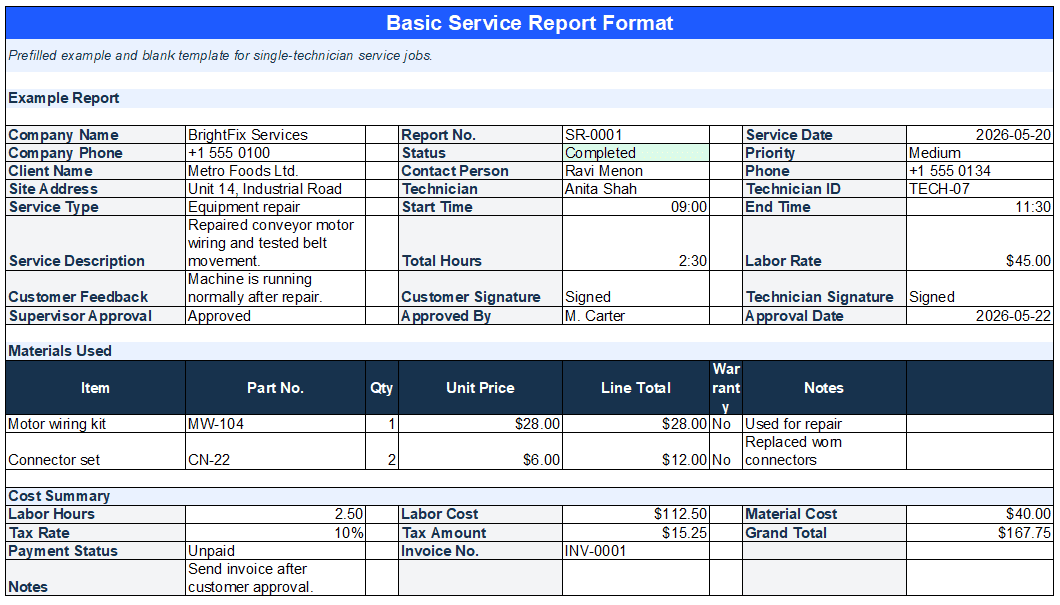
Basic Service Report Format
Best for small service jobs and single-technician work.
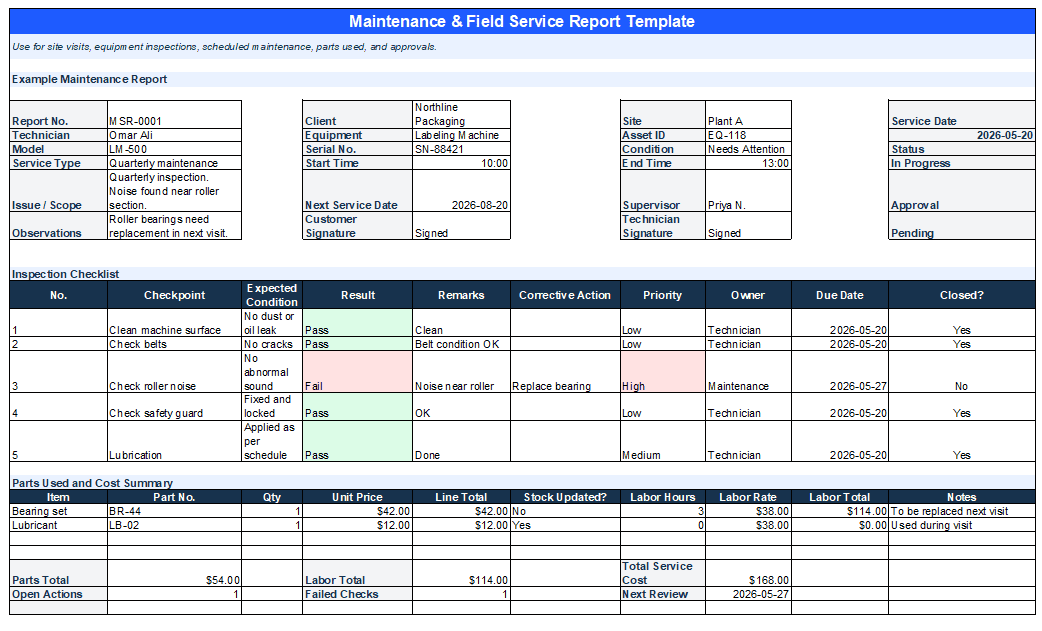
Maintenance & Field Service Report Template
Best for site visits, equipment inspections, and scheduled maintenance.
Multi-Service Report Tracker
Best for monthly reporting.
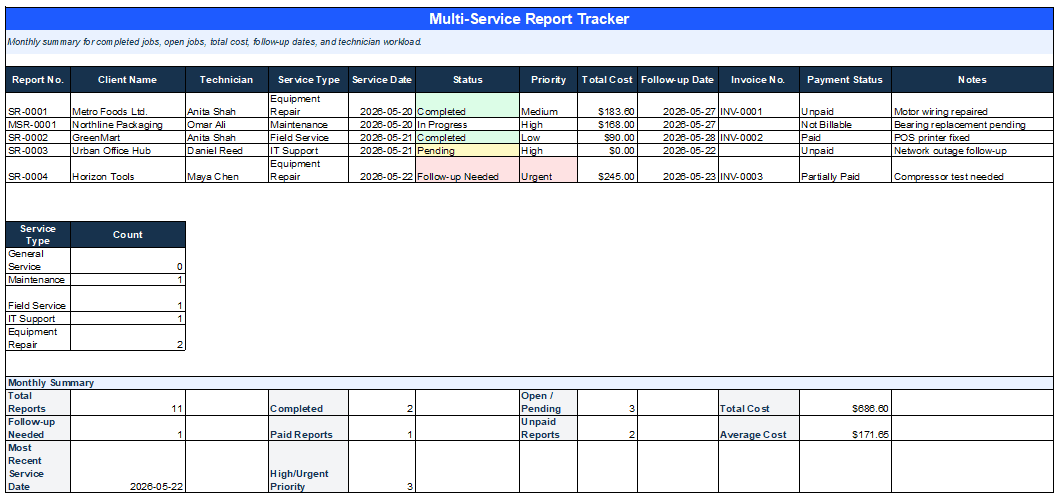
This tracker helps managers see how many jobs were completed, which jobs are still open, and which clients need follow-up.
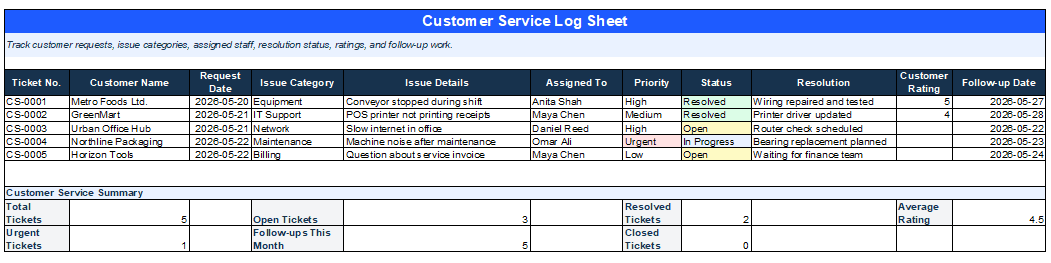
Customer Service Log Sheet
This customer service report format helps support teams record requests, assign work, track resolution status, and review customer feedback.
Best Practices for Managing Service Reports
A template is useful only when the team uses it in the same way:
- Start with one standard format for each service type. Do not let every technician create a separate version. This causes missing fields and makes monthly review harder.
- Review reports every week. Check incomplete records, missing customer signatures, open follow-ups, and repeated equipment issues.
- Store reports in one shared folder. Use a clear file name, such as:
service-report-client-name-report-no-date.xlsx
- Link service reports to billing where possible. Labor hours and spare parts from the report can help create accurate invoices.
- For manufacturing and equipment-heavy businesses, service reports should not stay isolated. They should connect with inventory, production, and purchasing records. For example, if a technician replaces a motor, the spare part should be deducted from stock.
Still Updating Stock Manually After Service Jobs?
Use Excel to start. Move to Kladana when you need to connect service records with inventory, parts, purchases, and production.
FAQs
Here are quick answers to common questions about Excel service report templates.
What Information Should a Service Report Include?
A service report should include client details, service date, technician name, job description, issue found, action taken, materials used, time spent, service cost, customer feedback, and approval signature.
For equipment service, add asset ID, serial number, machine model, and next service date.
Can Excel Service Reports Calculate Cost Automatically?
Yes. Excel can calculate labor cost, material cost, tax, discount, and total service amount.
For example:
=Hours Worked * Hourly Rate
=Quantity * Unit Price
=SUM (Labor Cost + Material Cost)
This reduces manual calculation errors and speeds up billing.
How Can I Customize a Service Report for Different Clients?
Create one master template and adjust fields for each client type. For example, a factory client may need machine ID and spare parts. An IT client may need device ID, issue priority, and resolution status.
Keep core fields the same so reports stay easy to compare.
Is There a Way to Track Multiple Service Reports in One Excel File?
Yes. Use a separate “Monthly Tracker” sheet. Add one row for each service report with report number, client name, service date, technician, status, cost, and follow-up date.
This helps managers track open jobs, completed jobs, revenue, and technician workload.
To Sum It Up
A clear Excel service report helps service teams document work, reduce missing details, and speed up billing.
Use a template that includes:
- client and technician details;
- service description;
- equipment information;
- time log;
- materials used;
- total cost;
- customer feedback;
- approval section.
Excel is enough for many small teams. As the number of jobs, parts, and technicians grows, connect service records with inventory and business management software to avoid manual double entry.