
Payroll day is stressful when overtime sits in messy notes, WhatsApp messages, and half-filled timesheets. One missed break or one wrong “time out” can change the payout. Then the questions start: “Why is my OT lower?” “Why did I get paid extra?” You lose time on checks, and you still feel unsure.
A clear overtime format in Excel fixes that. It turns clock-in and clock-out into real overtime hours and overtime pay, with formulas you can trust. You see problems early, before payroll goes out. You keep approvals and remarks on the same line. You stay ready for audits, even when the month gets busy.
In this guide, you’ll also get ready-to-use overtime templates you can download and edit right away, plus a step-by-step tutorial on how to build the overtime spreadsheet from scratch.
- What is an Overtime Format?
- Why Track Overtime in Excel?
- Key Components of an Overtime Format in Excel
- Excel Formulas for Overtime Calculation
- Free Overtime Format Templates (Excel Download)
- How to Create an Overtime Format in Excel (Step-by-Step)
- Best Practices for Overtime Record Management
- Frequently Asked Questions on Employee Overtime Calculation
- List of Resources
What is an Overtime Format?
An overtime format is a structured sheet that tracks:
- employee working hours
- regular hours vs overtime hours
- overtime rate and overtime pay
- approvals and remarks for payroll records
Teams use it to reduce manual errors and keep payroll records consistent across departments.
Why it matters for payroll accuracy and compliance
If overtime is calculated wrong, you risk:
- underpaying employees
- overpaying wages
- failing an internal audit or compliance check
That’s why many timesheet resources include overtime fields as a standard feature.
Overtime vs regular working hours
Regular working hours are your standard daily or weekly limit (often 8 hours per day). Overtime starts after that limit. Some teams calculate overtime daily, some weekly, and many use both.
Why Track Overtime in Excel?
Excel is still the default tool for many HR, payroll, and admin teams because it is easy to share, easy to customize, and works offline.
Excel can automate calculations with formulas
You can compute overtime with formulas like:
=MAX(0,(MOD(OutTime−InTime,1)−Break)*24−8)
That’s a good starting point. Real sheets also handle breaks and night shifts, so you don’t get negative hours or wrong totals when a shift crosses midnight. Microsoft’s guidance on time calculations and date/time functions helps when you build these formulas.
Excel fits small and medium businesses
If you don’t need a full HR system yet, a well-built employee overtime sheet Excel file is often enough for:
- payroll checks
- overtime cost tracking by department
- monthly overtime register format reports
Key Components of an Overtime Format in Excel
A practical overtime sheet format in Excel usually includes these columns:
✔️ Employee Name / ID — identify each worker
✔️ Department — helps with reporting and cost centers
✔️ Date / Day — daily entry tracking
✔️ Time In / Time Out — attendance data
✔️ Break Duration — deducted from total hours
✔️ Regular Working Hours — policy limit (example: 8 hours)
✔️ Overtime Hours — calculated automatically
✔️ Overtime Rate — pay multiplier (example: 1.5x, 2x)
✔️ Overtime Pay — Overtime Hours * Overtime Rate
✔️ Approval / Signature — supervisor or HR sign-off
✔️ Remarks — reason for OT, shift notes, exceptions
This is the same structure used in many timesheet templates, just focused on overtime.
💡 Tip: Add “OT Type” (Daily / Double / Night / Holiday) to diversify overtime. It makes audits easier and reduces rate mistakes.
Excel Formulas for Overtime Calculation
Below are safe formulas that handle breaks and midnight shifts. The examples assume:
- Time In is in F2
- Time Out is in G2
- Break is in H2 formatted as [h]: mm
- Daily regular hours is 8 (or a cell like Setup! B7)
1) Hours worked (decimal hours), with break + midnight support
=IF(OR (F2=””, G2=””),””, MAX(0,((IF(G2<F2,G2+1,G2)−F2)−IF(H2=””,0,H2))*24))
What it does:
- If Time Out is earlier than Time In, it assumes the shift crossed midnight and adds 1 day.
- It subtracts break time.
- It converts Excel time to hours by multiplying by 24.
This pattern matches common approaches used for time calculations in spreadsheets.
2) Regular hours (cap at 8)
=IF(I2=””,””, MIN(I2,8))
3) Overtime hours
=IF(I2=””,””,MAX(0,I2-8))
4) Overtime pay (rate multiplier)
If OT Hours is K2, Base hourly rate is N2, and Multiplier is M2:
=IF (K2=””,””, K2*N2*M2)
5) OT multiplier from a dropdown list (XLOOKUP)
Create a small table:
- OT Type (Daily OT, Double Time, Night Shift OT, Holiday OT)
- Multiplier (1.5, 2, 1.75, 2)
Then use:
=IF(L2=””,””, XLOOKUP(L2,Setup!$A$11:$A$15,Setup!$B$11:$B$15,””))
Microsoft lists XLOOKUP and date/time functions in its function reference.
Conditional formatting ideas (to catch errors)
- Highlight OT Hours > 2 in yellow
- Highlight Hours Worked > 12 in red
That helps you spot excessive OT and check approvals before payroll.
Pro Tip: Use Ctrl + Shift + ; to enter the current time quickly in Excel.
Month-end totals
Use totals for:
- total OT hours per employee
- total OT pay per employee
- total OT cost by department
In the template workbook, these totals are already built using SUMIFS.
Free Overtime Format Templates (Excel + Google Sheets Download)
Use these templates if you want a ready-to-use overtime sheet format in Excel with formulas already set up. You can fill it daily, export totals for payroll, and keep an overtime register format for audits.
Download the free workbook:
What’s inside (all sheets are in one file)
This free Excel overtime template includes daily, weekly, and monthly sheets in one file.
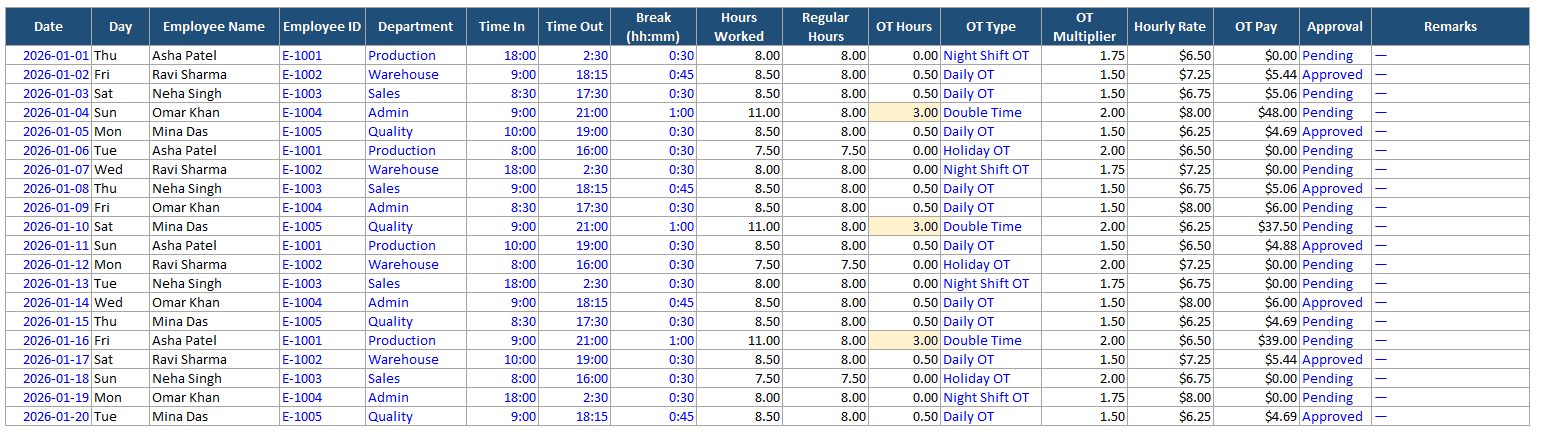
1) Daily OT Tracker (main)
Best for daily tracking. Enter Time In, Time Out, and Break, and the sheet calculates Hours Worked, Regular Hours, Overtime Hours, and Overtime Pay. It also includes OT Type, Supervisor Approval, and Remarks fields.
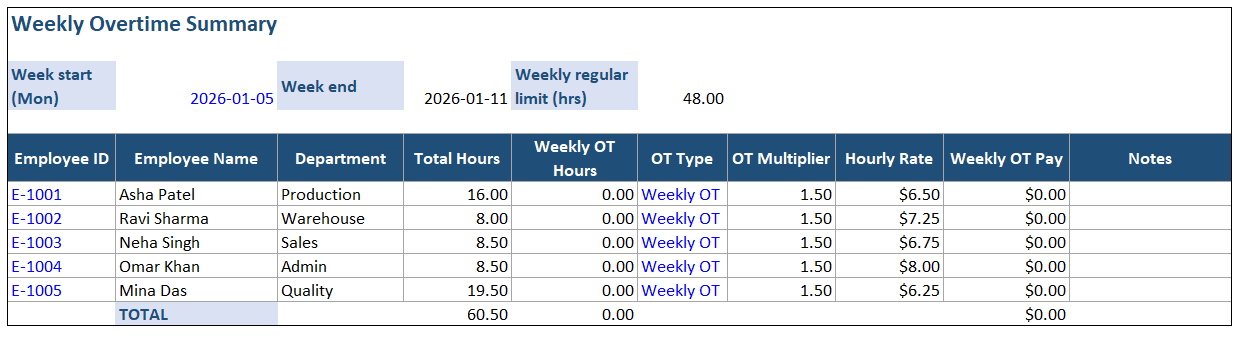
2) Weekly Summary
Best for weekly overtime rules. It totals weekly hours per employee and calculates weekly OT hours based on your set weekly limit. Use it to catch overtime trends before payroll runs.
3) Monthly OT Register
Best for payroll and audits. It generates a clean overtime register format with monthly totals per employee, including total OT hours and total OT pay. It’s designed for printing or saving as a monthly record.
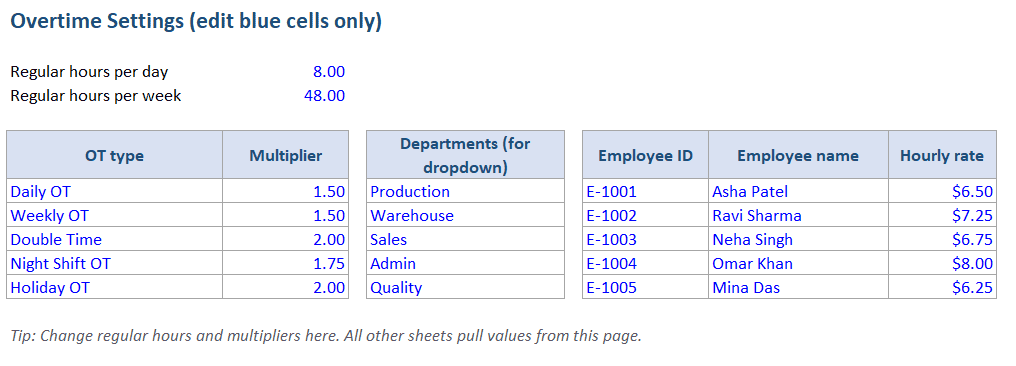
4) Setup
Best for control and consistency. Set your daily regular hours, weekly hours limit, and OT multipliers in one place (Daily OT, Weekly OT, Double Time, Night Shift, Holiday OT). All calculation sheets pull rates from here to reduce mistakes.
5) Instructions
Best for quick onboarding. It explains how to fill the template, what cells you should edit, how to protect formulas, and how to convert the file to Google Sheets.
📖 Browse More Free Templates
If you want to build a full payroll routine around your overtime sheet, these templates help you keep attendance, salary, and monthly records in one place.
- Attendance + Salary Excel Template — useful if you want one sheet for presence codes, paid days, and salary totals.
- Templates Library — browse more ready-to-use Excel templates for finance, inventory, and operations.
How to Create an Overtime Format in Excel (Step-by-Step)
You can build a clean overtime sheet in Excel in under an hour if you set up the structure first and add formulas last. Follow the steps below to get a format that is easy to fill, simple to audit, and safe to reuse every month.
Step 1 — Create your column headers
Use the components list above. Keep input fields on the left and formula fields on the right.
Step 2 — Format time cells correctly Set:
- Time In / Time Out: h:mm
- Break: [h]:mm
- Date: yyyy-mm-dd
If time formats are wrong, formulas return confusing results. Microsoft’s time calculation docs help with correct formatting.
Step 3 — Add formulas for hours and overtime
Start with:
- Hours worked (handles midnight)
- Regular hours cap
- OT hours max
Then add OT pay using multiplier logic.
Step 4 — Add dropdowns for OT type and department
Dropdowns reduce mistakes. Use Data Validation for:
- OT type
- department
- attendance codes
Step 5 — Add totals row and monthly summaries
Use:
- SUM for totals
- SUMIFS for employee totals
- Pivot table (optional) for department OT cost
Step 6 — Protect formula cells
Lock formula columns and allow edits only in input cells.
💡 Tip: Put all settings (regular hours, multipliers, pay period) on one “Setup” sheet. It saves time every month.
Best Practices for Overtime Record Management
Clean overtime records save time during payroll and help protect you in an audit. Introduce these practices to keep your overtime format in Excel consistent.
👌 Log in/out daily. Enter time in and time out on the same day, while the shift details are still fresh. Late entries may cause missing overtime hours, wrong break deductions, and avoidable disputes with employees.
👌 Approve overtime before payroll runs. Set a clear approval rule, such as “no approval = no overtime payout,” and communicate it to managers. Keep the supervisor sign-off on the same row as the overtime entry, so that you can verify it fast during payroll checks.
👌 Back up templates. Save one copy per pay period (month or week) and do not overwrite it later. This creates a clean history you can use for audits, employee questions, and payroll rechecks.
👌 Control edits. Protect formula cells so nobody can accidentally break the overtime calculation Excel formula logic. Use dropdown lists for fields like OT type and department to reduce typos and keep reporting consistent.
👌 Standardize OT types. Use the same list of overtime categories in every sheet, like Daily OT, Weekly OT, Double Time, Night Shift, and Holiday OT. Do not reuse the same rate for different OT types unless your policy says so, since it leads to wrong payouts and plenty of stressful corrections.
🚀 If your team has moved past spreadsheets, using a system that connects attendance, payroll inputs, and production planning can reduce rework. Kladana is often used by small manufacturers and distribution teams to keep operations data in one place (stock, production, sales, payrolls).

Frequently Asked Questions on Employee Overtime Calculation
These are the questions HR and payroll teams ask most often when they set up an overtime format in Excel. Use the answers below to fix common formula issues and keep your overtime sheet clear and correct.
How can Excel automatically calculate overtime hours?
Use a worked-hours formula, then subtract regular hours:
Hours worked:
=IF(OR(In=””,Out=””),””,MAX(0,((IF (Out<In,Out+1,Out)−In)−IF(Break=””,0,Break))*24))
OT hours:
=MAX(0,HoursWorked-RegularHours)
Support references for time math and formatting are on Microsoft Support.
What’s the formula for double-rate overtime pay?
If OT hours are K2 and hourly rate is N2:
=K2*N2*2
Can Excel overtime formats handle night shifts?
Yes. Use the midnight-safe pattern:
IF(Out<In,Out+1,Out)−In
Then apply a night shift multiplier for OT pay. This pattern is for time-only inputs; if you store full date+time, subtract directly.
How do I track multiple employees’ overtime in one sheet? Use one row per employee per day, then use:
- SUMIFS by Employee ID for monthly totals
- a summary sheet for weekly OT and monthly overtime register output
How to link overtime with payroll calculations?
Add Base Hourly Rate and OT Multiplier columns. OT Pay becomes a payroll input. Some templates also add taxes and deductions.
Can Excel highlight excessive overtime automatically?
Yes. Use conditional formatting rules like:
- OT hours > 2
- Hours worked > 12
How is overtime compliance handled in India?
For factories, Section 59 of the Factories Act, 1948 says overtime applies when work exceeds 9 hours a day or 48 hours a week, and wages should be at twice the ordinary rate.
Rules can vary by worker category and by state laws (for shops and establishments), so confirm local rules for your business type.
What’s the best way to prevent formula tampering?
- Lock formula cells
- protect the worksheet
- use dropdowns for key fields (OT type, department, attendance codes)
- keep settings in one Setup sheet.
Is there a free Excel overtime register format?
Yes. The download workbook includes a Monthly OT Register sheet that works as an overtime register format.
Can I use Excel online or in Google Sheets for OT tracking?
Yes. Upload the .xlsx to Drive and save it as a Google Sheets file. Many template providers publish both formats because teams want browser access.
List of Resources
- Learn. Microsoft. Office VBA References — Calculate Elapsed Time
- Learn. Microsoft. Office VBA References — Date/Time Data Type
- Support. Microsoft — Add or Subtract Time in Excel
- India Code — Factories Act, 1948, Section 59. Extra Wages for Overtime
Read‑alikes
Job Work Bill Format in Excel: Templates, Guide & Best Practices
Free Labour Contractor Bill Format in Excel: Templates and Hot to Create Yours
Business Operations Report: How to Prepare and Free Templates
How To Create a Quotation Format In Excel, That’s GST Ready, Error-Free, and Built for Scale