Stock can look «available» on paper while the batch is not usable. A quality inspection report format in Excel helps you record what you checked, compare results with specs, and make a clear decision: accept, hold, or reject.
In this guide, you’ll get ready-to-use templates (final, in-process, supplier), plus simple steps to build a QC inspection format Excel file with dropdowns, pass/fail logic, and a clean PDF you can share for audits or supplier follow-ups.
- What is a Quality Inspection Report?
- Why Use Excel for Quality Inspection Reports?
- Key Elements of a Quality Inspection Report
- Types of Quality Inspection Reports
- Excel Templates for Quality Inspection Reports
- How to Create a Quality Inspection Report in Excel
- Best Practices for Using Excel QC Reports
- Download Free Templates
- Frequently Asked Questions on Quality Inspection Report Template in Excel
What is a Quality Inspection Report?
A quality inspection report is a record that shows what you inspected, what requirements you checked against, and whether the item or batch meets them. In quality terms, inspection is a verification activity: you measure, examine, test, or gauge product characteristics and compare results with specified requirements to confirm conformity.
In day-to-day operations, the report also links results to the business context. It usually includes purchase order and vendor details, what was received, what method was used, the test result or observation, a clear pass/fail decision, and a place to describe nonconformance and sign off.
Teams use these reports to:
- accept goods into stock (or place them on hold),
- stop defects earlier in production,
- check products before shipment,
- prove what happened during audits,
- share issues with suppliers using the same format every time.
Inspection checklist vs inspection report (quick difference)
- Inspection checklist = the list of questions/criteria you must verify (often Yes/No/N/A). It helps inspectors stay consistent.
- Inspection report = the evidence + results: measurements, observations, pass/fail, defects, decision, and sign-off. It is what you store and share after the check.
Why Use Excel for Quality Inspection Reports?
Excel is a good choice when you need a quality inspection report format in Excel that your team can start using today. QC teams usually share spreadsheets with production and procurement, so the setup cost is low. You can also keep one file per product line or supplier and still stay consistent.
Here’s what Excel does well for QC:
- Fast setup and edits. Add or remove checks, change ranges, or switch units (mm/inch) without rebuilding the whole system.
- One structure across teams. A shared QC inspection format Excel file helps different inspectors record results the same way. It also makes it easier to compare batches over time.
- Less manual work with simple automation. You can use formulas to count pass vs fail, calculate defect rate, and trigger a final decision (Accept / Hold / Reject). Conditional formatting can highlight failures so nobody misses them.
- Reusable templates. With a quality inspection checklist Excel sheet and a report sheet in the same workbook, you can copy the file per inspection and keep the layout stable.
- Easy supplier communication. Many teams send a product inspection report template (PDF export) to suppliers with marked failures and notes. Excel makes it easy to export and attach evidence.
Excel has limits. Version control can get messy if people email different copies, and it’s harder to track corrective actions across many reports. That’s why teams often start with Excel, then connect inspection data to an ERP/QMS later when volume grows.
Key Elements of a Quality Inspection Report
A good report is easy to fill, easy to review, and hard to misread. These are the fields that make it work in real inspections.
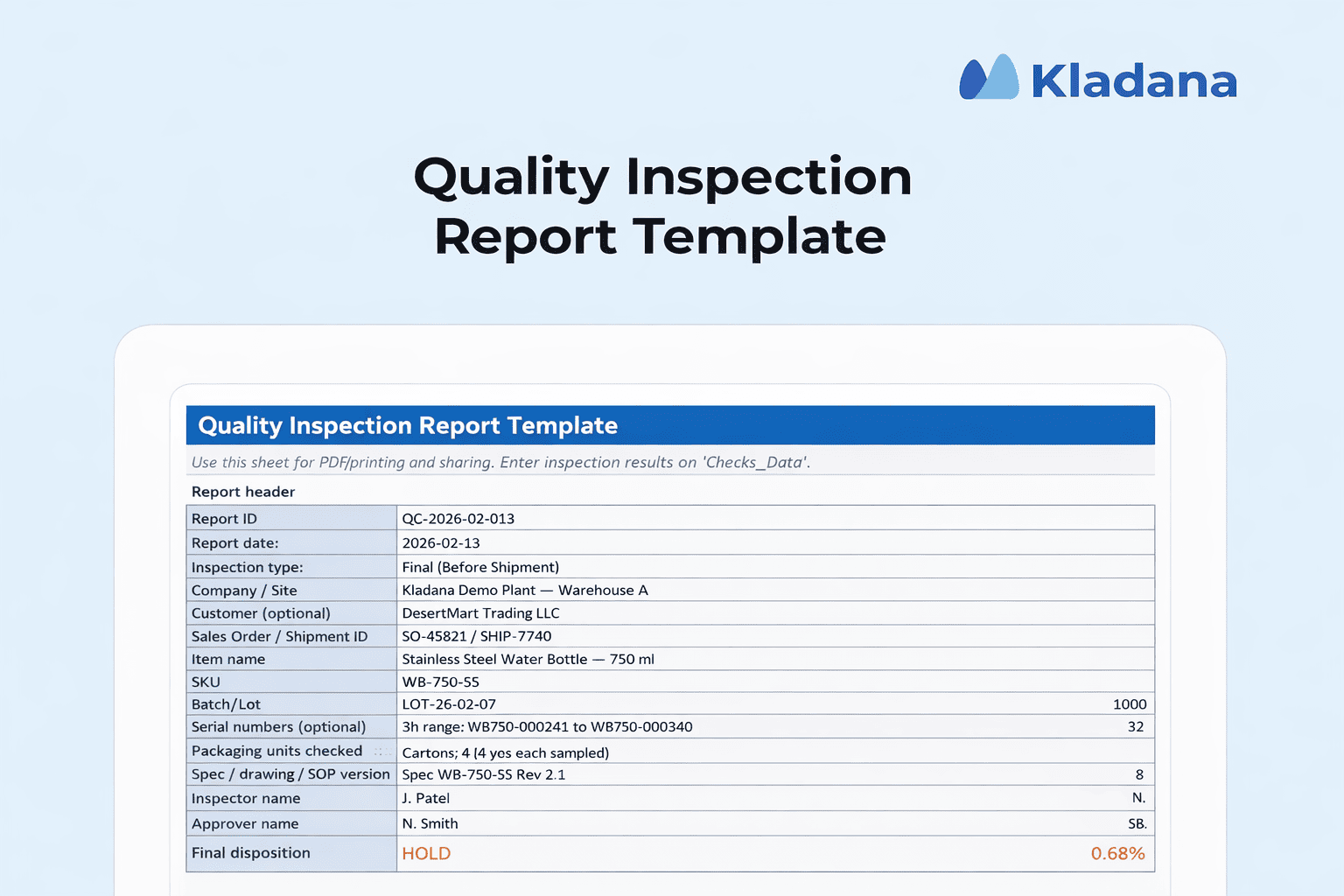
1) Report header and traceability
Use this block to tie results to one delivery, batch, or production run.
- Report ID (unique number)
- Date and time of inspection
- Inspection type: Incoming / In-process / Final
- Site or warehouse / line / work center
- Related document numbers: Purchase Order, GRN (Goods Received Note), Production Order, Sales Order, Shipment ID
2) Product and batch details
This block answers “what exactly did we inspect?”
- Item name and SKU
- Batch/lot number, serial numbers (if used)
- Supplier name and supplier batch reference
- Quantity received/produced
- Sample size (how many pieces you checked)
- Drawing/spec version
3) Inspection plan and method
This block makes the result defensible during audits and supplier disputes.
- Sampling method (100% check or sample check)
- Tools used (caliper, scale, gauge, multimeter, visual check)
- Test conditions (temperature, machine settings, test duration) when relevant
- Acceptance rule (pass/fail rule, tolerance range, defect limit)
4) Inspection criteria table
This is the core of the report. Each row is one check. Recommended columns for an Excel-friendly layout:
- Parameter / check name (e.g., “Hole diameter”)
- Spec / requirement (e.g., 10.00 mm)
- Tolerance (e.g., ±0.10 mm) or Min/Max
- Measured value (s) (single value or multiple samples)
- Result: Pass / Fail / N/A (drop-down)
- Defect type (wrong size, scratch, dent, short fill, label mismatch)
- Severity (Critical / Major / Minor) if you use it
- Notes (short reason or observation)
5) Defects summary and totals
This block helps you decide fast and track trends later.
- Total checks performed
- Total pass / fail
- Defect count by type
- Defect rate (%) based on sample
- Final disposition: Accept / Accept with concession / Hold / Reject / Rework
6) Evidence and attachments
If you ever need to prove what happened, this block pays off.
- Photo links or file names
- Test report numbers (lab reports, COA, material certificates)
- Marked-up drawings or screenshots
7) Actions and sign-off
A report without a next step creates repeat issues.
- Immediate action (quarantine, return, rework, sort)
- Corrective action request (CAR/NCR ID) if raised
- Responsible person and due date
- Inspector name and signature
- Approver name and signature (QC lead / production / procurement)
Types of Quality Inspection Reports
Often teams use the following report types. The structure stays similar, but the fields and checks change based on the goal.
Incoming inspection report (raw materials / supplier deliveries)
Use this when goods arrive and you must decide what happens next: receive into stock, quarantine, return, or rework.
✔️ What to include:
- PO number, supplier name, delivery note number
- Item, SKU, batch/lot, quantity received
- Sample size and sampling method (sample vs 100% check)
- Visual checks (damage, rust, contamination, label accuracy)
- Spec checks (dimensions, weight, grade, colour)
- Certificate details if needed (COA number, test report)
- Final decision: Accept / Hold / Reject
- Supplier-facing notes (clear defects list + photos)
👷 Typical users: procurement, warehouse, QC at receiving.
📖 Recommended Reads
Incoming Inspection Report in Excel. If you inspect goods at receiving (raw materials, components, supplier deliveries), use our incoming inspection guide. It includes a free Excel template you can copy and start using right away.
In-process inspection report (during production)
Use this during manufacturing to catch issues before you waste time and materials. It works well for critical steps: cutting, welding, painting, assembly, filling, packing.
✔️ What to include:
- Production order number, line/workstation, shift
- Process step name (Operation 20: drilling)
- Machine or tool ID, settings (if they affect quality)
- Operator name (optional)
- Measurements by sample number (1–5–10 pieces)
- Trend notes (values drifting up/down)
- Immediate action (stop line, adjust settings, recheck)
👷 Typical users: production supervisors, in-process QC, shop-floor teams.
Final inspection report (before shipment)
Use this before dispatch to confirm product quality and packaging. It also protects you in disputes with customers and distributors.
✔️ What to include:
- Sales order/shipment ID, customer (optional), destination
- Quantity inspected, cartons checked
- Functional checks (as applicable)
- Packaging and labeling checks (barcodes, batch, MFG/EXP dates)
- Defects list by severity (critical/major/minor if you use it)
- Acceptance decision and release sign-off
- Photo appendix (defects, packaging, pallet condition)
👷 Typical users: QA/QC manager, dispatch team, third-party inspectors.
💡 Tip for your Excel workbook: keep one “Master Template” with three tabs: Incoming, In-Process, Final. Use the same column names across tabs. It makes summaries and pivot tables easier later.
Excel Templates for Quality Inspection Reports
A good template saves time because it removes “blank sheet” work. It also keeps inspections consistent across shifts and suppliers. Below are three Excel layouts you can use as excel quality control templates. Each one fits a different inspection goal.
1) Simple QC checklist template (fast checks)
Best for: quick incoming checks, packaging checks, routine line checks
File structure: 1 sheet
Columns
- Check category (Visual / Packaging / Dimensions / Documents)
- Check item (what to verify)
- Requirement (short rule)
- Result (Pass / Fail / N/A) — dropdown
- Notes
- Photo ref (optional)
Use this when you need speed and clear pass/fail, without detailed measurements.
2) Detailed product inspection report template (measurements + decision)
Best for: product audits, final inspections, regulated products
File structure: 2–3 sheets
Sheet A — Report header
- Report ID, date, inspector
- Inspection type (Incoming / In-process / Final)
- Item/SKU, batch/lot, quantity, sample size
- Spec version / drawing number
- Final disposition (Accept / Hold / Reject)
Sheet B — Checks & measurements
- Parameter
- Spec / Min / Max (or tolerance)
- Sample 1–10 values (or “Measured Value” if single)
- Result (Pass/Fail)
- Defect type / severity (optional)
- Notes
Sheet C — Summary
- Total checks, total fails
- Defect count by type
- Defect rate %
- Auto “overall status” based on your rule
This is the main product inspection report template. It fits audits and supplier discussions because it shows the numbers behind the decision.
3) Supplier inspection report template (supplier-facing, easy to share)
Best for: reporting supplier issues, returns, corrective actions
File structure: 2 sheets + PDF export
Sheet A — Supplier report (print-friendly)
- Supplier name, PO, delivery note
- Item, batch/lot, received qty, inspected qty
- Defects list (what failed + where found)
- Photos table (file name / link)
- Decision + required next step (replace / sort / rework / credit note)
Sheet B — Corrective action log (lightweight)
- NCR/CAR ID (internal reference)
- Root cause (short)
- Containment action
- Corrective action
- Owner + due date
- Status
This layout supports a clean email to a supplier and keeps action items in the same file. It also matches the intent behind supplier inspection report excel searches.
How to Create a Quality Inspection Report in Excel
You can build a clean QC inspection format Excel file in 30–60 minutes. Start simple, then add automation.
Step 1: Create the workbook structure
Create a file with these sheets:
- Report_Header (one inspection = one header)
- Inspection_Table (all checks and results)
- Summary (totals + final decision)
Optional: Lookup_Lists (drop-down values)
💡 Tip: Save a blank “Master Template” and copy it for every new inspection.
Step 2: Add the Report Header fields
On Report_Header, create labeled fields (one per cell):
|
|
Keep this page print-friendly. It helps when you export to PDF.
Step 3: Build the inspection table layout
On Inspection_Table, use these columns:
| A. Check category B. Parameter/check name C. Requirement (text) D. Unit E. Min F. Target (optional) G. Max H. Measured value (or Sample 1) |
I. Sample 2 (optional) J. Sample 3 (optional) K. Result (Pass/Fail/N/A) L. Defect type M. Severity (Critical/Major/Minor) N. Notes O. Photo ref/link |
If you inspect many samples, add Sample 1–10 and keep Result as an auto field.
Step 4: Add drop-down lists (Data Validation)
This step turns your file into a real quality inspection checklist Excel tool.
Create a Lookup_Lists sheet:
- ResultList: Pass, Fail, N/A
- SeverityList: Critical, Major, Minor, N/A
- InspectionType: Incoming, In-process, Final
Select the Result column (K), go to:
- Data → Data Validation → List
- Source: your ResultList range
Do the same for Severity and Inspection type.
Step 5: Auto-calculate Pass/Fail for measured checks If you use Min/Max, Excel can set Pass/Fail based on the measured value.
Example (single measured value in H2, Min in E2, Max in G2):
Result (K2):
=IF(H2=””,””,IF (OR (H2<$E2,H2>$G2),”Fail”,”Pass”))
If a check is not numeric (visual), keep Result manual via the drop-down.
If you have multiple samples (H2:J2), set Fail if any sample is out of range:
=IF(COUNT(H2:J2)=0,””,IF (OR (MIN(H2:J2)<$E2,MAX(H2:J2)>$G2),”Fail”,”Pass”))
Step 6: Highlight failures with conditional formatting
Select the Result column (K: K), then:
Home → Conditional Formatting → Highlight Cells Rules → Text that Contains → “Fail”
Also highlight critical severity:
- Apply formatting when Severity = “Critical”
This makes reviews fast. A QC lead can scan a page and see issues at once.
Step 7: Calculate defect totals and defect rate
On Summary, pull totals from Inspection_Table.
Assume Result is in K2:K200.
- Total checks (exclude blanks):
=COUNTA(Inspection_Table! B2:B200)
- Total Fail:
=COUNTIF(Inspection_Table! K2:K200,”Fail”)
- Total Pass:
=COUNTIF(Inspection_Table! K2:K200,”Pass”)
If you want defect rate based on checked rows:
=IFERROR(COUNTIF(Inspection_Table! K2:K200,”Fail”)/COUNTIF(Inspection_Table! K2:K200,”<>”),0)
Format as %.
Step 8: Set a clear acceptance rule (overall status)
Define a simple rule so every inspector applies the same logic.
Examples:
- Reject if any Critical defect exists
- Hold if Fail count > 0 but no Critical
- Accept if Fail count = 0
If Severity is in M2:M200 and Result in K2:K200:
=IF(COUNTIFS(Inspection_Table! M2:M200,”Critical”,Inspection_Table! K2:K200,”Fail”)>0,
“REJECT”,
IF (COUNTIF(Inspection_Table! K2:K200,”Fail”)>0,”HOLD”,”ACCEPT”))
Put this in Summary, then link it back to Report_Header “Final decision”.
Step 9: Protect formulas (so users don’t break the template)
- Select input cells (Measured values, Notes, drop-downs) → Format Cells → Protection →Unlocked
- Keep formula cells locked
- Review → Protect Sheet (use a password if you want)
This answers a common need for excel quality control templates: teams want safe templates.
Step 10: Export the supplier version to PDF
For supplier sharing:
- Use a clean “Supplier Report” sheet (print layout)
- File → Export → Create PDF
This keeps formatting stable and avoids “your columns moved” problems.
Best Practices for Using Excel QC Reports
Excel works best for QC when you treat it as a controlled system, not a random spreadsheet. These practices help you keep inspections consistent, make audits easier, and reduce arguments with suppliers.
Standardize one master format
Use one “Master Template” for each report type (incoming, in-process, final). Keep:
- the same column names,
- the same pass/fail logic,
- the same defect types and severity labels.
This makes trend tracking possible. It also prevents “one inspector uses OK/NG, another uses Pass/Fail.”
Define acceptance rules in writing
Before you roll the file out, set clear rules such as:
- what counts as a critical defect,
- when you reject vs hold vs accept with concession,
- how you handle re-inspection.
Put the rule on the Summary sheet so it’s visible in every report.
Use version control (so teams don’t work in old files)
Excel QC reports fail when people send “final_v7_revised2.xlsx” by email.
Use a simple approach:
- store templates in one shared folder,
- keep a version number in the header (Template v1.3),
- restrict editing of the master template to one owner.
If you need supplier-specific variants, store them as separate templates with the supplier name in the file.
Train inspectors for repeatable results
Your template can be perfect and still produce weak data if inspectors interpret checks differently.
Do quick training on:
- how to measure (same tool, same method),
- how to record values (units, decimals),
- what counts as a defect (with photo examples),
- how to write notes (short, factual, no эмоции).
Capture evidence while you inspect
Add a “Photo ref/link” column and use it every time there is a failure. It saves time later because you don’t need to recreate proof.
If you have certificates (COA/test reports), record the document number in the header and add a file link.
Keep reports searchable
Use consistent IDs so you can find reports later:
- Report ID format: QC-YYYY-MM-###
- Use the same SKU and batch formats as purchasing/warehouse teams
This matters during audits and during supplier claims.
Know when Excel stops being enough
Excel is fine for a low-to-medium volume of inspections. It becomes risky when:
- several inspectors work at once,
- you need real-time approval and quarantine status,
- you must link inspections to stock movement and supplier performance automatically.
At that stage, teams usually connect inspection results to ERP/QMS workflows so failed lots don’t enter available stock and corrective actions don’t get lost.
Download Free Templates
Below are three free files you can use as a starting point. Each template matches a common inspection workflow and supports the keyword intent behind quality inspection report format in excel, quality inspection checklist excel, and supplier inspection report excel.
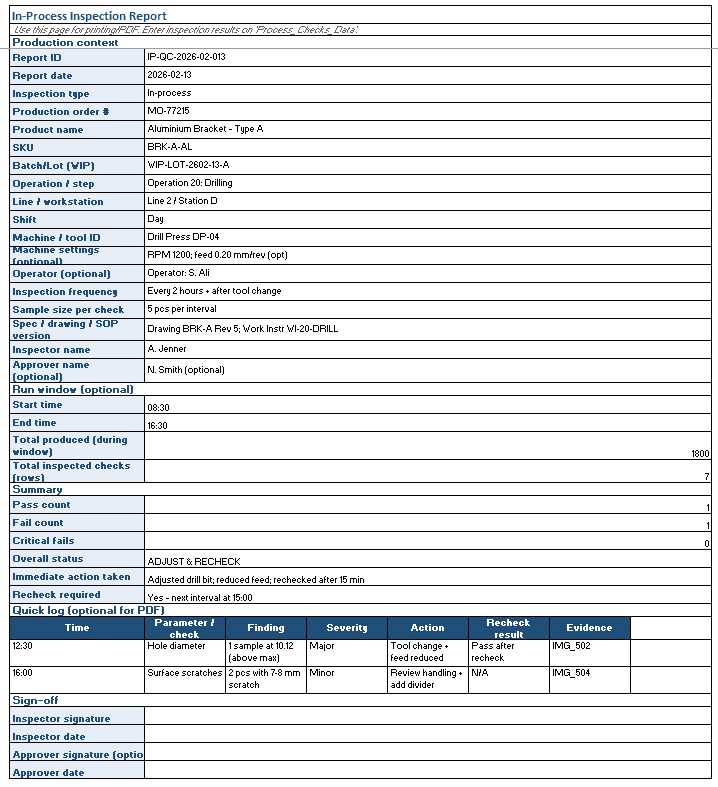
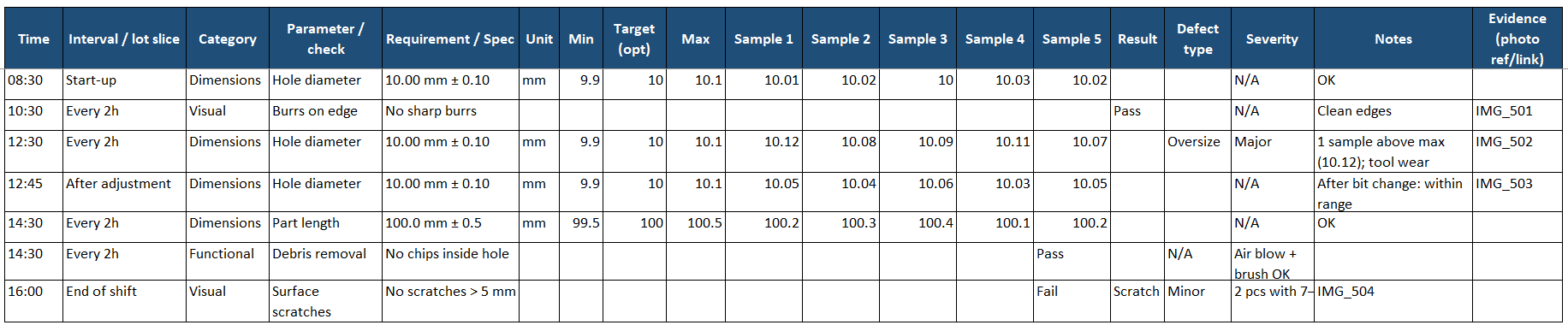
1) In-process inspection report (Excel+Google Sheets)
Use it during production to catch issues early and document adjustments.
What’s inside:
- report header with production context (production order, operation/step, line/workstation, shift, machine/tool ID)
- checks table with time/interval tracking and sample fields (up to 5 samples)
- Min/Max ranges with auto Pass/Fail
- severity + notes + evidence (photo/file ref)
- summary block with OK / Adjust & recheck / Stop & escalate
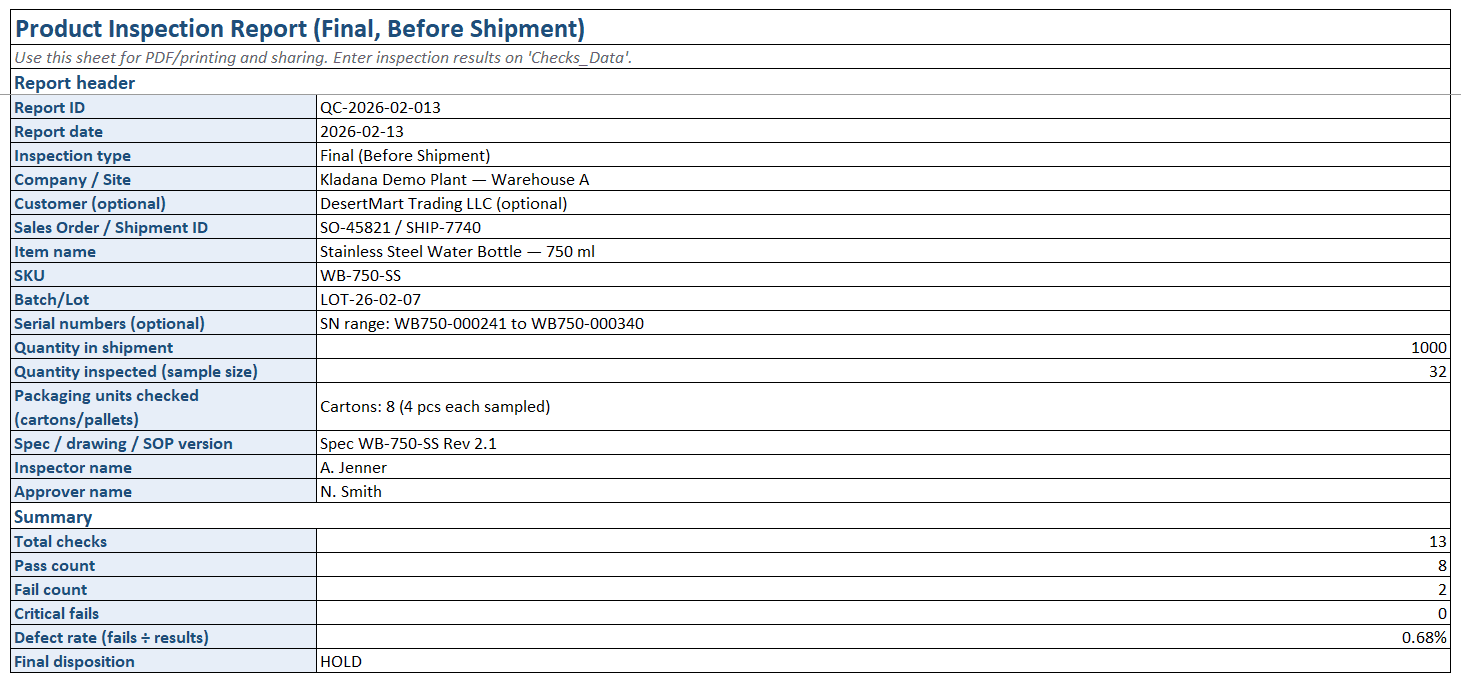
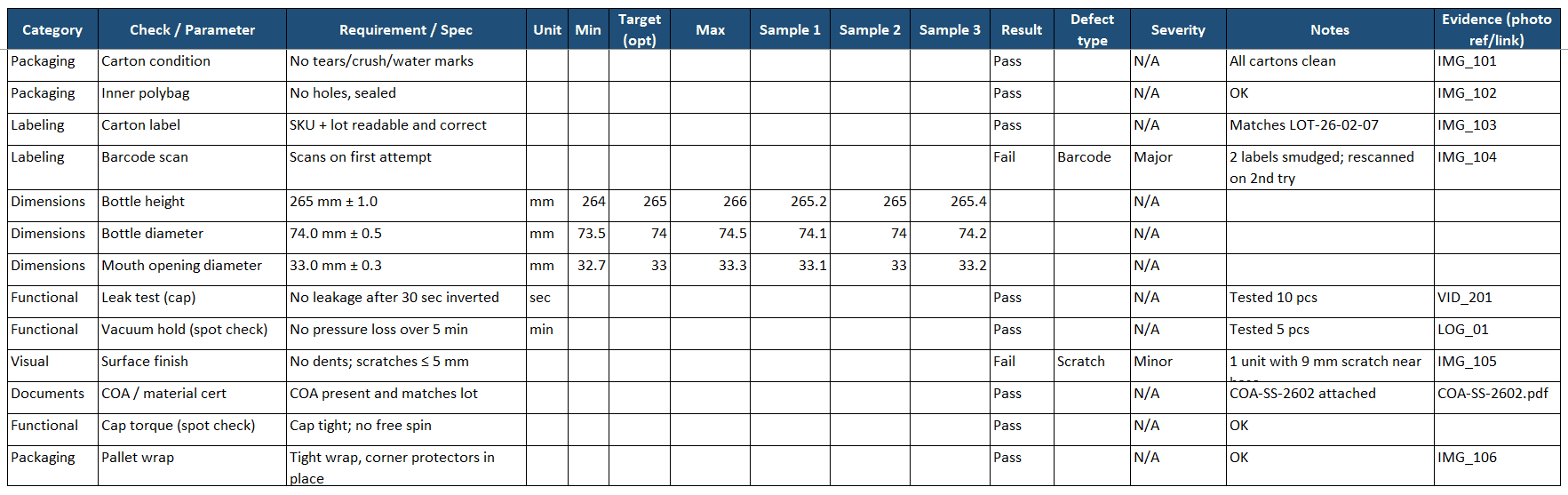
2) Product inspection report — final (Excel+Google Sheets)
Use it before shipment to approve, hold, or reject a batch.
What’s inside:
- print/PDF-ready report page (shipment details, batch/lot, sample size, sign-off)
- checks data sheet with categories, specs, Min/Max, samples, auto Pass/Fail
- summary totals (pass/fail, defect rate) + final decision Accept / Hold / Reject
- evidence field (photo/file ref) for failed checks
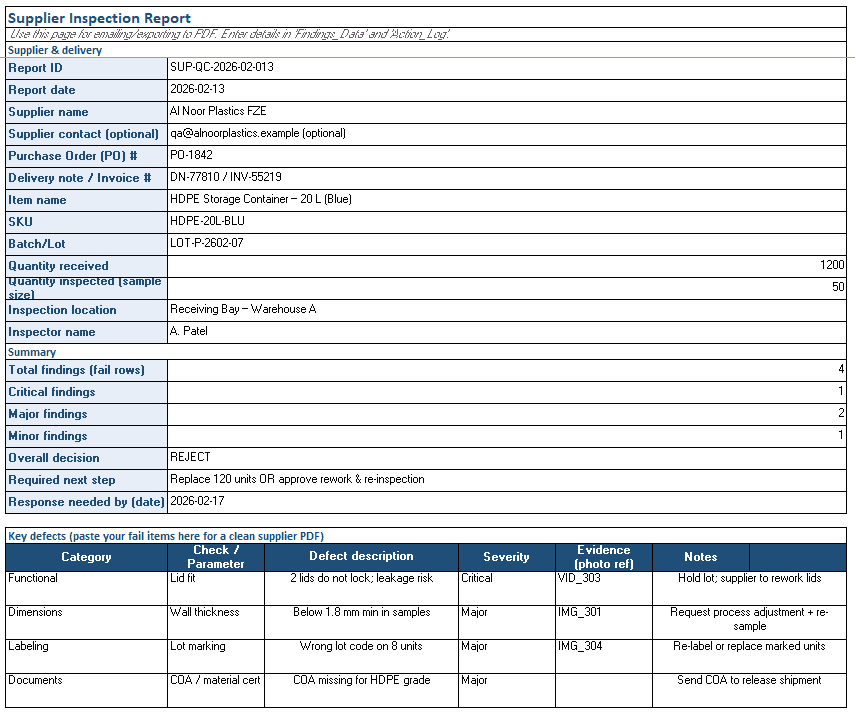
3) Supplier Inspection Report + Corrective Action Log (Excel+Google Sheets)
Use it when you need to send a clear report to a vendor and track follow-up.
What’s inside:
- supplier-facing summary page (print/PDF layout)
- defects list with required action
- action log (owner, due date, status)
How to use the templates
- Make a copy of the master file.
- Fill the header first (SKU, batch/lot, PO, sample size).
- Complete checks row by row. Attach photo refs for failures.
- Review the Summary and confirm the final decision.
- Export the supplier-facing sheet to PDF when needed.
Frequently Asked Questions on Quality Inspection Report Template in Excel
Here are a few quick answers to the most common questions about building and using a quality inspection report format in Excel.
What is included in a quality inspection report?
Most reports include item and batch details, inspection criteria, results (pass/fail and measurements), defect notes, the final decision, and sign-off. A strong report also links to evidence (photos, certificates, test reports) and records the next step (hold, return, rework).
Can Excel be used for automated QC reporting?
Yes. You can automate pass/fail results with Min/Max checks, count defects with COUNTIF, calculate defect rate, and set an overall Accept/Hold/Reject status.
The nuance: Excel doesn’t “automate” the inspection itself. If readings are coming from calipers, test rigs, or a QC app, Excel only becomes automated if you import that data.
How do I share inspection reports with suppliers?
Use a supplier-facing sheet with a clean layout: item, batch/lot, inspected quantity, defect list, photos, and required next step. Export to PDF so the layout does not change. Keep the Excel file for internal tracking.
How do you handle tolerances and acceptable ranges?
Store tolerance as Min and Max (or Target + tolerance). Then compare the measured value to the range. If the value is below Min or above Max, mark it Fail. This is the simplest structure for Excel logic and reduces mistakes.
What is the difference between an inspection checklist and an inspection report?
A checklist is the list of checks you must perform. A report is the recorded result of those checks, plus measurements, defects, final decision, and sign-off. A checklist helps consistency; a report provides evidence.
How do I include corrective actions or nonconformance findings?
Add a section (or a second sheet) with:
- NCR/CAR ID
- defect description
- containment action (what you did now)
- corrective action (what prevents repeat)
- owner, due date, status
Can I protect the template so users can’t alter formulas?
Yes. Unlock only input cells (measured values, dropdown results, notes), keep formula cells locked, then protect the sheet. This keeps pass/fail logic and totals intact.
How do I count total pass vs fail?
Use COUNTIF on the Result column:
- Pass: =COUNTIF(ResultRange,”Pass”)
- Fail: =COUNTIF(ResultRange,”Fail”)
You can also count Critical fails with COUNTIFS if you track severity.
How do I tailor the template to a supplier vs in-house inspection?
For suppliers, keep the report short and clear: defect list, evidence, and required action. For in-house, keep more operational fields: production order, line, operator, machine settings, and recheck steps.
How do I export or share the report for audits?
Keep one PDF per inspection (signed if needed) and store it with the related PO/production order records. In Excel, use a stable report ID and file naming rule (example: QC-2026-02-012_SKU123_BatchA17.pdf).