If orders live in WhatsApp chats, phone calls, and a notebook, mistakes become normal: missing items, double bookings, and “Where is my order?” messages you can’t answer quickly.
Digital order tracking puts every order in one place. You can search it, update statuses from “Received” to “Delivered,” and keep a clean order history.
In this guide, you’ll set up a simple order tracking system step by step. You can start small, keep using your phone, and still get an organized order dashboard.

- Why Manual Orders Fail Over Time
- Step 1 — Choose Your Digital Tool/Platform
- Step 2 — Map Your Current Order Process
- Step 3 — Begin Inputting Orders Digitally
- Step 4 — Add Order Statuses & Notifications
- Step 5 — Keep Order History Clean & Searchable
- Step 6 — Handle Cancellations, Returns, Edits
- Why Kladana Makes This Transition Easy
- Frequently Asked Questions on Digital Order Tracking
Why Manual Orders Fail Over Time
Manual order taking can work for a while. It breaks once you have repeat customers, more items, or more than one person handling orders.
An order management process has many steps: order placement, inventory check, packing, shipping, delivery, and returns. When these steps sit in different chats and pages, small gaps begin to pile up and turn into lost revenue.
Lack of order history and traceability
❌ With messenger or notebook orders, you can’t answer basic questions fast:
- What did this customer order last time?
- Was it paid, packed, shipped?
- Which items were replaced or removed?
- Which courier got it?
✔️ A digital log gives you order history in seconds: search by customer name, phone, order ID, SKU, date, or status.
☕ Small example (café):
A customer calls: “Repeat my last order, but no sugar.” In WhatsApp, you scroll for 10 minutes. In a digital order tracking list, you open their order history and copy the last order in two clicks.
Errors, miscommunication, and duplicates
❌ Manual orders often fail for one simple reason: the same order data is rewritten many times.
Phone → notes → message to packer → message to courier → message to customer
Each rewrite creates risk:
- wrong quantity (2 becomes 12)
- wrong variant (size M vs L)
- missing address detail
- duplicate order (two people confirm the same chat)
- “silent edits” (customer changes the order, old version still gets packed)
✔️ A basic order tracking system reduces rewrites. One order entry becomes the source for packing, delivery, and customer updates.
🕯️ Small example (maker business):
You sell candles. A buyer changes scent after payment. In chat, the change gets buried. In a digital order workflow, you update the order, add a note (“changed scent at 14:10”), and the packer sees the latest version.
Step 1 — Choose Your Digital Tool/Platform
You don’t need “big software” on day one. Start by choosing your first tool level. Pick the simplest option that still solves your main pain.
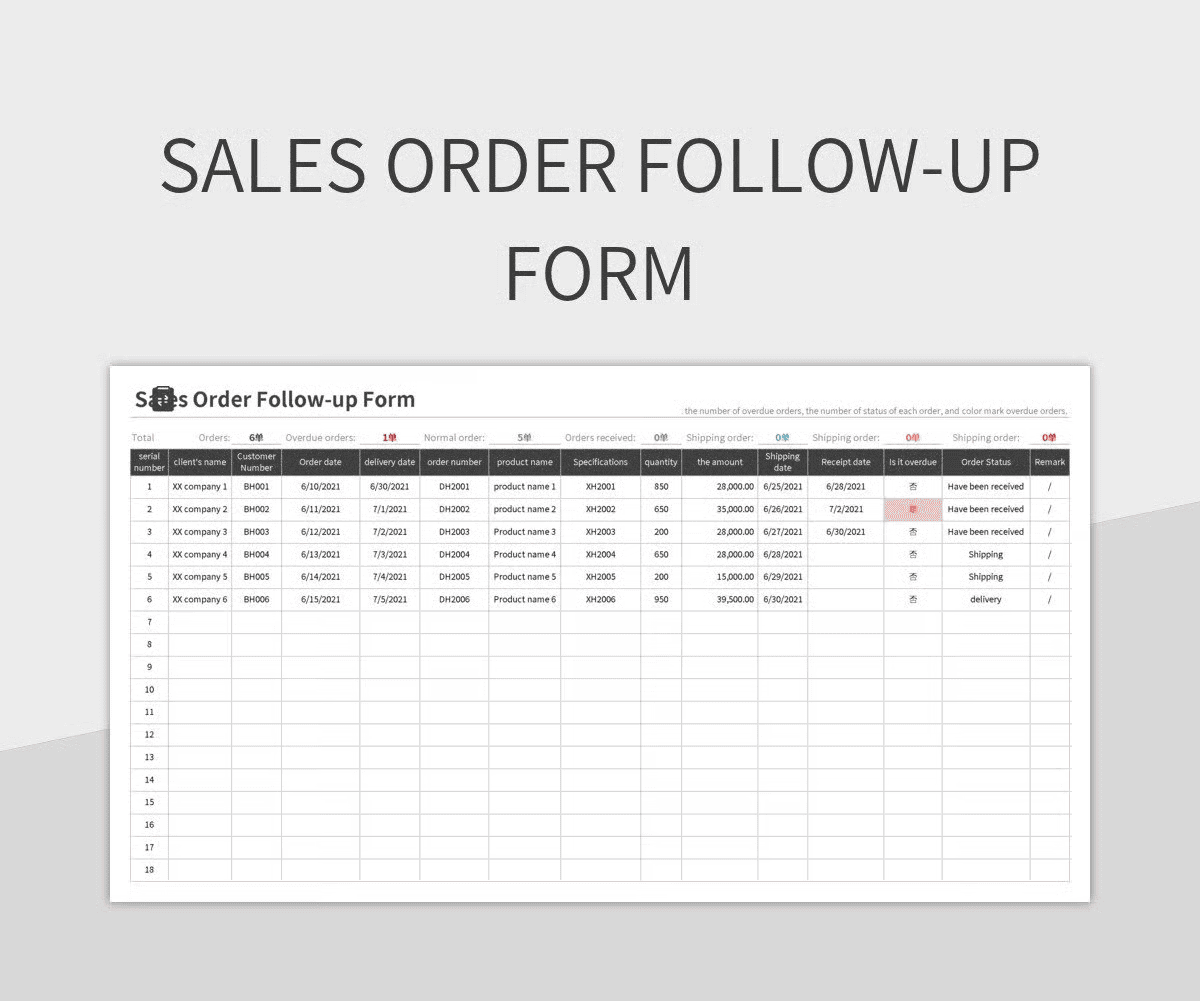
Level 1 Spreadsheet (fastest start)
What you get:
- One order log (one row = one order)
- Basic search and filters
- Simple order status updates (dropdown)
Watch-outs:
- People forget to update the status
- No automatic order notifications
- Harder to manage with multiple sales channels
💡 Good choice if: you want an order tracking setup today and you’re fine with manual updates.
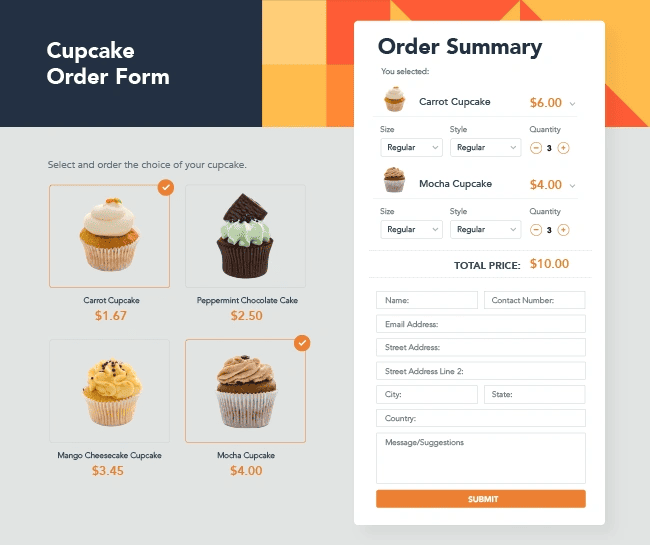
Level 2 Simple order form + list (still easy, fewer errors)
Best if orders come from calls and chats and you want to stop rewriting details.
How it works:
- You fill a short order entry form on phone/tablet/PC
- Each submission creates a clean order record
- You manage orders from one list (your “order dashboard”)
What you get:
- Cleaner order entry (less missing info)
- Standard format for address, phone, items
- Easier handoff to a packer or courier
Watch-outs:
- Still limited automation
- Stock is often tracked separately
💡 Good choice if: the biggest issue is messy messenger orders and lost order details.
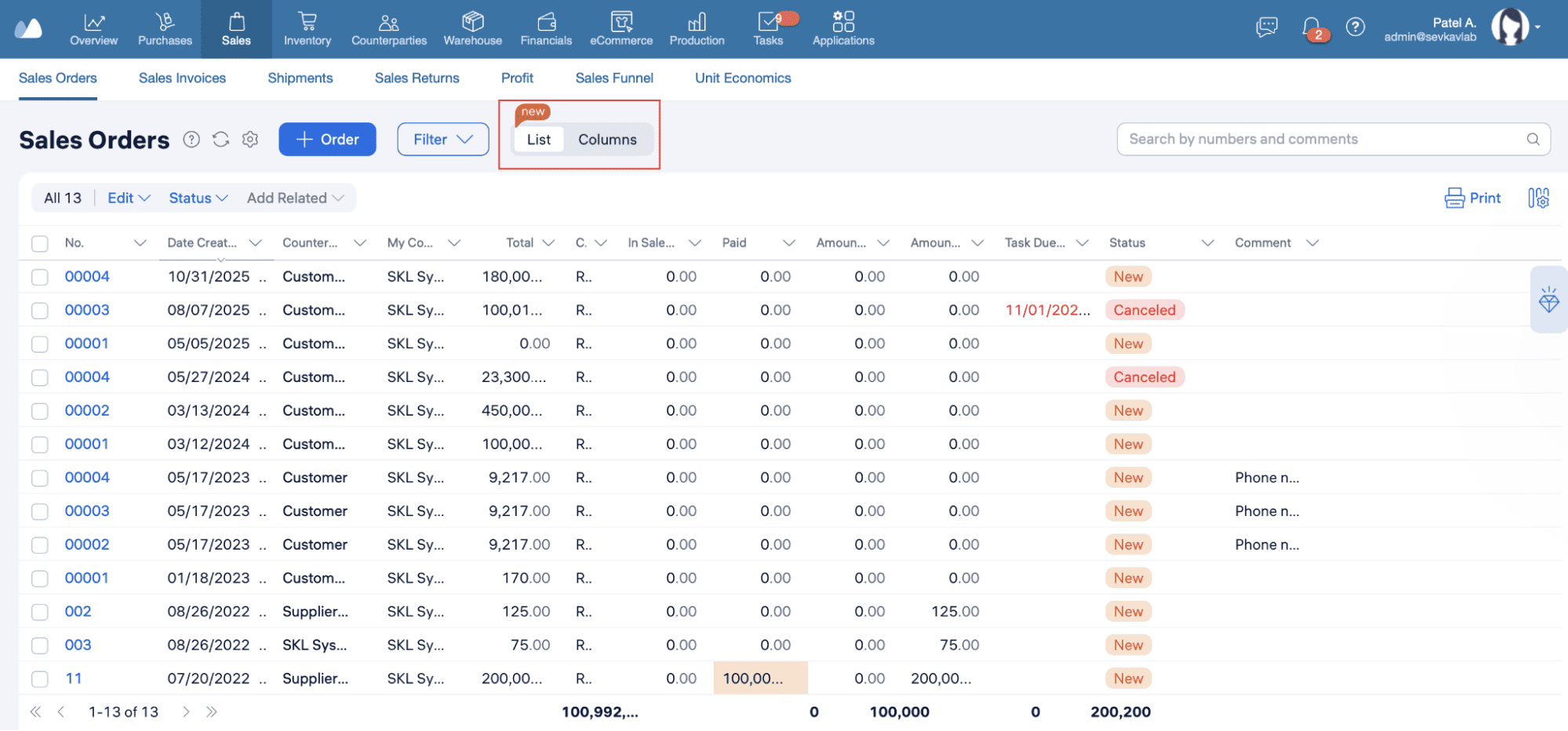
Level 3 Order system with inventory (best for control)
Best if you sell many SKUs, run out of stock often, or handle returns and exchanges. Some teams move to an ERP later, once the basics are stable.
What you get:
- Order management for small business in one place
- Items and stock linked to orders
- Faster picking and fewer “sold out” mistakes
- Better order history (customer + items + changes)
Watch-outs:
- You need 1–2 days to set rules and fields
- You must keep product names/SKUs clean
💡 Good choice if: you want to move from phone orders to software and stop the “do we have it?” guessing.
What features you need (minimum list)
No matter which level you choose, make sure your tool can do these things:
- Order log
A list of all orders with date, customer, total, and status. - Order entry that forces key details
Customer name + phone, delivery/pickup, address (if delivery), items, quantity, price. - Order statuses
At least: Received → Processing → Packed → Shipped/Ready → Delivered → Closed. - Search + filters
Search by customer, phone, order ID, item/SKU. Filter by status and date. - Notes and edits history (even simple)
A place to record changes: “Changed size,” “Deliver after 6 pm,” “Paid by card.”
Bonus: Quick decision guide (choose in 60 seconds)
⏱️ Pick the first line that sounds like you:
- “I’m alone and need something today.” → Level 1 spreadsheet
- “Orders are messy, details are missing, people forget info.” → Level 2 form + list
- “Stock problems and picking mistakes cost me money.” → Level 3 order system with inventory
Next, we’ll map your current process so you can set up the order workflow without guessing.
Step 2 — Map Your Current Order Process
Before you set up an order tracking system, write down what really happens today. For example:
Order comes in → you confirm details → you prepare it → you deliver/pickup → you close the order
1) Write your “today workflow” in 10 minutes
Take one recent order and replay it from start to finish.
Use this template:
- Channel: phone / WhatsApp / Instagram / walk-in
- Who takes the order: you / staff name
- Where details are saved: chat / notes / notebook
- How you confirm stock: memory / shelf check / spreadsheet
- How you prepare: pick → pack → label
- How you deliver: courier / own driver / pickup
- How you confirm payment: cash / transfer / card / COD
- How you mark it done: you don’t / you send “delivered” message / you cross it out
Do this for 3–5 orders. Patterns show up fast.
2) Mark where mistakes happen
Next to each step, write what can go wrong. Here’s a quick “pain points” table:
| Step | What often goes wrong | What a digital system should fix |
| Order comes in | Details split across messages | One order entry with required fields |
| Confirm items | Wrong variant/qty, missing address | Clear item list + address fields |
| Prepare order | Packer uses old version | One latest order record + notes |
| Delivery | No tracking, no proof | Status + courier/waybill field |
| Payment | “Did they pay?” confusion | Payment status field + method |
| Close order | Order stays “open” forever | Final status like Delivered/Closed |
3) Order management example maps
🏪 Small shop (delivery + pickup):
- Customer messages item + address
- You confirm price and time
- You check stock on shelf
- You pack and label
- You send to courier
- You collect payment/mark paid
- You mark delivered and close
☕ Café (pre-orders):
- Customer calls to book a time
- You confirm menu items and pickup slot
- You prepare at the right time
- Customer pays
- You mark completed and close
Once you map this, setting up your order tracking setup becomes way simpler.
Step 3 — Begin Inputting Orders Digitally
Start small. Your goal for the first week is simple: no lost orders and no guessing.
Set up your first order entry
Whether you use a sheet, a form, or an order app, create one standard order entry.
Minimum fields for beginner digital order tracking:
- Order ID (auto number or simple format like 2026-02-24-015)
- Order date + time
- Customer name
- Phone number
- Sales channel (Phone/WhatsApp/Instagram/etc.)
- Delivery method (Delivery/Pickup)
- Address or pickup point (required if delivery)
- Items (name/SKU),quantity, price
- Payment method (Cash/Transfer/Card/COD)
- Payment status (Unpaid/Paid/Part-paid)
- Notes (free text)
If you sell variants (size, color, pack size), make that visible in the item name, since many mistakes happen here.
Create an Order ID you can say out loud
Order IDs stop confusion when customers call back.
Pick one format and keep it.
Simple options:
- Date + running number: 2402-015
- Year-month-day + number: 2026-02-24-015
- Channel code + number: WA-015, PH-016
Put the Order ID at the top of the order record and use it in customer messages:
“Got it. Your order is 2026-02-24-015.”
Start with a “dual logging” week
For 5–7 days, keep your current method and add digital logging.
- Orders still arrive by phone/WhatsApp.
- You still confirm in chat.
- But the order record lives in the system.
This avoids a full switch that feels scary. You can reduce mistakes without changing the way customers order.
Make the first goal measurable
Pick one target:
- Option A: Log every order digitally, even if you still pack from chat.
- Option B: Log only delivery orders digitally (higher risk, more details).
- Option C: Log only paid orders digitally (simpler, fewer changes).
Train yourself or staff in 20 minutes
3 rules
- If it’s an order, it gets an Order ID.
- If the customer changes anything, update the order record and add a note.
- If you don’t know the status, check the order dashboard.
2 examples
- Example 1: a normal order with delivery
- Example 2: an edited order (change of item, time, or address)
If you have staff, give one person responsibility for order entry.
Common beginner mistakes
- Making the form too long. Keep it to what you actually use.
- Using free-text for everything. Use dropdowns for status, delivery method, payment status.
- Skipping SKU/variant details. “T-shirt” is not an item. “T-shirt / Black / L” is.
- Entering orders later. Enter it while you’re on the call or right after the message.
Step 4 — Add Order Statuses & Notifications
Once orders are entered digitally, the next win is simple: every order has a clear current state. That is what makes an order tracking system feel real.
Choose 5–6 statuses
Too many statuses confuse people. Start with a short flow you can explain in one sentence.
A beginner-friendly order workflow:
- Received (order is confirmed, details are complete)
- Processing (you’re preparing it)
- Packed (ready to hand over)
- Shipped/Ready for pickup (depends on delivery method)
- Delivered/Picked up
- Closed (final check is done, no action needed)
Add 2 more fields that make tracking easier
Statuses alone are not enough. Add two small fields:
- Expected ship/pickup time (today 18:00, tomorrow morning)
- Courier/delivery method detail (courier name, tracking link/number, driver name)
Set up customer updates
You don’t need automation to keep customers informed. Use short, repeatable messages.
After order confirmation (Received):
“Order [ID] confirmed. Status: Received. Estimated dispatch: [time/date].”
When shipped:
“Order [ID] shipped. Tracking/driver: [details]. Status: Shipped.”
If delayed:
“Order [ID] is delayed due to [reason]. New dispatch time: [time/date].”
Copy these scripts into notes. Send them from your phone. It still counts as organized order status updates because you’re reading the status from the system.
If you can automate, automate one thing only
When you’re ready, automate the easiest update:
- send a message when status changes to Shipped
- or send “Ready for pickup” when status becomes Packed
Do only one automation at first. Too many notifications create confusion and people ignore them.
📖 Recommended Reads
- Barcode Basics for Small Business: faster picking and fewer packing mistakes
- Serial Number Tracking for Beginners: track warranties, returns, and exact units
- Bill of Materials (BOM) Guide: for makers and manufacturers who build products from parts
- Working Capital Management: keep cash flow healthy while orders and stock grow
Step 5 — Keep Order History Clean & Searchable
Digital order tracking is only useful if you can find things fast. If your order dashboard becomes a long list of messy entries, you’ll slide back to chats and memory.
This step introduces a simple structure: the same customer and the same item should look the same every time.
Keep customer records consistent
Pick one customer format and stick to it.
Minimum rule:
- Customer name + phone are required.
- Use the same spelling each time.
Use clean item names (or SKUs) so search works
Set one naming rule:
- Include variant info in the item name: Product + Variant + Size/Pack
- If you use SKUs, keep them short and readable.
💡 Tip: If your business has more than 30–50 items, start using SKUs now. It helps with order entry, picking, and order history.
Add “smart filters” you will actually use
Good beginner filters:
- Order Status
- Delivery method
- Channel
- Date range
This is enough to find stuck orders and plan your day.
Create a simple “stuck orders” routine
Once a day, scan these:
- Orders in Received older than 24 hours
- Orders in Packed that were not shipped
- Orders marked Delivered but still Unpaid
This routine is what turns a tool into an organized order processing system.
Keep notes clean
Notes should capture only what doesn’t fit in fields.
✔️ Good notes:
- “Deliver after 6 pm”
- “Customer asked for gift wrap”
- “Changed size from M to L at 14:10”
❌ Bad notes:
- full chat history pasted into notes
- long sentences that repeat order details already in fields
Step 6 — Handle Cancellations, Returns, Edits
The problem here is “silent changes” that stay in chat while the team packs the old version. Your goal is to make every change visible inside the order record.
Set 3 simple rules for changes
- No change stays only in chat. If a customer edits an order, update the order record.
- Add a short note with time. Example: “Changed size M→L (14:10).”
- One person owns edits. If two people edit orders, mistakes return fast.
How to handle cancellations
- Change status to Cancelled
- Add reason (short): “Customer changed mind” / “Out of stock”
- If paid: record refund method and date
- Stop fulfilment: packer should never pick cancelled orders
💡 Tip: keep a daily filter for Cancelled orders. It helps you spot patterns like “too many stock-outs.”
How to handle edits
Common edits: item swap, quantity change, address change, delivery time change.
Use this checklist:
- Update items/qty/address in the order fields
- Add a note with what changed and when
- If already packed: set status to On hold until repacked
- Confirm the final version with the customer using the Order ID
How to handle returns
Keep returns linked to the original order.
Minimum return fields:
- Order ID
- Return reason (dropdown if possible)
- Return status: Requested → Approved → Received → Closed
- Condition note: “sealed / opened / damaged”
- Refund/replace decision
Why Kladana Makes This Transition Easy
If you’re switching from messenger orders and notebooks, the hardest part is not “software.” It’s keeping one clean order record that your whole team follows. Kladana helps you do that with a simple order flow that connects orders and stock in one place.
What you can do from day one
- Create and track sales orders in one order dashboard.
- Assign order statuses and see what’s stuck (Received → Processing → Packed → Shipped/Ready → Delivered).
- Keep order details in one record: customer, items, delivery method, payment status, notes, changes.
- Reserve stock for orders so you don’t sell the same item twice by mistake.
- Work across locations if you have more than one store or warehouse.
- Sync online orders if you sell through e-commerce channels, so you don’t retype the same order again.
- Create and manage sales returnsto provide proper exchange or refund.
- Use multiple sales channels without confusion
Manage All Orders in Kladana:
Move orders from chats to one system: log sales orders, set statuses, reserve stock, and keep order history searchable. Start with your current workflow and improve it step by step.
Frequently Asked Questions on Digital Order Tracking
Here are quick answers to common questions that come up when you move from phone or messenger orders to a digital order tracking system.
Why should I move from phone/messenger orders to digital?
Because one order record reduces repeats and “lost in chat” problems. You can search order history, check order status updates fast, and stop packing the wrong version after edits.
What features should I look for in a digital order tracking tool?
Start with the basics:
- order log (one list for all orders)
- order entry with required fields
- statuses (Received → Delivered)
- search + filters
- notes for changes
Can I start with just one order per day?
Yes. Start with the riskiest orders, not the biggest volume:
- delivery orders
- prepaid orders
- high-value orders
How do I train staff or myself to input orders digitally?
Use 3 rules:
- every order gets an Order ID
- every change is updated in the order record
- status is updated at one clear moment (packed, shipped, delivered)
Can customers see order status updates automatically?
It depends on the tool. Many systems support customer updates by status. If you don’t have that yet, you can still send manual updates using short scripts based on the status in your order dashboard.
What happens to past notebook orders?
You don’t need to type everything. Choose one approach:
- start fresh from today (fastest)
- enter only active orders + last 30–90 days (best balance)
- enter only repeat customers’ past orders (useful for reorders)
How do I manage edits or changes in orders?
Update the order record, then add a short note with time, like “Address changed (14:10).” If the order was already packed, set it to On hold until repacked. Confirm the final version with the customer using the Order ID.
Can I integrate digital orders with inventory tracking?
Yes. That’s the main reason many small businesses move from a spreadsheet to an order tracking system with inventory. When orders and stock are linked, you can reserve stock, reduce overselling, and speed up picking.
What device should I use for input: phone, tablet, or PC?
Use what makes order entry fastest in your workflow:
- phone: best for chat-based selling
- tablet: good for counter sales + packing table
- PC: good for bulk edits, reports, and long item lists
Is there a free tool to start with before scaling?
Yes. You can start with a spreadsheet or a basic form + list. Once you hit repeat orders, many SKUs, or stock mistakes, switch to an order system that links orders with inventory and keeps order history clean.
Read‑alikes
A Guide to Purchase Order Management: Meaning, Process, and Benefits
Selling Price Formula: How to Calculate SP with Profit or Loss Easily
How ERP for Sales Can Automate and Boost Sales Processes
How to Improve Sales: 10+ Tips for Small and Medium-Sized Businesses
Retail E-Commerce: A Comprehensive Guide to Models, Trends, and Automation Tools