Quality issues often start when you receive raw materials, components, or packaging from suppliers. If defects go unnoticed at this stage, they move into production and lead to rework, scrap, delays, and extra costs.
An incoming inspection helps prevent these problems. It records materials at receipt, checks them against specifications, and creates a clear trail for supplier accountability.
This article explains how to build a practical incoming inspection report format in Excel, which fields to include, how to automate pass/fail results, and how to track supplier performance. You will also find incoming inspection report format in Excel that can be adapted to different materials and suppliers.
- What is an Incoming Inspection Report?
- Why Use Excel for Incoming Inspection Reports?
- Key Elements of an Incoming Inspection Report (Excel Format)
- Types of Incoming Inspection Reports
- How to Create an Incoming Inspection Report in Excel
- Best Practices for Using Excel Incoming Inspection Reports
- Download Free Template
- Frequently Asked Questions on Incoming Inspections
What is an Incoming Inspection Report?
An incoming inspection report is a document used to check the quality of raw materials, parts, and purchased goods when they arrive at your facility. It compares each delivery with required specifications such as dimensions, weight, material grade, packaging condition, labels, or COA details.
Its main purpose is to confirm that received items match what was ordered. If they do not, the report helps record non-conformities, trace the supplier, and trigger corrective actions.
These reports are used across manufacturing industries, including food production, electronics, automotive, textiles, and printing. They help teams:
- document incoming material condition
- standardize inspection results
- support supplier reviews and claims
Incoming inspection reports also support vendor management by improving consistency, reducing quality risks, and limiting the cost of poor-quality materials.
Why Use Excel for Incoming Inspection Reports?
Excel is widely used for incoming inspections because it is familiar, flexible, and easy to customize. Teams can create simple checklists or advanced sheets with automated checks and summaries.
Excel suits small and medium businesses that do not use a full QMS or LIMS. One template can be adapted for different materials and industries, from metal parts and fabric rolls to chemicals and packaging.
You can customize Excel reports quickly by adding inspection criteria or supplier-specific requirements. Excel also supports basic automation:
- IF formulas for Pass/Fail
- COUNTIF for defect counts
- Conditional formatting for failures
- Data validation for dropdowns
Using a standard Excel format across suppliers makes it easier to compare results, detect repeat issues, and monitor vendor performance over time. Many teams start with an incoming quality control checklist Excel file and then expand it into a full inspection report as requirements grow.
Key Elements of an Incoming Inspection Report (Excel Format)
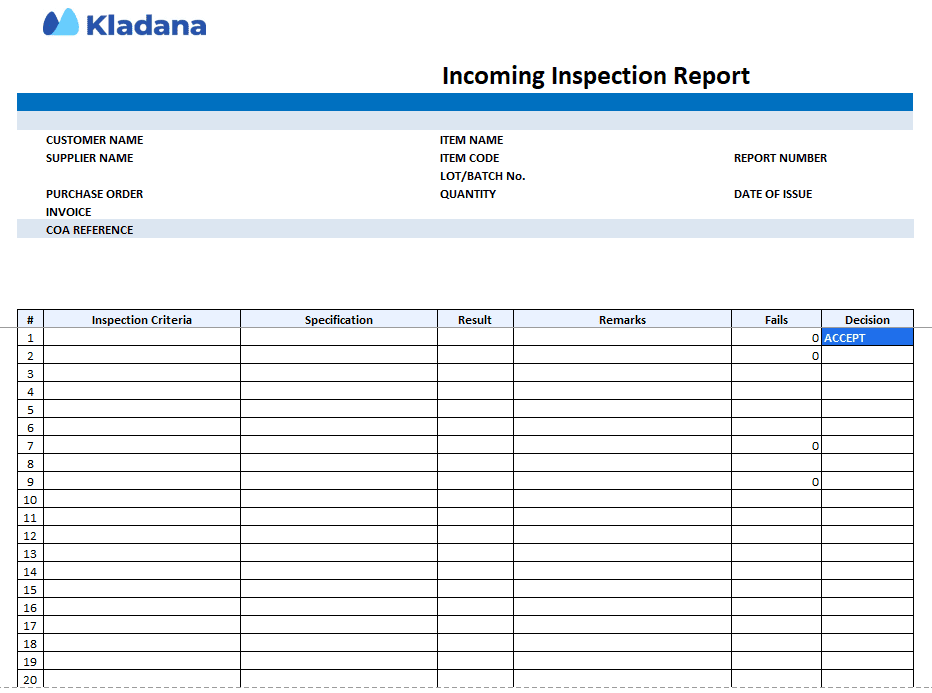
A clear structure makes inspection reports easy to fill and review. A well-structured incoming inspection report format in Excel helps standardize checks and reduce errors. Most Excel formats include the sections below.
Supplier and Order Details
- Supplier name
- Purchase order number
- Invoice or challan number
- Date received
- NCR number (if applicable)
These fields link inspection results to procurement records and support supplier follow-up.
Material Identification
- Item name and code
- Lot or batch number
- Quantity received
- COA (Certificate of Analysis) reference
This information ensures traceability for audits, recalls, or supplier reviews.
Inspection Criteria
Criteria vary by material type but often include:
- Dimensions or weight
- Material grade
- Finish or appearance
- Packaging and labels
- Visual defects
Each criterion usually has its own row in Excel, which helps calculate defect rates later.
Pass/Fail Results
Pass/Fail fields can be manual or automated:
- Dropdowns with Pass / Fail / NA
- Formula-based checks against spec limits
- Conditional formatting to highlight failures
Automation speeds up inspections and reduces errors.
Remarks and Sign-Off
Remarks explain failures or observations such as damaged packaging or surface defects. Inspector initials or signatures confirm responsibility.
📖 Recommended Reads
Free Inventory Templates in Excel for Small Businesses
A collection of ready-to-use Excel templates for stock tracking, receiving, and inventory control. Works well alongside an incoming inspection report format in Excel.
Types of Incoming Inspection Reports
Different materials require different inspection formats.
📝 Raw Material Inspection Reports
This raw material inspection format is used for metals, chemicals, fabrics, plastics, and food ingredients. Checks focus on measurable properties such as dimensions, grade, moisture, or purity.
📝 Packaging Material Inspection Reports
Cover box strength, GSM, seal quality, print clarity, barcodes, and labels to protect finished goods during storage and shipment.
📝 Component and Part Inspection Reports
Used for assemblies and BOM-based production. These reports confirm fit, tolerances, and visible condition of parts such as bearings, screws, PCBs, or fittings.
📝 Vendor Performance Inspection Summary
A monthly or quarterly summary that tracks accepted vs. rejected quantities, defect trends, and improvement actions to support supplier decisions. This summary often works as a supplier inspection report Excel file for procurement and vendor reviews.
📦 Receive goods with bin-level accuracy
Put inspected items straight into the right warehouse bins in Kladana. See available, reserved, and blocked inventory in real time.
How to Create an Incoming Inspection Report in Excel
You can build a functional inspection report in Excel in a few steps. The structure is simple: header information at the top, inspection criteria in a table, automated checks on the right, and remarks at the end. Many teams start with a simple excel QC inspection form and later expand it with defect calculations and summaries. Below is a clear process you can follow for any material type.
Step 1: Set Up the Header Section
Add the essential identification fields at the top of your sheet:
- Supplier name
- PO number
- Invoice number
- Date received
- Item name and code
- Lot or batch number
- Quantity received
Step 2: Create the Inspection Table
Your main inspection table should include:
- Inspection criteria
- Specification limits
- Measured values
- Pass/Fail result
- Remarks
You can add as many criteria as needed: dimensions, weight, finish, color, packaging, or visual checks.
Step 3: Add Drop-Downs for Pass/Fail
Dropdowns reduce typing errors and help QC teams keep results consistent.
How to add a dropdown:
- Select the Result column
- Go to Data → Data Validation
- Choose List
- Enter values like: Pass, Fail, NA
Now inspectors can select results quickly without entering text manually.
Step 4: Automate Pass/Fail with IF Formulas
If a criterion has numeric limits, you can let Excel calculate the result automatically. This reduces manual judgment errors and keeps results objective.
Example:
Spec: 50 ± 2 mm
Measured value in C5
Spec lower limit in B5
Spec upper limit in B6
Formula in D5:
=IF(AND(C5>=B5, C5<=B6),”Pass”,”Fail”)
Step 5: Use Conditional Formatting to Highlight Failures
Highlighting failed rows helps inspectors and managers see problems instantly.
How to apply:
- Select the Result column
- Go to Home → Conditional Formatting → New Rule
- Choose “Format only cells that contain”
- Set: Cell value = “Fail”
- Choose a red fill color
This makes rejected parameters stand out clearly. You can also highlight high defect percentages or missing remarks.
Step 6: Calculate Defect Percentage
If you’re inspecting a sampled batch, Excel can calculate the defect rate. If total samples are in E2 and number of fails in E3, use: =E3/E2
Format the cell as a percentage. This helps compare batches and understand the severity of issues.
Step 7: Set Acceptance Thresholds
Some teams only accept batches if the defect rate stays within a limit.
For example, if the maximum allowed defect rate is 2%. If defect percentage is in F5, use:
=IF(F5<0.02,”Accept”,”Reject”)
This logic supports AQL-style decisions without needing a full statistical calculator.
Step 8: Add Columns for Supplier Feedback Loop
These positions are rarely included, but they are very practical for real QC work. Add:
- NCR number
- Description of the non-conformity
- Corrective action request (CAR)
- Supplier response date
- Notes for follow-up
These fields help procurement and QC teams track how quickly and effectively suppliers address quality issues.
Step 9: Protect the Sheet but Keep Data Entry Open
It’s quite easy to overwrite formulas by mistake. Protecting formulas prevents errors:
- Select cells where data entry is allowed
- Right-click → Format Cells → Protection → Uncheck “Locked”
- Go to Review → Protect Sheet
Now only the intended input fields can be edited.
Step 10: Prepare the Print Layout or PDF Version
To ensure clean records for audits:
- Set the print area
- Add page headers and footers
- Adjust column widths
- Enable “Fit on one page”
- Export as PDF when needed
Excel keeps formatting stable so inspectors can print the report for physical sign-off when required.
📖 Recommended Reads
Internal Audit Report Template in Excel
Learn how to document audit findings, non-conformities, and corrective actions using a structured Excel format. This template works well for quality, inventory, and process audits and helps prepare for supplier or compliance reviews.
Best Practices for Using Excel Incoming Inspection Reports
A well-designed Excel template is useful only if people use it correctly and consistently. Many QC issues arise not because the format is wrong, but because teams follow different methods or interpret criteria differently. The practices below help improve accuracy, reduce disputes with suppliers, and make your inspection process repeatable.
✔️ Standardize Formats
Use the same structure across suppliers to simplify reviews and comparisons.
✔️ Train Inspectors
Provide clear rules on how to enter data, use dropdowns, and handle borderline results.
✔️ Track Supplier Performance
Summarize inspection data monthly using pivot tables to review defect rates, NCR counts, and trends.
✔️ Maintain a Supplier Feedback Loop
Share inspection results, NCRs, and corrective actions with suppliers to drive long-term quality improvements. Accepted quantities can flow into stock, while rejected items remain blocked in connected ERP systems such as Kladana.
Download Free Template
Incoming inspections are easier when you start with a ready format. Below you’ll find a free incoming inspection report format in Excel you can download and adapt for your business. It includes supplier details, material identification, inspection criteria, Pass/Fail automated logic, and remarks.
Frequently Asked Questions on Incoming Inspections
What is included in an incoming inspection report?
Supplier and order details, material identification, inspection criteria, results, remarks, and inspector details. Many teams also add NCR and COA references. This structure is commonly used in an incoming inspection report format in Excel for small and medium manufacturers.
Can Excel calculate defect rates automatically?
Yes. Excel can calculate defect percentages and trigger Accept or Reject results using basic formulas.
How do I track supplier performance?
Summarize inspection data monthly using pivot tables to compare rejection rates and repeat issues by supplier.
What happens if material fails inspection?
Failed material is blocked, recorded in the inspection report, and followed by an NCR and supplier corrective action.
How do I set Pass/Fail based on spec limits?
Use IF formulas to compare measured values with allowed ranges.
How do I calculate AQL sample size?
AQL sample size comes from standard tables. Excel is used to record results and apply acceptance rules.
Can I track COA, lot, and expiry data?
Yes. Add dedicated columns and use conditional formatting for near-expiry alerts.
How do I protect formulas but allow entry?
Unlock input cells, then protect the sheet so formulas stay unchanged.
What is the difference between a checklist and a report?
A checklist lists what to inspect. A report records actual results, decisions, and accountability.