Walk into any warehouse that runs on spreadsheets and handovers. Chances are, you’ll find the same signs: pallets parked in the wrong zones, delayed dispatches, stock mismatches, and staff rechecking the same order twice.
It’s not because the teams aren’t working hard. But it can be due to issues in mapping the flow. It’s often not mapped, tracked, optimized, or automatized. According to Statista, the warehouse automation market is projected to grow to $41 billion by 2027.
A proper Warehouse Management System (WMS) automates warehousing procedures, building a live, trackable process across inbound, storage, and outbound operations.
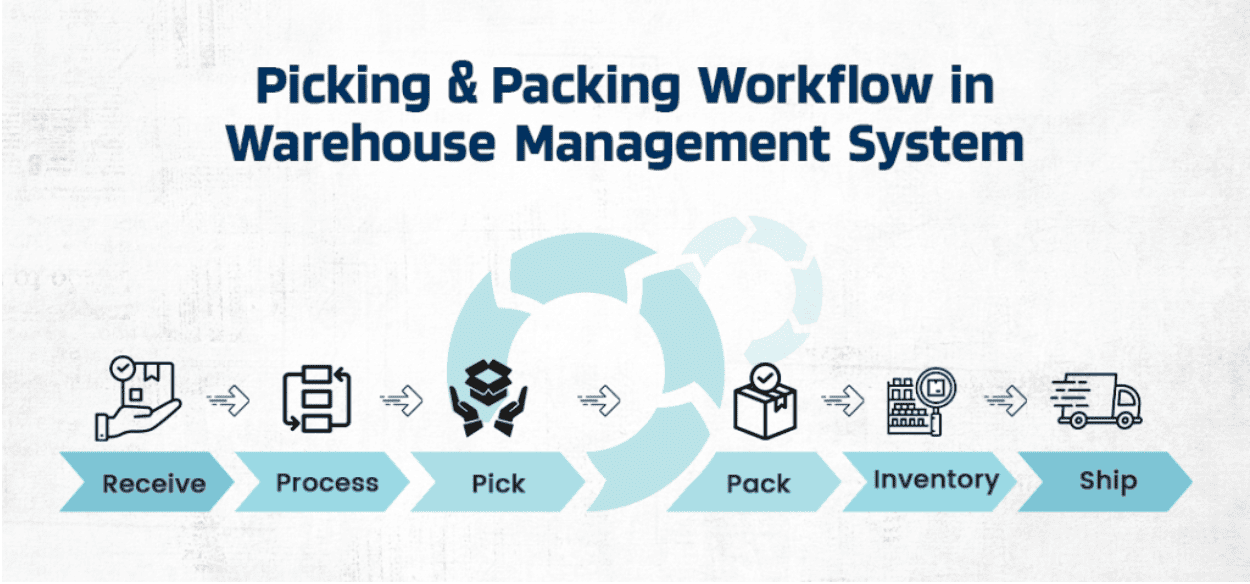
A warehouse management system process flow is the sequence of steps that moves goods through a warehouse: receiving, inspection, putaway, storage, inventory control, picking, packing, shipping, and returns. A WMS supports this flow by scanning items, updating stock in real time, assigning tasks, creating pick lists, and keeping warehouse, sales, and purchasing data connected.
- What is a Warehouse Management System (WMS)?
- Complete Warehouse Management System Process Flow
- Warehouse Process Flowchart Example
- Warehouse SOP Flowchart
- Free Warehouse SOP Templates
- Benefits of Mapping WMS Process Flow
- Optimizing the WMS Flow with Automation
- Common WMS Process Flow Mistakes
- FAQs on the Warehouse Management System Process
- List of Resources
What is a Warehouse Management System (WMS)?
A WMS is a software that reflects your warehouse on screen to have a quick, comprehensive view of every incoming box, every shelf position, and every outgoing shipment.
You don’t just track but get to set the pace, prevent manual misses, and leverage control over how goods move from point A to point B.
How a WMS supports your day-to-day
- Inbound receiving: Auto-checks POs and flags quantity mismatches.
- Putaway logic: Finds best-fit locations based on volume, item type, or zones.
- Storage updates: Logs where each SKU sits and how much is left, in real time.
- Order picking: Assigns pickers based on routes, zones, or speed logic.
- Packing & shipping: Pulls the right label formats and carrier details instantly.
- Returns & restocks: Marks condition, triggers inspection, routes back to bins or quarantine.
Complete Warehouse Management System Process Flow
A warehouse functions like a circuit where every order, return, or pallet movement is a signal. If the circuit isn’t well-mapped, things misfire: delays creep in, wrong SKUs go out, and stock reports start lying.
Here’s a more detailed look at the steps involved in the warehouse management system.
1. Receiving and Inspection
Your team scans arriving pallets or cartons against purchase orders.
The WMS logs quantities and flags mismatches on the spot. Damaged or incorrect items can be quarantined before they clog your system.
How it works:
- Match goods against purchase orders (POs) using barcode scans.
- Flag discrepancies in quantity or damaged goods.
- Create GRNs (Goods Received Notes) for accepted items.
- Update the system with the received SKU count + condition.
A modern WMS can link this directly to suppliers and inventory, so what you scan is what you stock.
2. Putaway
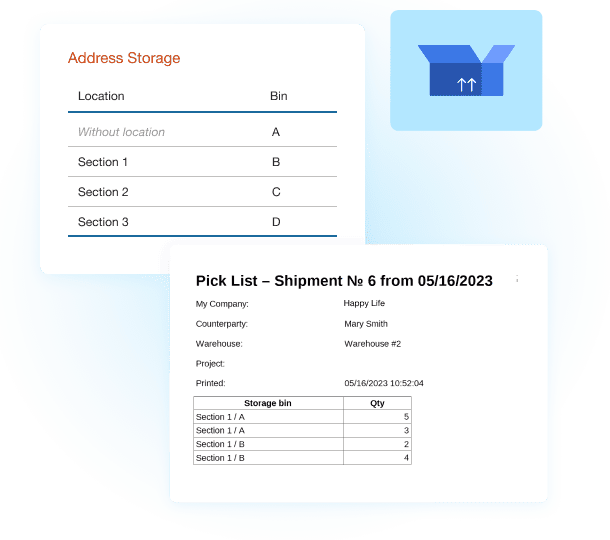
The system suggests optimal storage based on item size, weight, and slot availability.
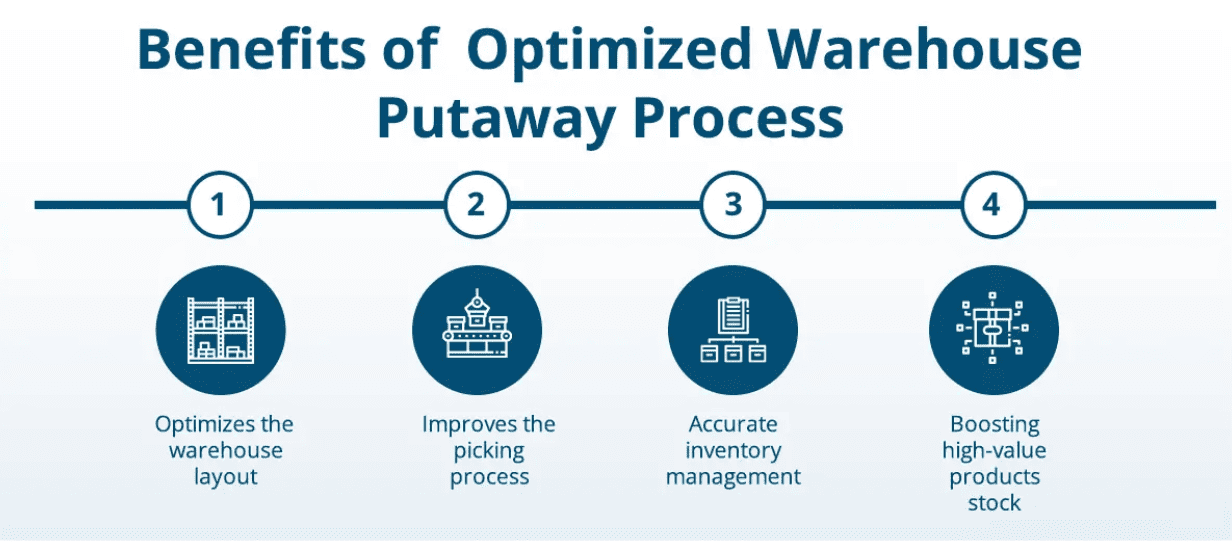
Your staff picks up a scanner, follows the putaway route, scans the bin, and moves the item. The WMS marks that bin as occupied and adjusts the inventory in real time.
Key action items for this step:
- Use dynamic slotting rules (weight, size, frequency) to assign ideal bins.
- Show staff optimized routes via handheld devices.
- Auto-update inventory location in real-time.
- Trigger restock flags if overflow areas are used.
3. Inventory Storage
Once goods land in bins or racks, the system keeps track.
Real-time data tells you exactly how much stock is left. You don’t need manual counts. Instead, cycle counts become quick spot checks, not full-blown disruptions.
Here’s what goes on:
- Maintain real-time location mapping of every SKU.
- Track bin utilization and flag congestion zones.
- Schedule cycle counts instead of full shutdown stocktakes.
- Use system alerts for expiry, FIFO/LIFO compliance, or reorder points.
4. Order Picking
When a new order arrives, the WMS divides it into picking tasks based on zones or batch logic.
Pickers grab mobile scanners, follow the route, scan each item, and confirm picks in one seamless workflow. A WMS guides pickers to the right locations with the right lists, reducing foot travel and order errors.
The work involves:
- Assign picklists using zone-based or batch picking logic.
- Use barcode scanners or mobile devices for guided navigation.
- Trigger real-time stock deductions with each scan.
- Prioritize urgent or multi-channel orders with system rules.
5. Packing
Here, picked items are verified, grouped, and prepared for dispatch.
At this stage, the items go to the packing station where WMS pulls the right packaging specs, prints labels, and triggers any custom paperwork.
What work goes into here:
- Match scanned SKUs against customer orders.
- Generate auto-printed packing slips and labels.
- Apply carrier-specific packaging rules (e.g., DHL vs. FedEx).
- Trigger weight checks or volume validation via integrated devices.
6. Shipping
The system generates shipping labels, book carriers, and records tracking numbers.
As soon as the package leaves the dock, the WMS updates inventory, ends the order cycle, and feeds data to your ERP system or ecommerce portal.
Major action items at this stage:
- Allocate shipments based on carrier rules or SLAs.
- Print shipping labels, bills of lading, and manifests automatically.
- Push order tracking info to customers and platforms.
- Hand off to the carrier with proof of shipment scan.
7. Returns and Replenishment
Returned units get scanned at the receiving dock and routed based on status. If restockable, the WMS places them back into available bins.
How it works:
- Scan returned items and verify against RMA (return) tickets.
- Trigger QA checks or sort for repair/discard.
- Auto-update restockable inventory bins.
- Notify replenishment if the stock dips below safety levels.
A ready reckoner below can be handy when following a WMS process.
| Stage | Key Actions | WMS Automation/Support |
1. Receiving |
– Match goods to Pos |
– Barcode scan POs |
2. Putaway |
– Assign storage zones |
– Smart slotting logic |
3. Inventory Storage |
– Monitor SKU locations |
– Live location mapping |
4. Picking |
– Generate picklists |
– Zone/batch logic |
5. Packing |
– Match picks to orders |
– Auto label print |
6. Shipping |
– Allocate to the carrier |
– SLA-based carrier rules |
7. Returns & Replenishment |
– Scan returns |
– RMA scan |
Managing a warehouse is more than moving stock. It’s about tracking every item from arrival to dispatch with zero blind spots. Kladana’s warehouse management features are designed to mirror real-world workflows, making it easy for your team to scan, store, pick, pack, and ship with accuracy and speed.
Recommended read: Revolutionizing WMS Efficiency: Smart Warehouse Barcoding — Upgrade your WMS with barcoding. Discover why just 10% of items are barcoded, explore barcode drones and wearables, and follow a clear step-by-step guide.
Warehouse Process Flowchart Example
Let’s see what a warehouse flowchart looks like. This is needed for quick decision-making so that teams can map movement, identify bottlenecks, and assign roles.
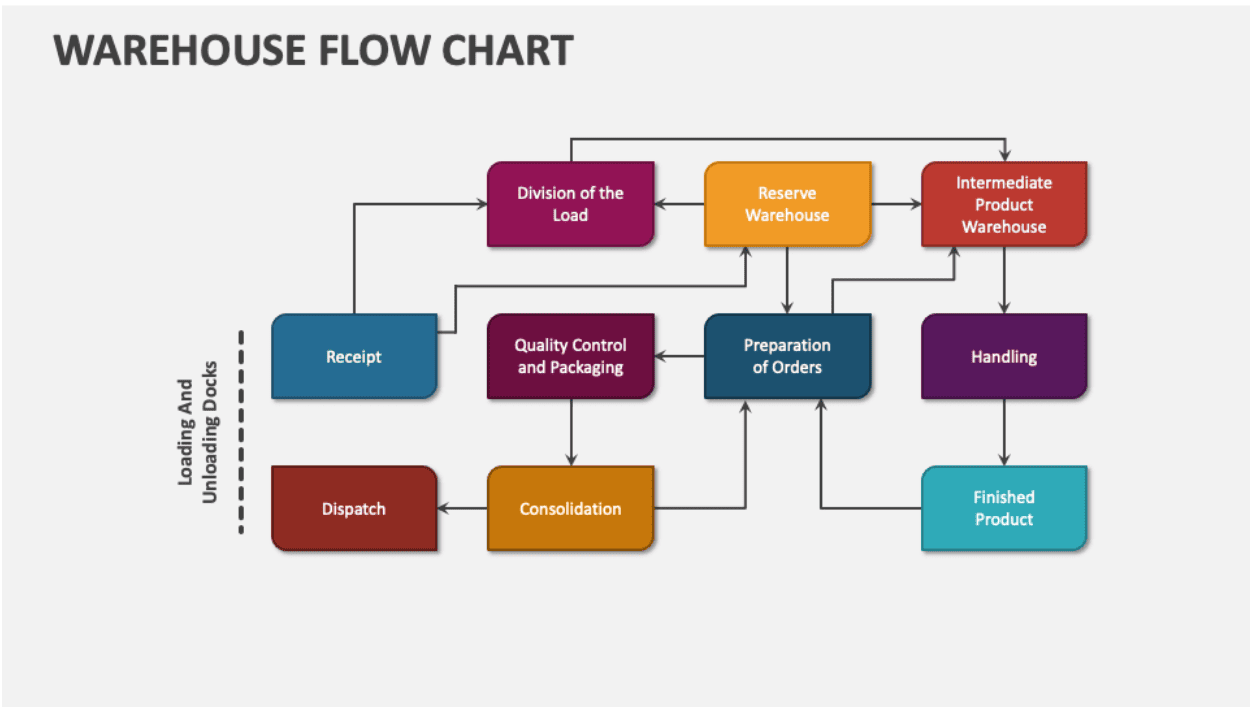
Receipt (Blue)
Incoming goods land here so that teams can verify quantities and conditions before progressing.
Division of the Load (Pink)
Bulk shipments get split based on product type, destination, or handling needs.
Reserve Warehouse (Yellow)
Stock that isn’t needed right away goes here.
Intermediate Product Warehouse (Red)
Used for semi-finished or high-turnover goods that need quick access.
Preparation of Orders (Dark Blue)
Pulls SKUs needed for each order. May involve batch picking or zone picking strategies.
Quality Control and Packaging (Pink)
This is to make sure that each order meets standards for boxing, labeling, sealing, etc.
Handling (Purple)
Highlights the movement between zones that involve conveyors, forklifts, or manual carry.
Finished Product (Teal)
Final packed goods marked as ready for dispatch.
Consolidation (Orange)
Combines items from different orders or suppliers before final shipment.
Dispatch (Dark Red)
Final loading for outbound logistics. Links to delivery tracking and carrier pickups.
Color-Coding Logic
Each color signals the type of operation:
- Blue/Dark Blue: Start/end points (receipt, picking)
- Pink: Quality or manual checkpoints
- Yellow: Long-term storage
- Red: High-priority or fast-moving storage
- Purple: Internal movement/handling
- Teal: Finished goods ready for outbound
- Orange: Transition stages
- Dark Red: Final dispatch/exit point
Warehouse SOP Flowchart
Standard Operating Procedures (SOPs) for the warehouse help everyone from new joiners to warehouse veterans follow the same playbook.
The SOP flowchart provides step-by-step instructions that assign clear responsibility at every stage.
Example SOP flow for inbound and outbound tasks
Let’s take a closer look at how the SOP flowchart is prepared for inbound and outbound tasks through an example.
Example: Inbound SOP Flow
Each step flows into the next, with defined owners and WMS triggers at the right checkpoints.
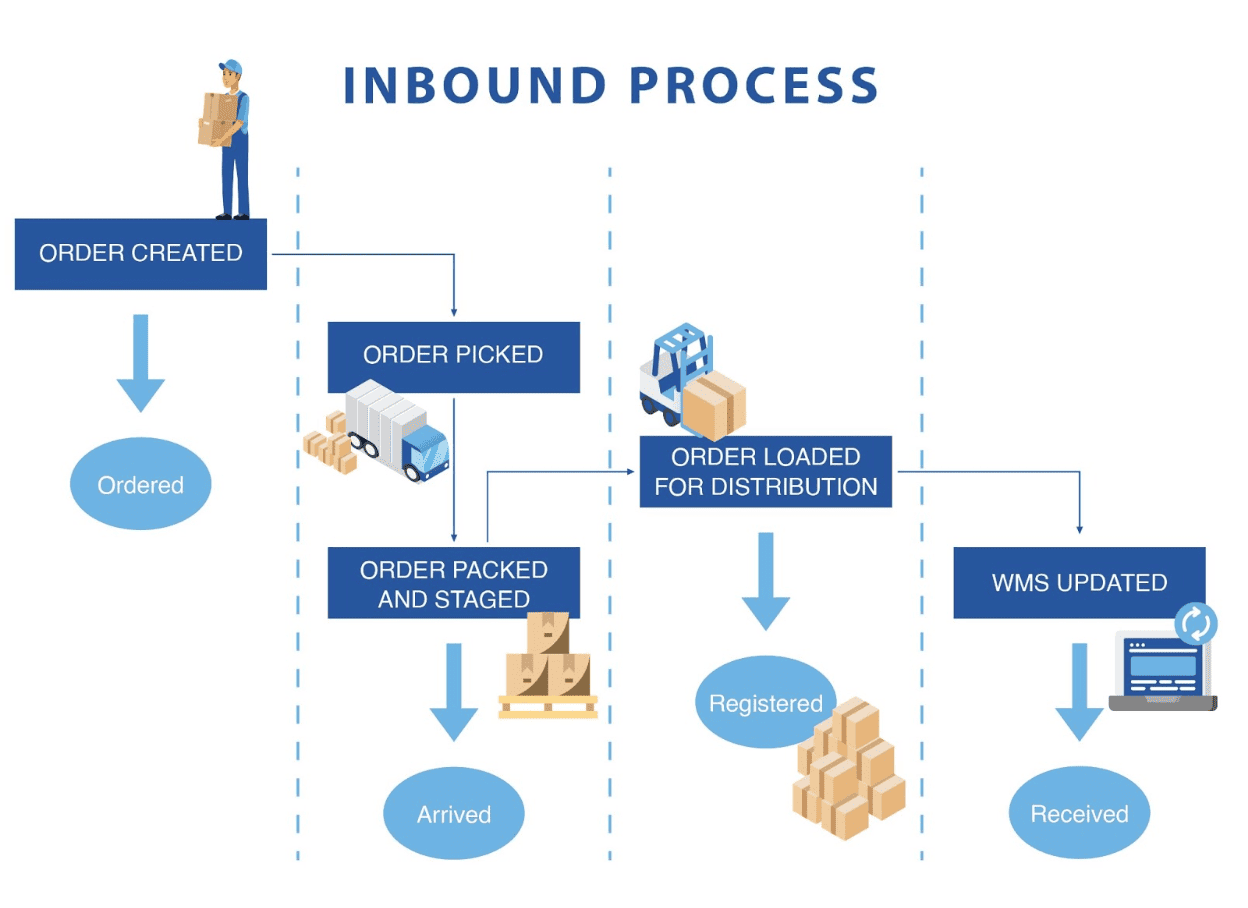
Here’s how an inbound shipment SOP might look:
- Gate Entry & Document Check — Security Guard
- GRN Verification — Receiving Team
- Barcode Scanning & Item Count — Warehouse Associate
- Damage Check & Flagging — Quality Control
- Putaway Instructions — WMS System
- Putaway Execution — Floor Staff
Example: Outbound SOP Flow
This SOP flow is to keep the accountability high and trace back delays or mismatches to the exact steps.
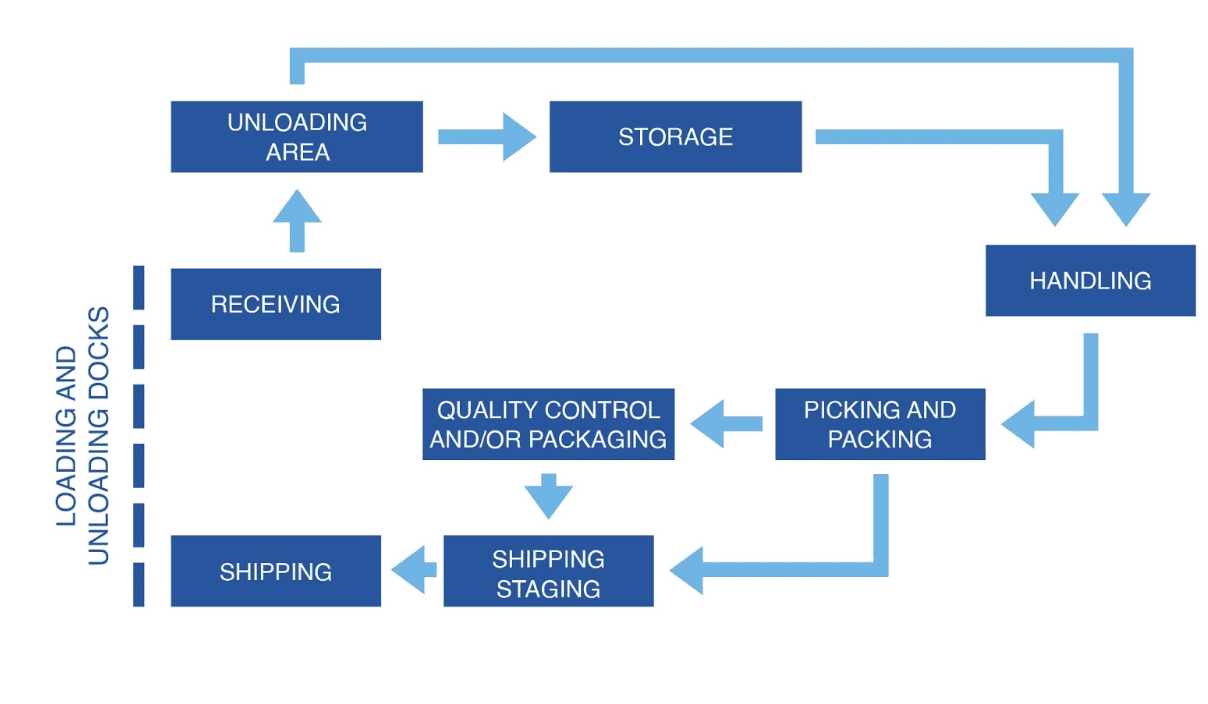
For a typical outbound process:
- Sales Order Generation — Sales Ops
- Picking Task Assignment — WMS
- Order Picking — Picker
- QC Scan & Match — QA Associate
- Packing & Labeling — Packing Staff
- Handover to Carrier — Dispatch Team
Need a Simple WMS Checklist?
Set up your warehouse flow step by step: receiving, bin locations, picking, packing, shipping, and regular inventory counts.
Download Kladana’s free WMS Checklist and use it to organize warehouse operations without relying on scattered notes or spreadsheets.
Free Warehouse SOP Templates
A warehouse SOP template turns a WMS process flow into clear daily instructions. It defines who owns each step, what starts the task, what action must be completed, what should be updated in the WMS, and what document confirms completion.
Use the warehouse SOP templates below to document your inbound warehouse process, outbound warehouse process, and returns process. They can be adapted for small warehouses, e-commerce businesses, wholesalers, distributors, and manufacturing companies.
Inbound Warehouse SOP Template
Use this inbound warehouse SOP template to control how goods enter the warehouse. It covers supplier delivery, purchase order matching, inspection, barcode or SKU scanning, putaway, and stock updates.
| Step | Owner | Trigger | Action | WMS Update | Document / Output |
| 1. Delivery arrival | Receiving team | Supplier delivery arrives | Check supplier name, delivery details, and shipment documents | Open or create receiving task | Delivery note / receiving record |
| 2. Purchase order matching | Receiving team | Goods are unloaded | Compare delivered items with the purchase order | Mark expected, received, missing, or excess quantity | Updated purchase order status |
| 3. Quantity check | Warehouse associate | Items are ready for counting | Count units, cartons, pallets, batches, or serial-numbered items | Enter actual received quantity | Goods received note |
| 4. SKU, barcode, batch, or serial scan | Warehouse associate | Quantity is counted | Scan or record product identifiers | Link received items to product records | Scan log / product record |
| 5. Quality inspection | QC team or warehouse lead | Quantity is confirmed | Check damage, expiry dates, packaging issues, wrong items, or missing parts | Mark stock as accepted, on hold, rejected, or damaged | Inspection note / discrepancy record |
| 6. Putaway assignment | Warehouse lead | Goods are accepted | Assign storage zone, shelf, rack, or bin location | Create putaway task and assign location | Putaway task |
| 7. Stock placement | Warehouse associate | Putaway task is assigned | Move goods to the correct storage location | Confirm bin location and available quantity | Updated inventory balance |
| 8. Discrepancy handling | Warehouse lead / purchasing team | Shortage, excess, damage, or mismatch is found | Report the issue and decide whether to accept, reject, return, or adjust stock | Create adjustment, hold status, or write-off if needed | Discrepancy report / stock adjustment |
| 9. Final receiving confirmation | Warehouse lead | All checks and putaway steps are complete | Confirm that goods are received, checked, and stored | Close receiving task | Completed receiving record |
This inbound warehouse process flow helps prevent damaged, expired, or incorrectly counted goods from entering available stock. It also gives the team a clear audit trail from supplier delivery to final bin location.
Outbound Warehouse SOP Template
Use this outbound warehouse SOP template to manage customer orders, picking, packing, shipping, and stock deduction. It helps make order fulfillment more accurate and easier to track.
| Step | Owner | Trigger | Action | WMS Update | Document / Output |
| 1. Sales order confirmation | Sales or operations team | Customer order is confirmed | Check order details, delivery address, payment status if needed, and stock availability | Reserve available stock for the order | Sales order |
| 2. Pick list creation | Warehouse lead / WMS | Order is ready for fulfillment | Create a pick list with SKU, quantity, bin location, and order priority | Assign picking task | Pick list |
| 3. Item picking | Picker | Pick list is assigned | Collect items from the correct bin, rack, shelf, or zone | Scan or confirm picked items | Picking confirmation |
| 4. Quantity and order verification | Warehouse associate / warehouse lead | Items are picked | Compare picked items with the sales order | Mark missing, replaced, partially picked, or fully picked items | Updated order status |
| 5. Packing | Packing team | Items are verified | Pack items based on size, fragility, order type, or shipping method | Mark order as packed | Packing slip |
| 6. Shipping preparation | Dispatch team | Package is ready | Add carrier details, delivery method, and tracking number if needed | Mark order ready for dispatch | Shipping label / dispatch note |
| 7. Dispatch | Dispatch team | Carrier or courier collects the package | Hand over the package for delivery | Update order as shipped | Shipment record |
| 8. Stock deduction | WMS / warehouse lead | Order is shipped or confirmed for dispatch | Deduct shipped quantity from available stock | Update inventory balance | Updated stock report |
| 9. Order closure | Sales or operations team | Shipment is confirmed | Close the order or monitor it until delivery confirmation | Update final order status | Completed sales order |
This outbound warehouse process flow helps prevent wrong shipments, missed stock deductions, and delayed order fulfillment. It is especially useful when a business sells through several channels and needs one accurate view of available stock.
Returns Warehouse SOP Template
Use this returns SOP template to control how returned goods are received, inspected, restocked, repaired, replaced, or written off.
| Step | Owner | Trigger | Action | WMS Update | Document / Output |
| 1. Return request | Customer support / sales team | Customer asks to return an item | Check order number, return reason, return window, and return policy | Create return request | Return authorization |
| 2. Returned item arrival | Receiving team | Returned item arrives at the warehouse | Match returned item with the original order | Open return task | Return record |
| 3. Item identification | Warehouse associate | Item is received | Scan SKU, barcode, batch number, or serial number | Link returned item to the original sale | Scan log |
| 4. Condition inspection | QC team or warehouse lead | Item is identified | Check condition, packaging, expiry date, damage, missing parts, or signs of use | Mark as sellable, repairable, damaged, expired, or rejected | Inspection note |
| 5. Restock decision | Warehouse lead | Inspection is complete | Decide whether to return item to available stock, repair it, replace it, quarantine it, or write it off | Assign item status | Return decision record |
| 6. Putaway or quarantine | Warehouse associate | Item is approved or held | Move item to available stock, quarantine area, repair zone, or damaged goods area | Update bin location and stock status | Updated inventory record |
| 7. Refund or replacement | Sales / finance team | Return decision is approved | Process refund, credit note, replacement order, or exchange | Update customer order status | Credit note / replacement order |
| 8. Stock adjustment | Warehouse lead / WMS | Item is restocked or written off | Adjust available quantity if needed | Update stock balance | Stock adjustment / write-off |
| 9. Return closure | Operations team | Return is fully processed | Close the return case after inventory and customer actions are complete | Update final return status | Completed return record |
A clear returns warehouse process flow helps protect inventory accuracy. Returned items should not go back to available stock before inspection, because damaged, expired, incomplete, or used goods can create fulfillment errors later.
How to Use These Warehouse SOP Templates
To use these warehouse SOP templates, compare each table with your current warehouse management system process flow. Remove steps that do not apply to your business, add missing checks, and assign a responsible person for every task.
For each warehouse step, define five things:
- who owns the task;
- what starts the task;
- what action must be completed;
- what should be updated in the WMS;
- what document or status confirms completion.
This structure makes the WMS process flow easier to follow, train, audit, and improve. It also helps your team move from manual warehouse management to a more accurate, system-based workflow.
Benefits of Mapping WMS Process Flow
When warehouse teams can see their entire workflow on screen, they work with more clarity and fewer errors.
Mapping the WMS process brings the hidden gaps to light and creates a visual guide for what should happen, when, and by whom.
Here’s how that helps day to day:
Fewer manual errors
Mapped processes help eliminate the guesswork so that the staff doesn’t have to rely on memory or verbal instructions.
That alone cuts down on duplicate scans, misplaced stock, or skipped checks.
Improved accountability and consistency
When everyone’s role is visible, the team members know where their part starts and ends, so there’s less room for crossed wires or delays in handovers.
It’s because each step is linked to a specific role, and there’s no back-and-forth over “who was supposed to do what.”
Faster onboarding and scaling
New hires get a visual guide to learn from without shadowing subordinates for weeks.
As the business grows, that same map helps you scale operations without reinventing how the warehouse runs.
Optimizing the WMS Flow with Automation
If you’re only dealing with the manual WMS flow, then even a well-documented process won’t deliver speed or scale. But then, adopting automation does not replace people but takes repetitive tasks off their hands, enabling them to work with speed and certainty.
Here’s how you can optimize the way WMS functions with automation.
1. Use of scanning tools to eliminate friction
Barcode scanners, RFID tags, and handheld mobile devices do more than just track inventory. They actively influence the speed and accuracy of inventory management in the following ways:
- RFID or barcodes spare you from manually entering SKUs or locations.
- Mobile scanning tools also reduce the physical movement of workers.
2. Integration bridges the warehouse and the back office
Integrated systems remove the lag between warehouse activity and backend updates. The inventory can thus get updated in real-time because of:
- A WMS syncs with ERP and inventory platforms to make sure that any update (received pallet or a packed order) is instantly reflected across systems.
- Auto-generated alerts keep teams in sync with low stock trigger restock, confirmed picks, close orders, and more.
3. Dashboards turn movement into insight
Dashboards aid live decisions, giving warehouse leads a top-down view of incoming loads, pending picks, and stuck shipments.
The decision-makers get a floor-wide lens and the data due to the following reasons:
- Picking rates are tracked along with zone congestion and stalled orders.
- Visual cues like color-coded delays or fast-moving SKUs help managers redeploy staff or tweak priorities mid-shift.
Kladana helps small businesses digitize the core warehouse flow: receiving, storage, picking, packing, shipping, transfers, inventory counts, and stock adjustments.
It is especially useful when a team has outgrown spreadsheets but does not need an enterprise WMS with complex implementation.
Common WMS Process Flow Mistakes
Even a well-designed warehouse management system process flow can fail if daily operations are not followed correctly. The most common WMS process flow mistakes usually happen when teams rely on memory, manual stock updates, or incomplete warehouse SOPs.
The table below shows typical warehouse process flow mistakes, why they cause problems, and how a WMS can help prevent them.
| Mistake | Why It Causes Problems | How to Fix It With a WMS |
| Receiving without inspection | Damaged, expired, incomplete, or incorrect goods may enter available stock. This creates wrong stock availability and can lead to customer complaints later. | Add an inspection step before stock becomes available. Use accepted, rejected, damaged, or on-hold statuses for received goods. |
| No bin location system | Warehouse staff may know that an item is “in stock” but not where it is stored. This slows down picking, increases search time, and creates fulfillment delays. | Assign bin, shelf, rack, or zone locations during putaway. Show the location on pick lists and inventory records. |
| Picking from memory | Pickers may choose the wrong SKU, wrong batch, wrong variant, or wrong quantity. This is risky when products look similar or orders include many items. | Use pick lists with SKU, quantity, and bin location. Add barcode scanning or item confirmation before packing. |
| Manual stock updates after shipping | If stock is deducted hours or days after dispatch, the system may show items as available even though they have already been shipped. This can cause overselling. | Deduct stock when the order is shipped or confirmed for dispatch. Connect order status with inventory updates. |
| No return status | Returned items may be added back to stock before inspection. Damaged, expired, or incomplete goods may then be sold again. | Create return statuses such as received, under inspection, restocked, damaged, repaired, replaced, or written off. |
| No cycle count routine | Stock errors remain hidden until a full inventory count. By that time, the business may already have wrong stock levels, missed sales, or extra purchases. | Schedule regular cycle counts by product category, location, or stock value. Update discrepancies through stock adjustments. |
| No reorder alert | Teams may notice shortages only when a customer order cannot be fulfilled. This causes emergency purchases, delayed orders, or lost sales. | Set reorder points or low-stock alerts for key items. Use stock reports to plan purchasing before items run out. |
These WMS process flow mistakes are common in small and growing warehouses because teams often start with spreadsheets, verbal instructions, and manual checks. A clear warehouse SOP, supported by a WMS, makes each step visible: receiving, inspection, putaway, picking, packing, shipping, returns, inventory counts, and replenishment.
For best results, review your warehouse process flow regularly. Check where errors happen most often, update the SOP, train the team, and make sure the WMS reflects the real warehouse workflow.
FAQs on the Warehouse Management System Process
Let’s address some of the key questions around the warehouse management system process flow.
What is the standard process flow in a warehouse?
A typical process flow involves receiving, inspection, putaway, storage, picking, packing, shipping, and handling the returns.
How do WMS systems improve process flow?
They automate routine tasks, track inventory in real time, and remove manual steps that cause delays or errors.
Can I customize the warehouse SOP flowchart?
Yes, SOPs should reflect your team structure, layout, and product types. Most WMS platforms allow custom workflows.
What tools are used in warehouse automation?
Barcoding, RFID, mobile scanners, conveyor systems, and integrated WMS-ERP platforms are common tools.
How is inventory tracked in a WMS?
Each item is tagged and scanned at every stage, and your WMS logs quantity, location, and movement in real time.
What’s the difference between inbound and outbound processes?
Inbound handles receiving and putaway; outbound covers picking, packing, and dispatching customer orders.
Do I need a WMS for a small warehouse?
Yes. Even small warehouses benefit from reduced errors, faster processing, and easier scaling with WMS.
Can I monitor warehouse performance using WMS?
Yes. Dashboards display real-time KPIs like order accuracy, pick speed, and inventory turnover.
Is barcode scanning enough for full automation?
Not always. Barcode scanning is essential, but it works best when combined with real-time data sync and alerts.
How long does it take to implement a WMS process flow?
It depends on warehouse size and complexity, but most mid-sized operations can go live in 6–12 weeks.
What are the main steps in a WMS process flow?
The main WMS process flow steps are receiving, inspection, putaway, storage, inventory control, picking, packing, shipping, and returns.
What is the difference between warehouse process flow and WMS process flow?
A warehouse process flow describes how goods move physically through the warehouse. A WMS process flow adds system actions to each step: scans, stock updates, bin assignments, pick lists, order status changes, and reports.
What documents are used in a WMS process flow?
Common documents include purchase orders, goods received notes, pick lists, packing slips, shipping labels, stock adjustment records, return records, and inventory count sheets.
How do you create a warehouse SOP flowchart?
List the warehouse steps, assign an owner to each step, define the trigger, add the WMS action, and show the output document or system status after each step.
What is the best WMS process flow for small businesses?
For small businesses, the best flow is simple: receive goods, inspect them, assign bin locations, track stock in real time, pick with lists or barcode scans, pack orders, ship them, and process returns without manual spreadsheet updates.
List of Resources
Statista — Size of the warehouse automation market worldwide from 2023 to 2027