Manual stock lists and spreadsheets create the same problems in every small shop: picking errors, mismatched counts, and “Which SKU is this?” moments.
Barcodes fix this with one simple rule: each item gets a scannable product identifier. Scan it, and your system opens the right product card, updates stock, and saves time at the counter and in the back room.
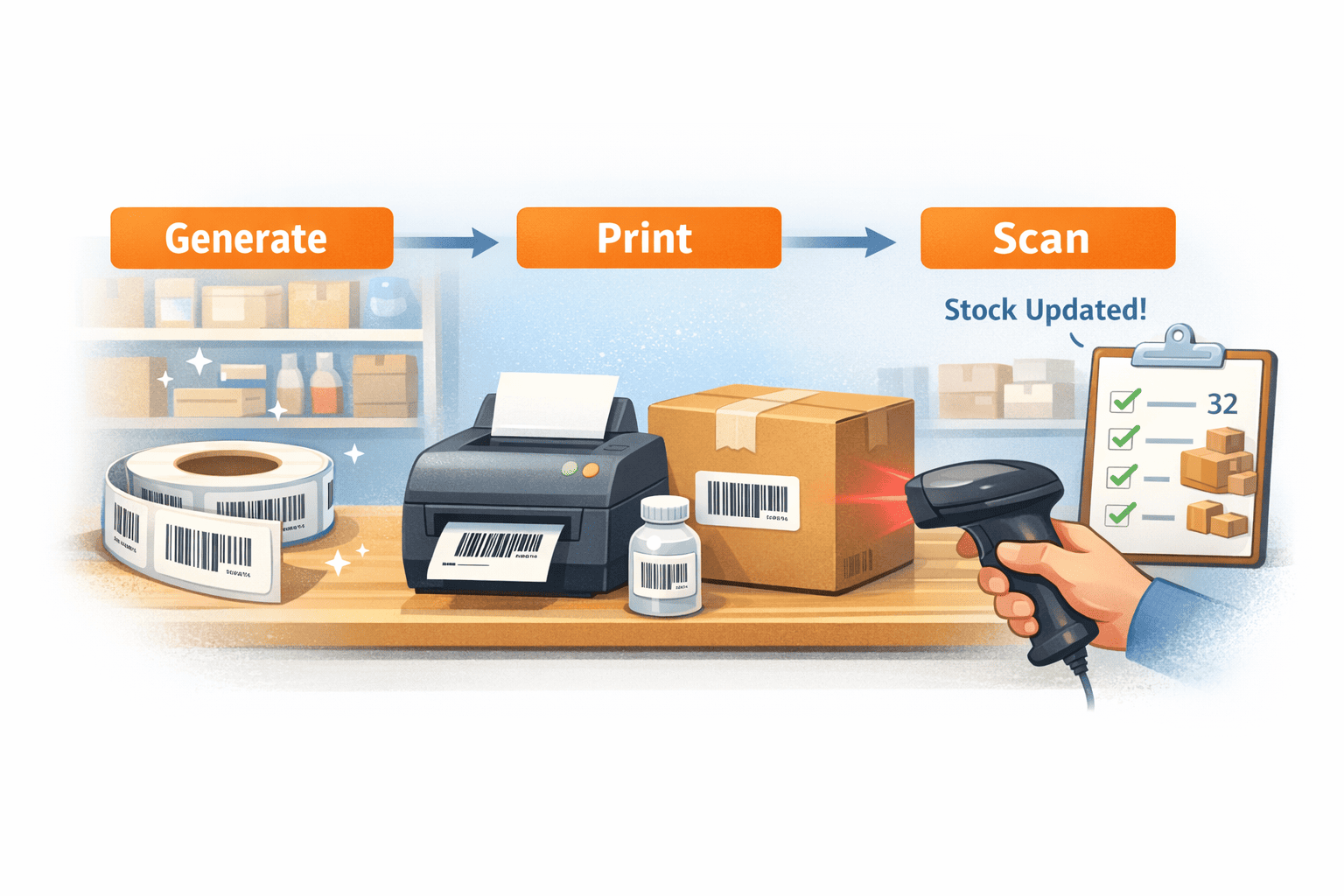
This guide shows barcode basics for small business in a setup you can start the same day: generate → print barcode labels → scan barcodes → control your stock. You’ll also see a simple barcode setup in Kladana, with steps for receiving, sales, returns, and stock counts.
Start barcoding today with Kladana
Generate barcodes in three simple steps, print labels, and scan into receiving and sales.
Use common label sizes and ready layouts to avoid misalignment and scan errors.
Scan items during picking and get instant “correct item” confirmation before dispatch.
Scan items during inventory counts, adjust quantities on the spot, and record damaged stock in minutes.
No extra tools needed.

- What Is a Barcode and Why Does It Help?
- Step 1 — Generate Barcodes for Your Products
- Step 2 — Print Barcode Labels
- Step 3 — Choose Scanner & Test Scanning
- Step 4 — Integrate Scanning into Your Workflow
- Step 5 — Use Barcode Mode for Picking & Stock Adjustments
- What to Do If Some Items Can’t Be Barcoded
- Why This Works in Kladana
- Frequently Asked Questions on Barcode Basics for Small Business
What Is a Barcode and Why Does It Help?
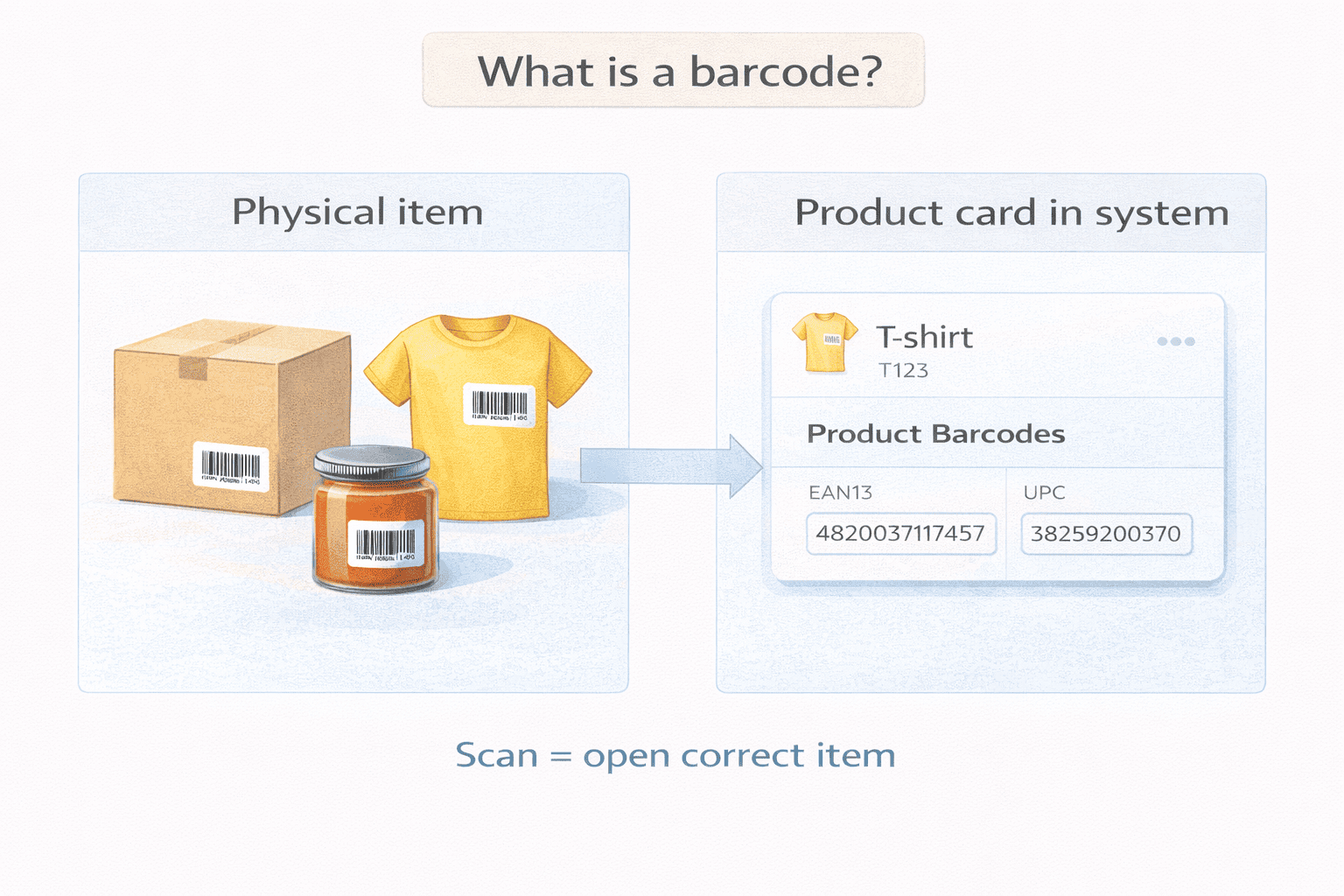
A barcode is a visual code that represents a product ID. When you scan it, the system instantly recognizes the item.
For a small business, this means:
- No manual typing during stock in or stock out
- Fewer picking and packing mistakes
- Clear tracking of each product and variant
- Faster inventory counting
Each barcode links one physical item to one digital record in your inventory system.
Types of barcodes used by small shops
- EAN / UPC — common retail barcodes used on packaged goods
- Code 128 — flexible format for internal use, SKUs, and variants
Most small shops start with Code 128. It works well for internal inventory control and needs no registration.
Internal vs global barcodes
- Internal barcodes
Used only inside your shop or warehouse. Created freely. Best for small businesses starting from zero. - Global barcodes
Needed only if you sell products through large retailers or marketplaces that require official codes.
If you manage stock inside your own system, internal barcodes are enough.
Step 1 — Generate Barcodes for Your Products
Here’s how to make barcodes for your products without extra tools.
Most small shops start with one of these options:
- Free online barcode generators
Good for testing and very small catalogs. - Built-in barcode tools inside inventory software
Better if you want barcodes linked directly to stock records.
For beginners, the safest choice is to generate barcodes inside your inventory system. Each barcode stays tied to the product card, SKU, and stock balance.
Which barcode format to choose
For internal inventory control:
- Use Code 128
- Encode your SKU or product ID
- One barcode = one product or variant
Avoid mixing formats. Pick one format and keep it across all items. This is the simplest way to set up barcode inventory for small business without spreadsheets.
What to barcode
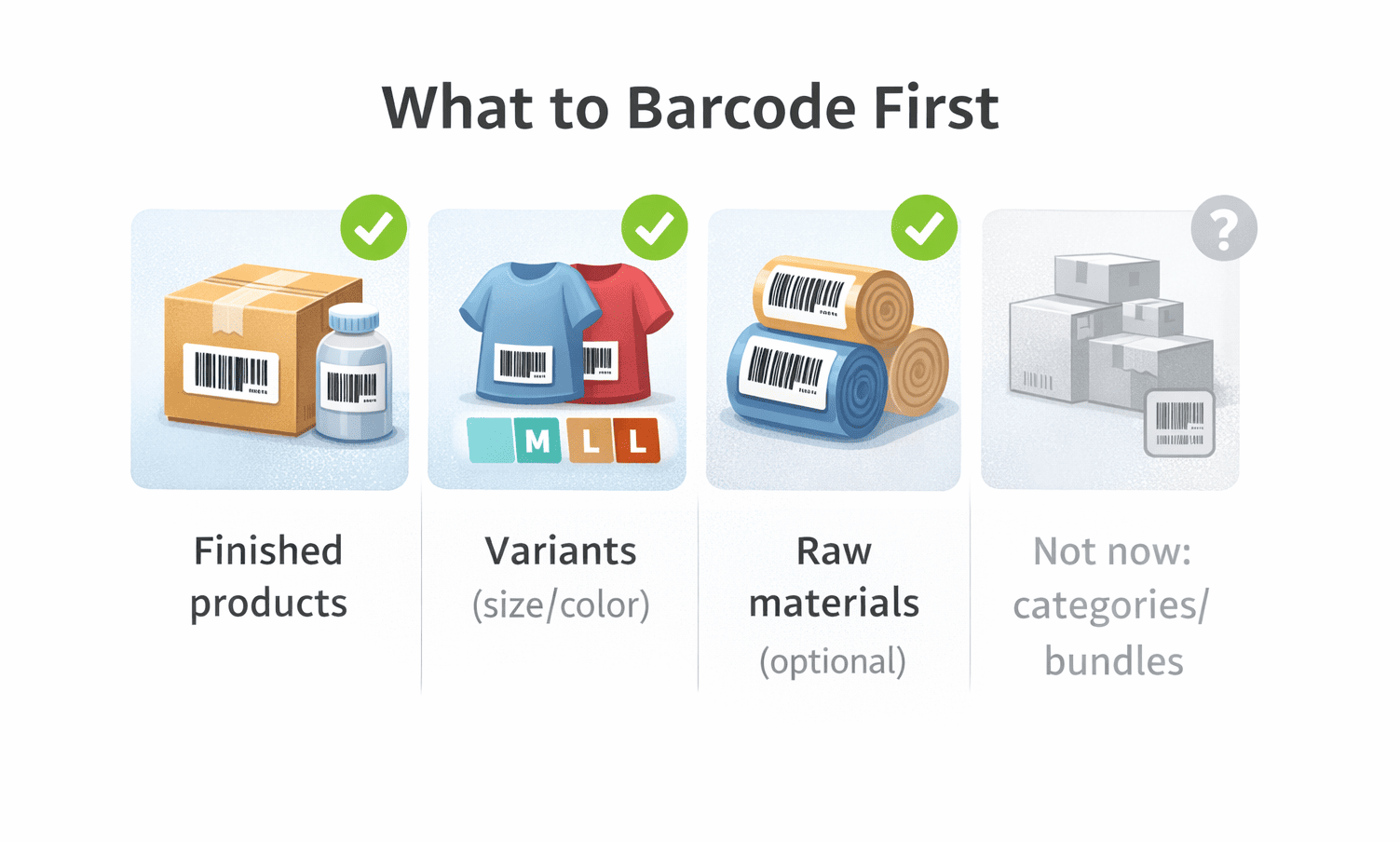
Start small:
- Finished products
- Product variants (size, color, pack size)
- Raw materials if you track them separately
Do not barcode categories or bundles at the start. Keep it simple.
Step 2 — Print Barcode Labels
Once barcodes are generated, you need to print them and attach them to items.
Label sizes that work best
Common beginner-friendly sizes:
- 40 × 25 mm — small products
- 50 × 30 mm — shelves and boxes
- 70 × 40 mm — cartons and pallets
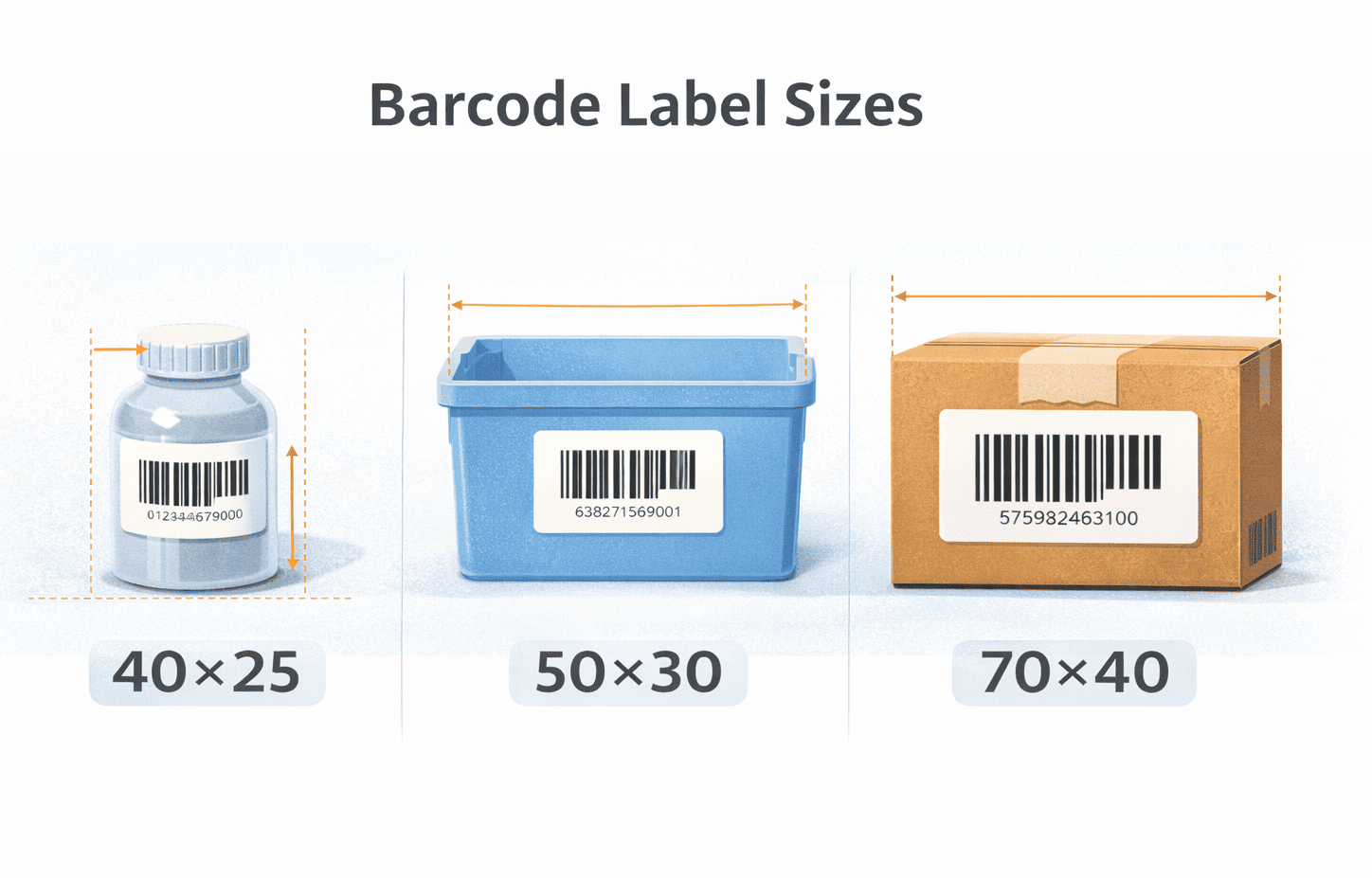
Use ready-made label templates to avoid alignment issues.
Printer options for small shops
- Inkjet or laser printer
Cheap and easy. Works well at the start. - Thermal barcode printer
Faster and cleaner for daily use. No ink required.
If you print labels often, thermal printers save time and money.
Label placement tips
- Place labels onflat, visible surfaces
- Avoid corners and curved edges
- Keep distance from seams and folds
- Make sure the barcode is not stretched or compressed
Always test-scan one printed label before printing a full batch.
📖 Recommended Reads
Stock-Taking: Step-by-Step Guide to Optimize Your Inventory Counting Procedures
This guide explains stock-taking in simple terms and walks you through how to plan, run, and document an inventory count, with clear steps, methods (including cycle counting), and a practical checklist.
It also covers common causes of stock discrepancies and shows how barcode scanning and inventory software can speed up counts and keep records accurate.
Step 3 — Choose Scanner & Test Scanning
You don’t need expensive hardware to start barcode scanning.
Scanner options for small shops
- USB barcode scanner
Plugs into a computer. Works like a keyboard. Fast and reliable. - Smartphone camera
Good for small volumes and stock counts. - Mobile scanner (Bluetooth)
Useful if you move around shelves often.
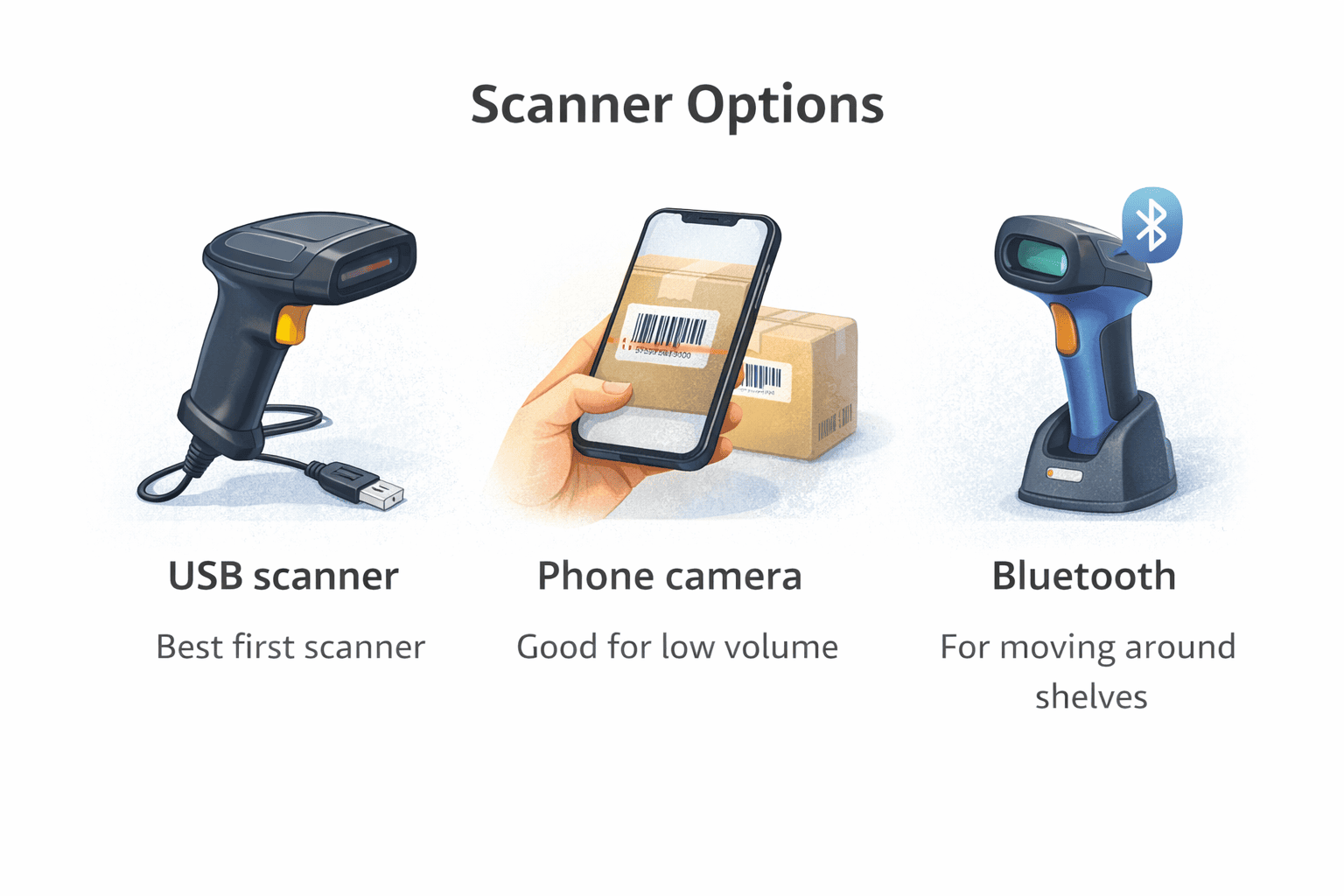
Many shops begin with a basic USB scanner and add mobile scanning later.
How to test scanning
Before daily use:
- Scan a printed label
- Check if the correct product opens
- Scan from different angles and distances
Common scan problems
- Barcode too small → increase label size
- Poor print quality → check printer resolution
- Glossy surface → change label material
If one scanner struggles, another model often works without changing labels.
Step 4 — Integrate Scanning into Your Workflow
A barcode system for small business works only when scans update stock automatically. In inventory software like Kladana, each scan links directly to stock movements.
Where scanning fits best
- Stock in — scan items when receiving goods
- Stock out — scan during sales or dispatch
- Transfers — move items between locations
- Returns — scan returned products back into stock
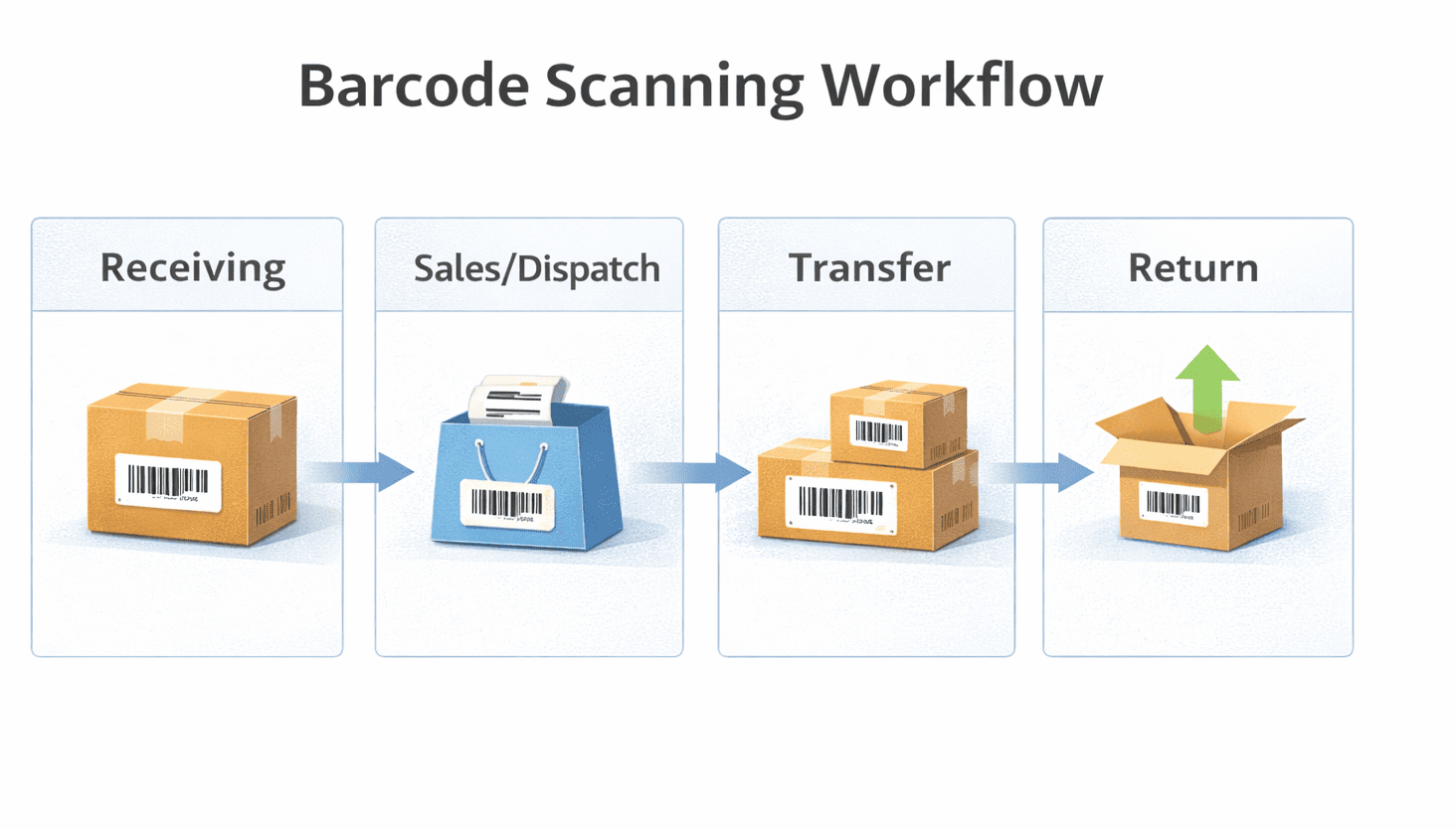
Instead of typing quantities, you scan items one by one. The system counts for you.
This removes manual errors and keeps balances accurate in real time.
Step 5 — Use Barcode Mode for Picking & Stock Adjustments
Once scanning works, use it for daily operations.
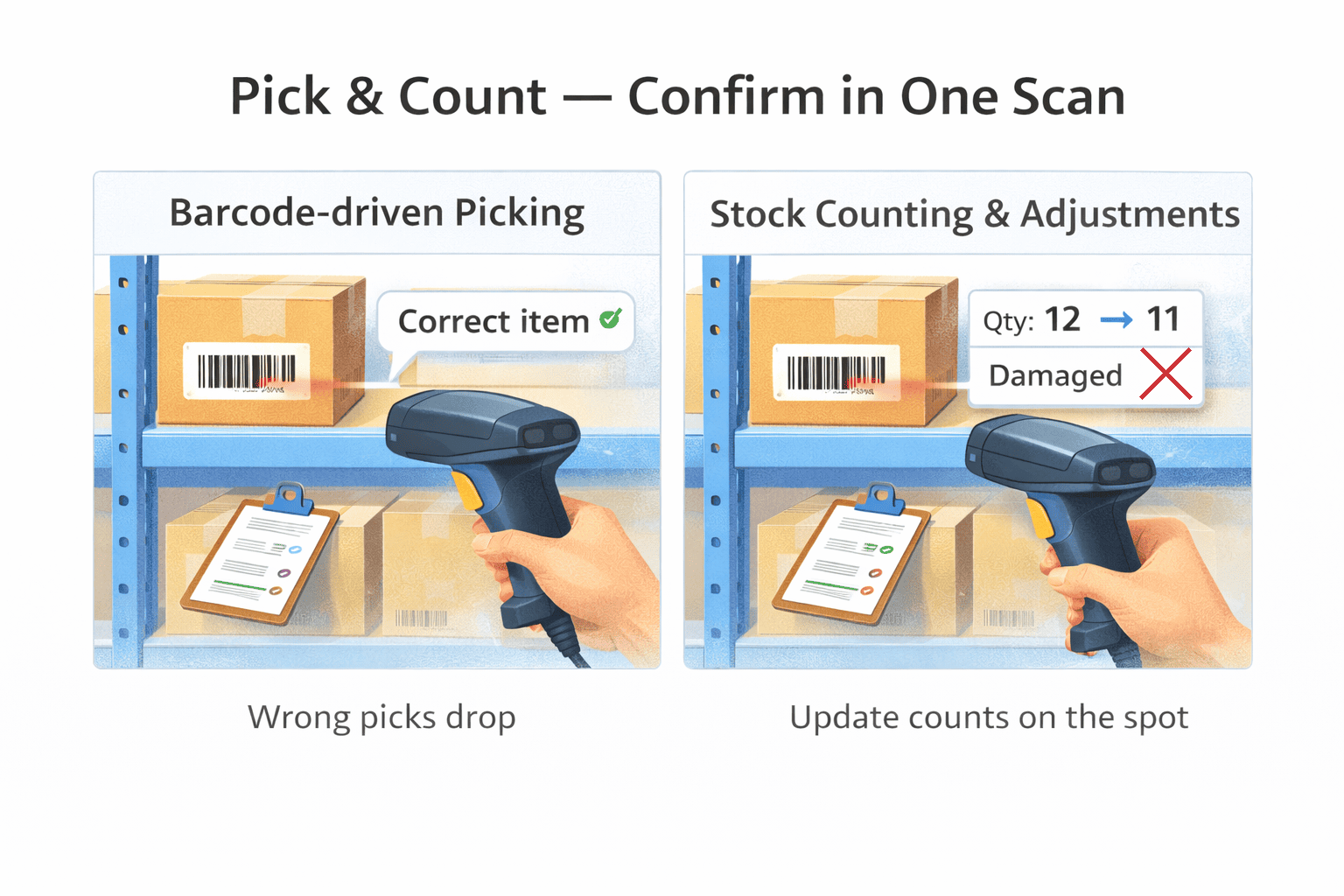
Barcode-driven picking
- Scan item barcode
- System confirms correct product
- Quantity updates automatically
This reduces wrong picks and missing items.
Adjustments and stock counting
- Scan items during inventory counts
- Adjust quantities on the spot
- Record damaged or missing stock fast
Barcode-based counting is much quicker than spreadsheets, even for small shops.
What to Do If Some Items Can’t Be Barcoded
Not every product can carry a label. That’s normal.
Common cases
- Very small items
- Loose or bulk goods
- Items sold by weight or length
Practical workarounds
- Use shelf or bin barcodes
Label the storage location and scan it during picking. - Batch identification
Assign one barcode to a box, pack, or batch. - Manual override
Search and select the item by name when scanning is not possible.
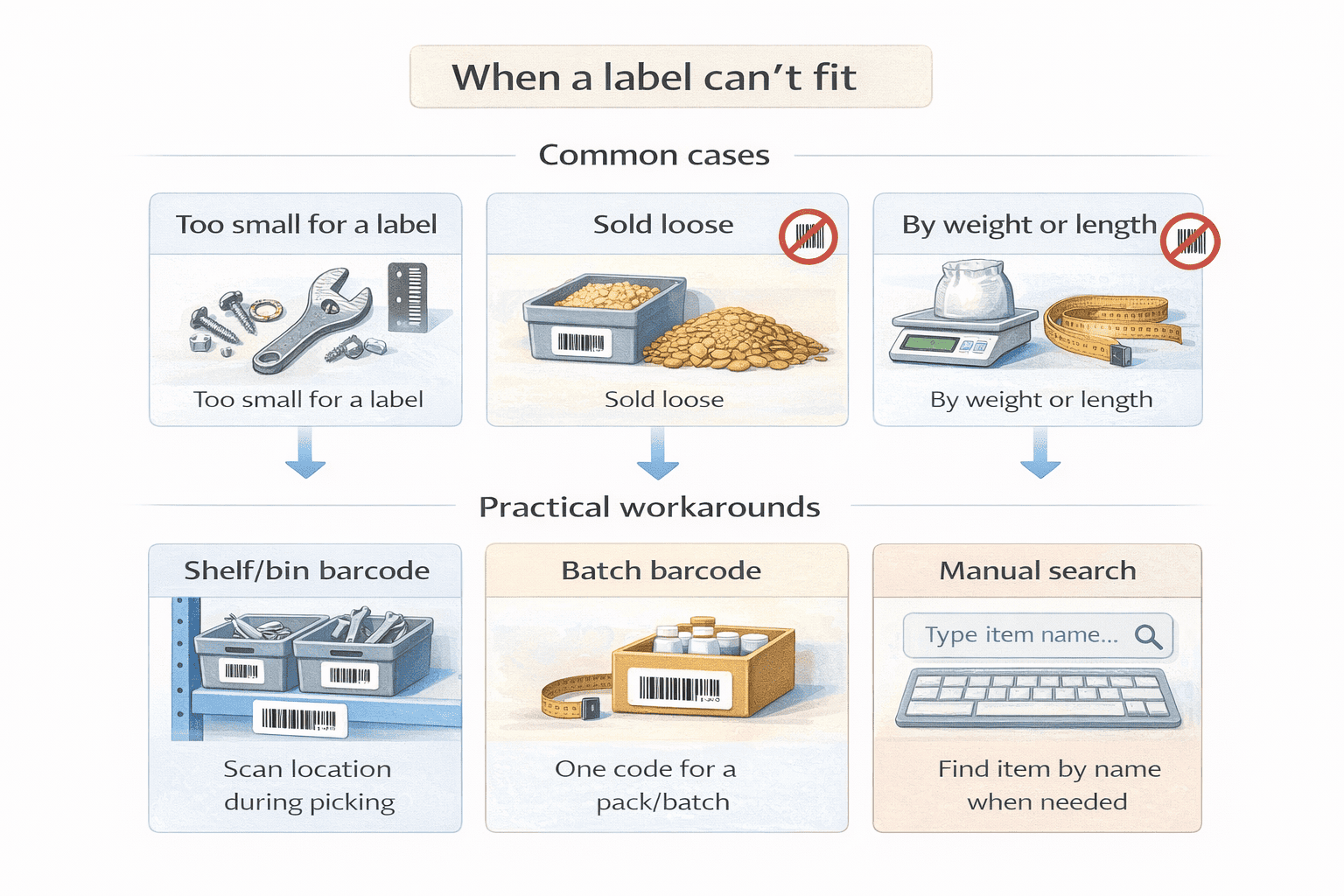
The key rule: keep these exceptions limited. Barcodes should cover most daily operations.
Why This Works in Kladana
Kladana’s barcode tools are built for small businesses. You don’t need a complex setup or extra modules.
- Barcode generation inside product cards
- Printing labels in common formats
- Scanning during stock in, stock out, picking, and counting
- Both USB or wireless connection (Bluetooth and Wi-Fi)
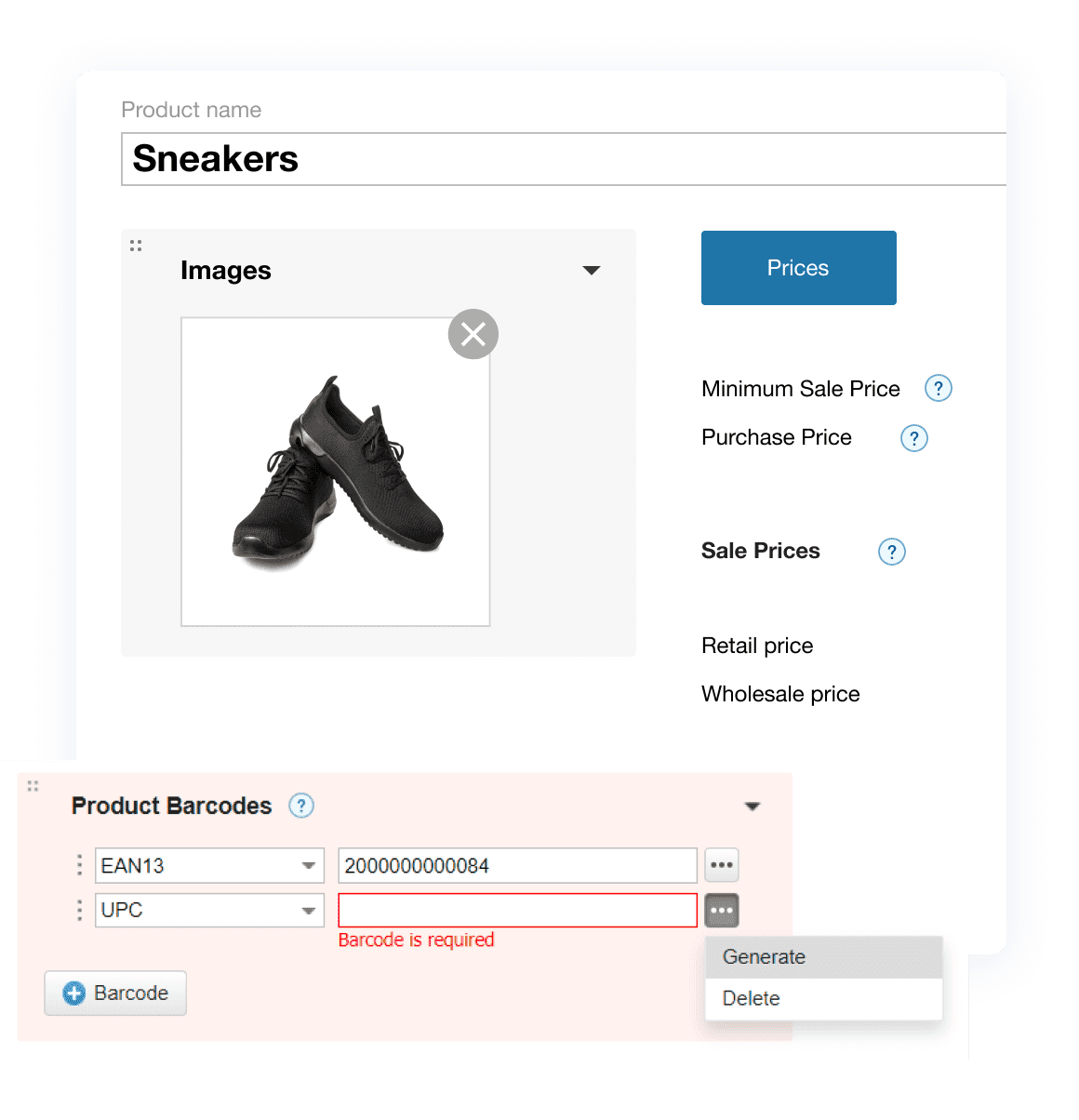
You can start on the free plan and scale later as volumes grow. No credit card needed.
If you’re still not sure about using an ERP system for barcoding, visit our YouTube channel for simple how-to tutorials.
▶️ This short video shows how barcodes work in Kladana step by step. It explains three ways to add barcodes to items, then demonstrates scanning to add products into a Receiving transaction, and shows how barcode scanning helps with quantity checks to reduce mistakes during daily operations.
Frequently Asked Questions on Barcode Basics for Small Business
These quick answers cover the most common questions small shop owners ask before they start barcoding.
What format should I use for my shop?
Code 128 works best for internal inventory control.
Do I need GS1 or UPC codes for internal use?
No. Internal barcodes are enough if you sell through your own channels.
Which printers are best for barcode labels?
Inkjet or laser printers work at the start. Thermal printers suit frequent printing.
Can I use my phone as a barcode scanner?
Yes. Phone cameras work well for small volumes and stock counts.
How do I integrate barcode scanning into inventory software?
Use software that links scans directly to stock movements.
What if a barcode doesn’t scan?
Check label size, print quality, and surface. Reprint if needed.
Can I barcode product variants?
Yes. Each size or color should have its own barcode.
How do I label existing stock?
Print labels and attach them during stock checks or slow hours.
What if items are too small for labels?
Use bin or shelf barcodes instead.
Will barcode scanning speed up operations?
Yes. Even small shops notice faster picking and fewer errors.
Read‑alikes
Barcode Inventory Systems 2026: 12 Best Software for Small Businesses
How Barcode Tracking Systems Transform Business Operations
Barcoding for Manufacturing: Importance, 8 Paramount Benefits, and Step‑by‑Step Implementation Guide
Top 10+ Smart Warehouse Ideas and Emerging Trends That Are Shaping the Future for Small Businesses