A purchase requisition format in Excel gives your team a standard way to request purchases. Employees record what they need, why they need it, and the estimated cost. A manager reviews the request before anyone places an order.
This guide includes three free templates: a basic requisition form, a multi‑department approval tracker, and an inventory replenishment request. You’ll also find a completed example, Excel formulas, and practical steps to adapt each format for your business.
- What Is a Purchase Requisition?
- Why Use Excel for Purchase Requisitions?
- Key Elements of a Purchase Requisition
- Free Purchase Requisition Excel Templates
- How to Create a Purchase Requisition in Excel
- Best Practices for Using Excel Purchase Requisitions
- To Sum It Up
- FAQs on Purchase Requisition Template Usage
- List of Resources
Free Purchase Requisition Excel Workbook
Request purchases, record approvals, and plan stock replenishment with three ready‑to‑use templates:
- Basic Purchase Requisition Form
- Multi‑Department Approval Tracker
- Inventory Replenishment Requisition
The workbook includes prefilled examples, a completed packaging request, dropdown lists, automatic cost and replenishment calculations, approval status tracking, cell notes, and instructions.
Or
What Is a Purchase Requisition?
A purchase requisition (PR) is an internal request for approval to buy goods or services. It helps the person responsible for the budget check whether a purchase is necessary, affordable, and needed by a certain date.
Warehouse staff use requisitions to request stock. Other teams use them for supplies, equipment, or services. A department head, business owner, or finance manager reviews the request, depending on company policy.
A purchase requisition and a purchase order serve different purposes:
| Detail | Purchase requisition (PR) | Purchase order (PO) |
Purpose |
Request internal approval |
Place an order with a supplier |
Prepared by |
Employee or department |
Buyer or purchasing team |
Sent to |
Internal approver |
Selected supplier |
Cost details |
Estimated cost |
Order prices and terms |
After approval, the buyer can prepare a PO and record its number against the requisition. See how these documents fit into the steps of the purchasing process.
Why Use Excel for Purchase Requisitions?
Excel suits small teams that need a shared format for occasional purchase requests. You can adapt the fields, calculate estimated costs, and filter requests by department or status.
Dropdowns keep entries consistent. Conditional formatting can highlight urgent requests. Approval routing and email notifications require extra setup, such as a configured Power Automate flow. Formulas alone cannot send a request to a manager.
Key Elements of a Purchase Requisition
A useful form gives the approver enough detail to make a decision without extra emails. Include these fields:
| Field | What to enter |
Request details |
Unique PR number, submission date, requester |
Department and budget |
Department, project, cost centre, or accounting code |
Goods or services |
Description, specifications, quantity, unit |
Estimated cost |
Unit cost, line totals, currency |
Business need |
Purchase justification, required‑by date, delivery location |
Priority and supplier |
Urgency, suggested supplier if known |
Approval record |
Approver, decision, decision date, comments |
Purchase reference |
Linked PO number after approval and order creation |
Add expected tax or freight to the estimate if your approval policy requires them.
Free Purchase Requisition Excel Templates
Choose a procurement requisition template that fits how your team reviews requests. The workbook contains three formats (with a bonus), instructions, and a completed example.
Basic Requisition Form
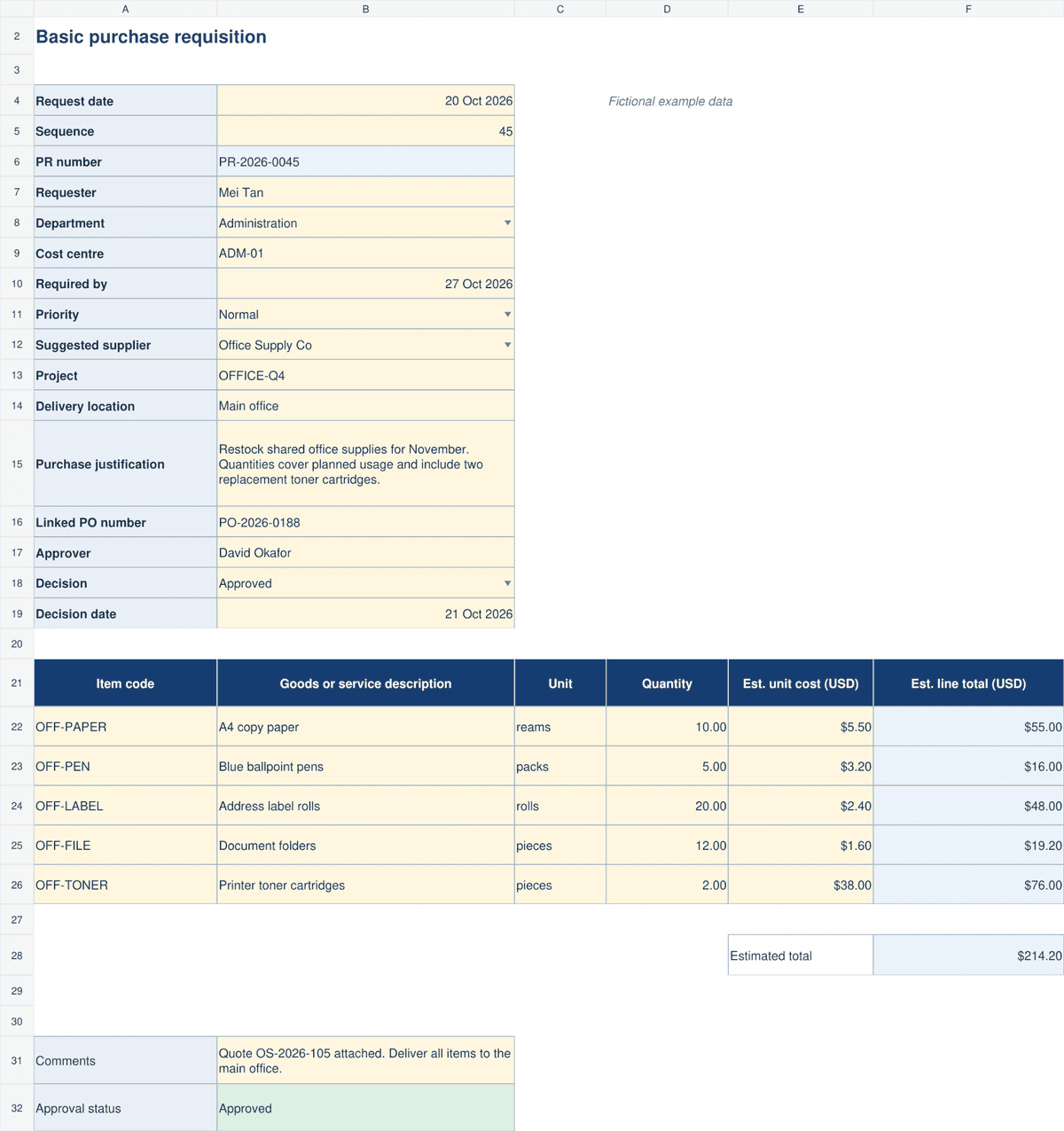
Use this Excel purchase request form for one request at a time. It includes five item lines, estimated totals, purchase justification, and one approval record. Duplicate the blank form for each new request.
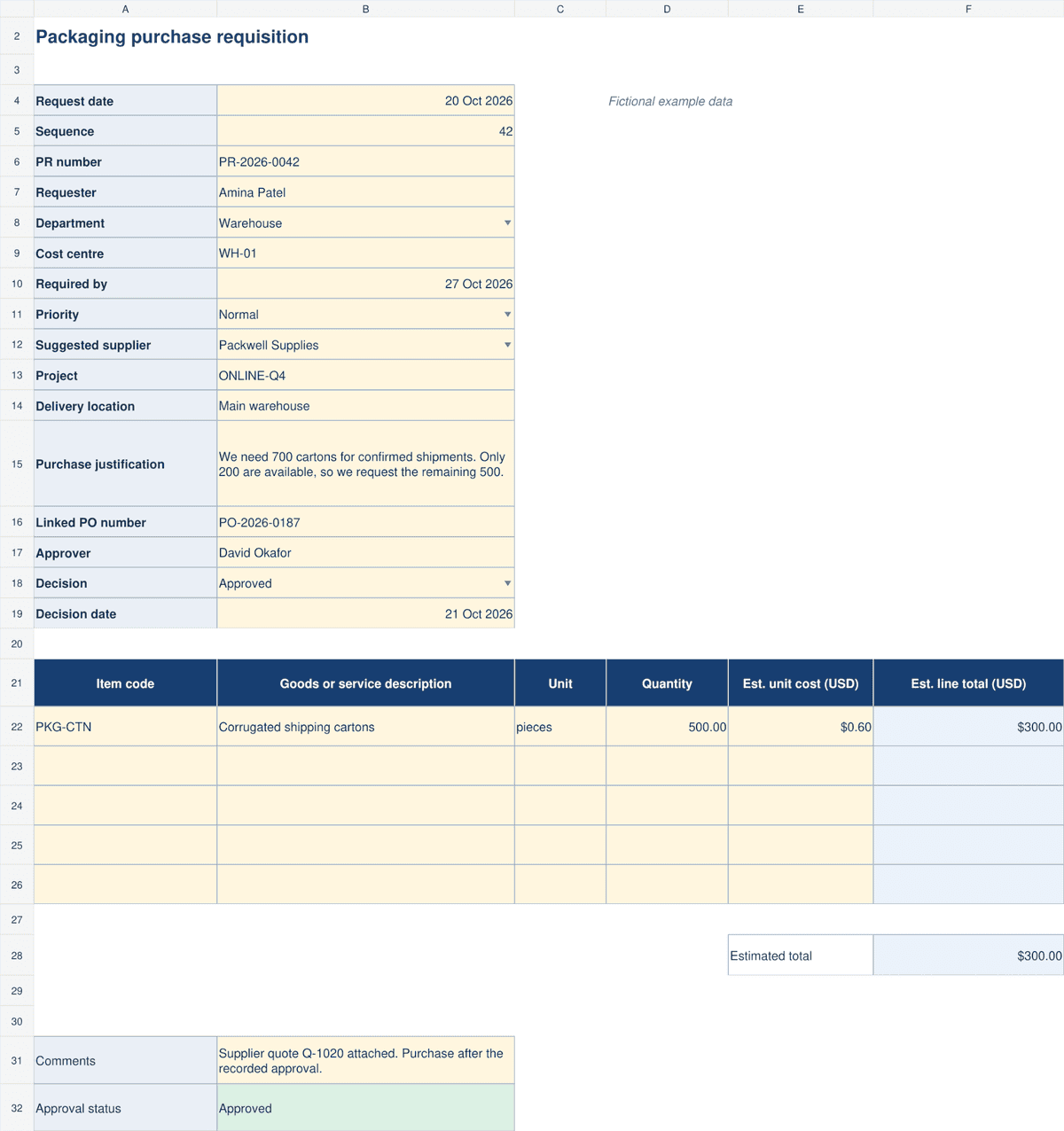
As a bonus here’s the prefilled example of a packaging purchase requisition.
Multi‑Department Approval Tracker
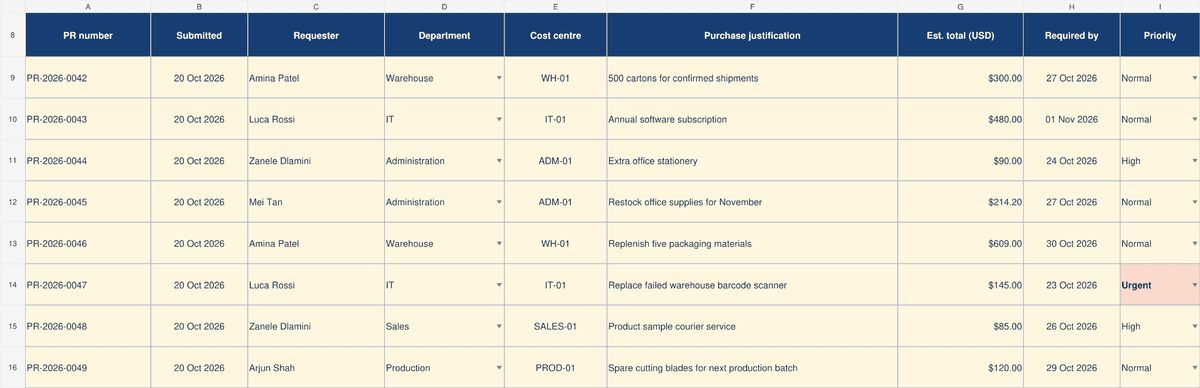
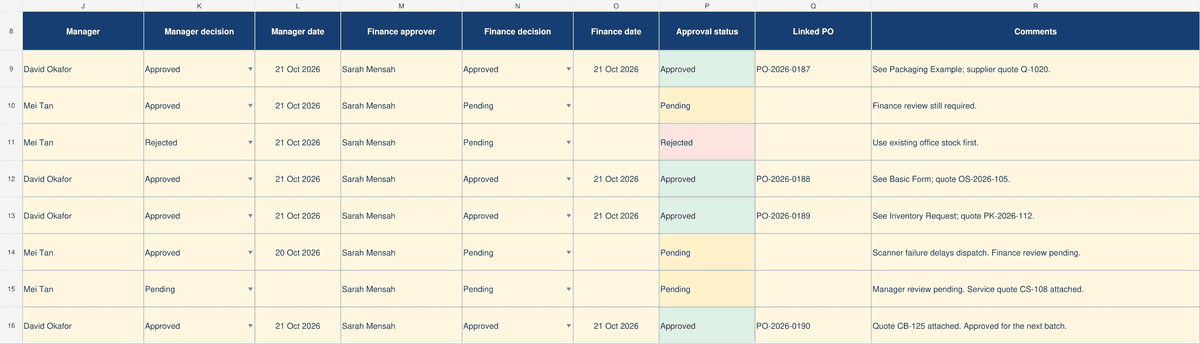
Use one row per requisition to review requests across departments. Record the cost centre, estimate, deadline, two approvers, decisions, and linked PO.
The status formula displays Approved only after both approvers’ names, approval decisions, and decision dates are present. This example requires manager and finance approval for every request. Adapt the rule to your policy.
Inventory Replenishment Requisition
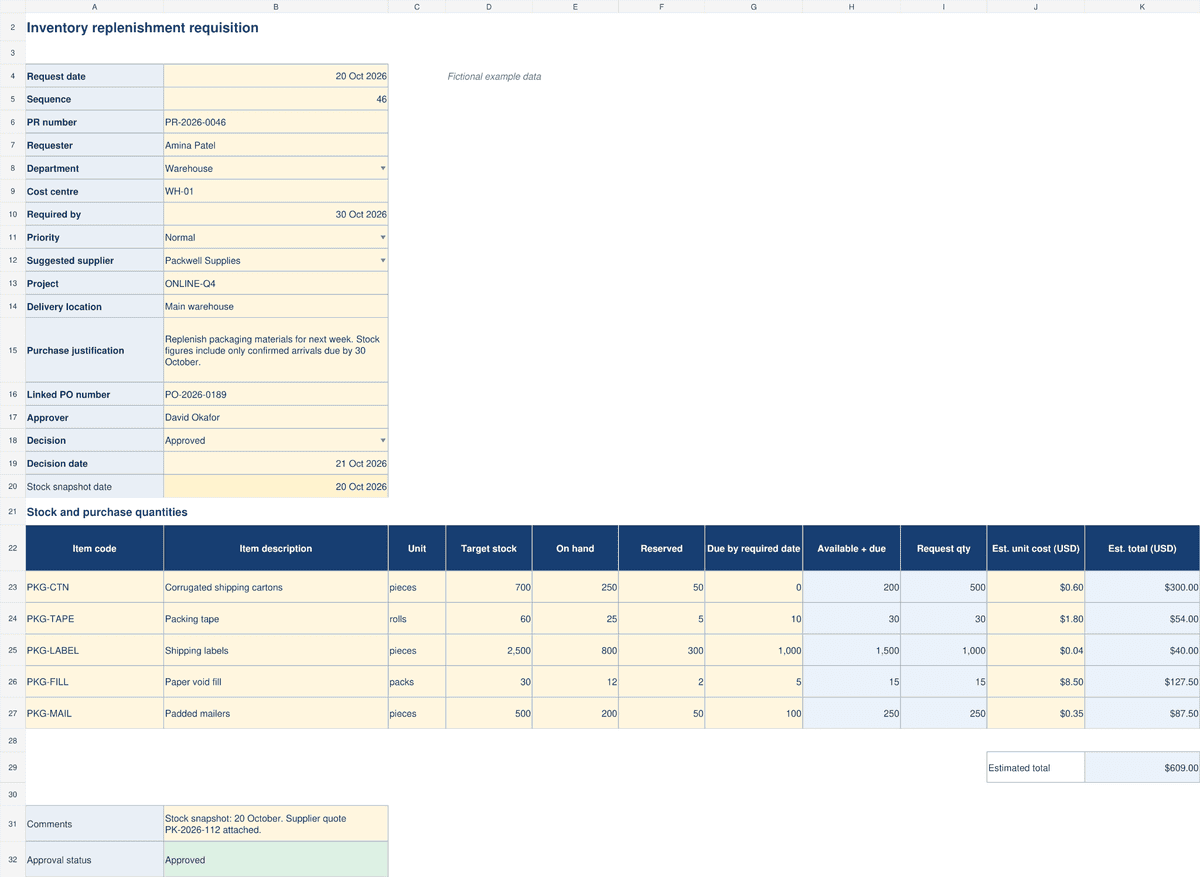
Use this version for stock shortages. Enter target stock, on‑hand quantities, reserved stock, and confirmed incoming quantities due by the required date.
The sheet calculates the suggested request quantity and estimated cost. Stock figures are manual snapshots. Refresh them before approval.
All three formats include dropdowns and cell notes that explain fields and formulas. They calculate and display information; staff record the approval decisions.
Completed Example of a Packaging Request
This fictional request shows the handoff:
| Stage | Example entry |
Submission |
Amina submits PR‑2026‑0042 on 20 October 2026 |
Justification |
Shipments need 700 cartons; only 200 are available |
Estimate |
Request 500 cartons at $0.60 each: $300 |
Approval |
Manager and finance approve on 21 October |
Handoff |
Buyer creates PO‑2026‑0187 and records it against the PR |
The workbook includes the completed form and its entry in the approval tracker.
How to Create a Purchase Requisition in Excel
Start with the Basic Form or build your own sheet with the same fields. Follow these steps.
- Set up request details. Add the requester, department, justification, required‑by date, and estimated costs. Use a fixed submission date.
- Add dropdowns. Select department, priority, or supplier cells. Choose Data → Data Validation → List and enter the permitted values. Microsoft’s dropdown setup guide explains the options.
- Format the PR number. In our Basic Form, B4 holds the request date. B5 holds a sequence allocated through the shared log. B6 uses:
=IF(OR(B4=””,B5=””),””,”PR-“&TEXT(B4,”yyyy”)&”-“&TEXT(B5,”0000”))
For sequence 42 in 2026, this produces PR‑2026‑0042. Before submission, copy B6 and use Paste Special → Values. The formula formats an ID; the shared log controls uniqueness. - Calculate estimated costs. Multiply quantity by estimated unit cost. For the first item row, the calculation is =ROUND(D22*E22,2). Add line totals with =SUM(F22:F26). The supplied workbook also checks for missing inputs.
- Highlight urgency. Use Conditional Formatting to highlight cells that contain Urgent. Add a reason for the priority and a realistic required‑by date.
- Record the review. Enter each approver’s name, decision, and date. After approval and PO creation, add the PO reference to the log.
For replenishment, the calculation is:
Request quantity = MAX(0, target stock − (on hand − reserved + incoming due by the required date))
Enter zero when there are no units. Leave unknown quantities blank so the workbook flags missing data.
Best Practices for Using Excel Purchase Requisitions
Agree on one process before you share the workbook:
- Use one template. Give departments the same field definitions and approval rules.
- Keep one master log. Assign an owner who controls request numbers and avoids duplicate records.
- Keep approval evidence. Save the supporting quote and approval message with the PR.
- Recheck stock. Review existing stock and open orders before approval.
- Control revisions. Record changes to quantity, cost, or scope. Request approval again when your policy requires it.
- Link the next step. Record PO references without treating an approved request as an order already placed.
Use the purchase order management guide for the steps after requisition approval.
Let Your Team Request Missing Stock in Kladana
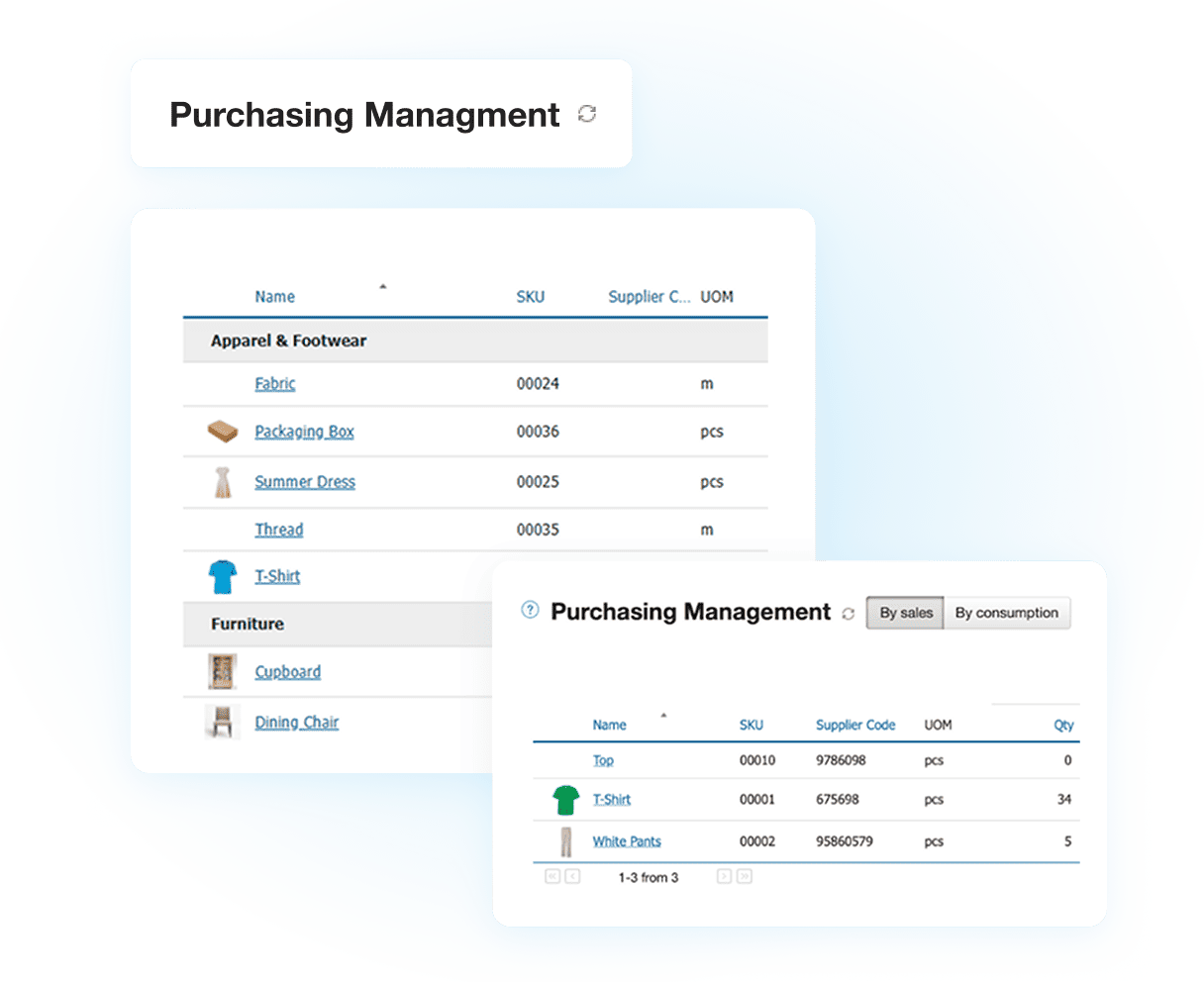
Give warehouse and production staff a clear way to pass stock needs to purchasing. Kladana uses internal orders, production supply tools, and draft Purchase Orders for this process. It does not have a separate Purchase Requisition document type.
Your team can:
- Record stock needs. Staff with access can create orders with the required items, quantities, and expected delivery date. Purchasing can then create supplier orders based on those requests.
- Request missing production materials. Check shortages in a Production Order and use Supply features to prepare purchases, warehouse transfers, or production of components.
- Keep approval with purchasing. Configure permissions so supervisors can save draft Purchase Orders while authorized buyers review suppliers, quantities, and prices before approval.
- Plan purchases before shortages interrupt work. Use reorder point alerts to spot low stock. Purchasing can also create POs for missing quantities directly from Sales Orders.
Keep stock needs and related orders connected, so purchasing can act without retyping requests from separate spreadsheets.
To Sum It Up
Choose a form, assign a permanent request number, and explain the business need. Check stock and estimated costs before approval. Record each decision and link the approved request to the supplier PO.
FAQs on Purchase Requisition Template Usage
These answers cover common questions about request details, approval records, and the next purchasing step.
What Is the Difference Between a Purchase Requisition and a Purchase Order?
A requisition asks for internal approval to buy. A purchase order goes to the supplier and states the items, quantities, prices, and terms.
Which Fields Are Mandatory in a Requisition Form?
Your company’s policy sets the required fields. A practical minimum includes requester, PR number, date, items, quantity, estimate, justification, required‑by date, and approval record.
How Do I Assign Cost Centre or Accounting Codes in Excel?
Ask finance for the approved codes. Use a dropdown and store codes as text to preserve leading zeros. Add separate item‑level codes when one request covers several budgets.
Can a Purchase Requisition Request Services?
Yes. Describe the scope, service period, and deliverables. Use a suitable quantity, such as hours or months, and add the estimated rate.
What If a Request Involves Multiple Vendors or Split Delivery?
Record supplier suggestions and required dates against the relevant items. After approval, create supplier‑specific POs and link each one to the original PR.
How Should I Handle Urgent Purchase Requests?
Mark the priority, explain the effect of a delay, and contact the authorized approver. Follow your emergency purchase process and keep the decision record.
Can I Protect the Template Against Changes?
Unlock the input cells, then use Review → Protect Sheet to limit accidental edits. Microsoft explains that worksheet protection is not a security control. Restrict access to the master file.
How Do I Track Approval Status in Excel?
Record each decision in a dropdown, with the approver’s name and date. A formula can display the combined status. Automated routing needs a separate workflow.
What Procurement Rules Apply in My Country or the Public Sector?
Check your procurement authority’s current rules and your organization’s policy. Required forms, approval limits, and supplier selection procedures vary. Adapt the workbook to those requirements.
How Do I Convert an Approved Requisition into a Purchase Order?
Confirm the supplier, quantities, prices, and delivery terms. Use the general PO templates or the GST purchase order guide, then record the PO number against the PR.
List of Resources
- Microsoft Support — Create a Drop‑Down List
- Microsoft Support — Protection and Security in Excel
- Microsoft Learn — Create an Approval Workflow with Power Automate
Read‑alikes
Body Motion’s customer story — How better stock visibility helped address duplicate purchases.
Neytthomes’ customer story — How system‑generated POs improved purchase records.
Purchase order management guide — Learn how to connect sales, purchases, and inventory.