
A payroll sheet in Excel helps you calculate salaries, track deductions, and keep payroll records for the whole team in one file. It is a practical option for small businesses, accountants, admin staff, and founders who need a simple way to manage payroll without moving to full payroll software yet.
With the right setup, Excel can calculate gross salary, deductions, and net pay automatically. You can also link the file with attendance data, overtime records, and monthly summaries.
This guide explains how to make a payroll sheet in Excel in plain language, which columns to include, which payroll sheet formula setup to use, and how to keep the file easy to update every month.
- What Is a Payroll Sheet?
- Benefits of Using Excel for Payroll Management
- Key Components of a Payroll Sheet Format
- Step-by-Step: How to Make a Payroll Sheet in Excel
- Download Free Payroll Sheet Templates
- How to Link Payroll with Other Excel Sheets
- Best Practices for Managing Payroll in Excel
- FAQs on How to Make Payroll Sheet
- To Sum It Up
- List of Resources
What Is a Payroll Sheet?
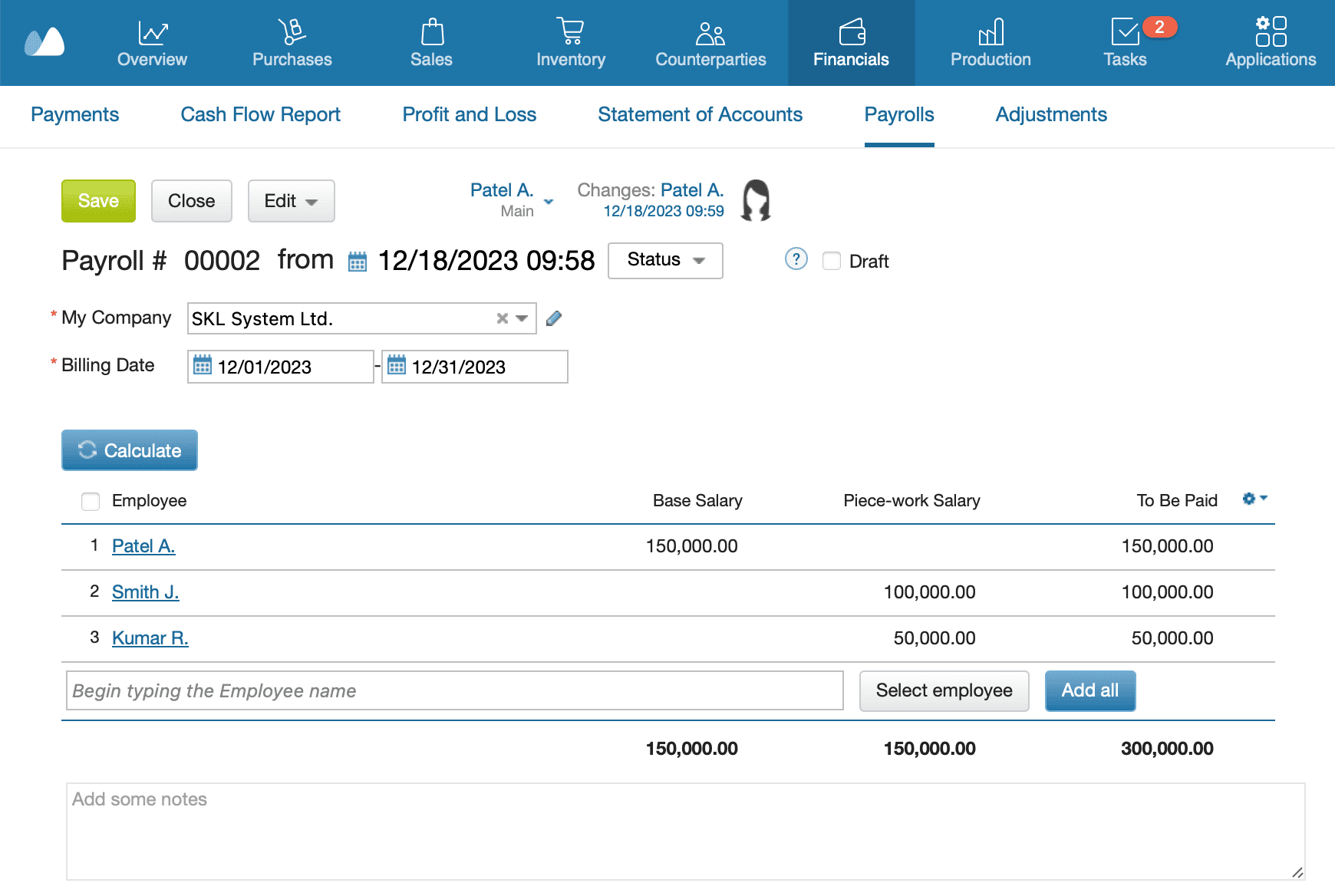
A payroll sheet is a spreadsheet used to record and calculate employee pay for a selected pay period. It usually includes employee names or IDs, salary details, days worked or hours worked, allowances, deductions, and final take-home pay.
Its purpose is to keep payroll data in one place. Instead of checking separate notes, chat messages, or files, you can process salaries in a clear table and review the full month in one view. This makes payroll management easier and helps reduce mistakes before payments are made.
A payroll sheet is different from a salary slip. The payroll sheet is used inside the company to calculate and review salaries for all employees. A salary slip shows the pay details of one person for one month. That is why these two formats should stay separate.
Excel works well for payroll when the team is still small and the salary structure is not too complex. It gives you flexibility, low cost, and enough automation to save time without making the process hard to follow.
Benefits of Using Excel for Payroll Management
Excel is a good starting point for payroll management because it is easy to access and simple to customize. You can build the file around your own payroll process instead of adjusting your process to fit a fixed tool.
The biggest benefit is automation through formulas. Once the sheet is set up, Excel can total earnings, calculate deductions, and show net salary automatically. This reduces manual work and lowers the risk of simple calculation errors.
Excel also makes it easy to organize payroll data across several tabs. You can keep payroll on one sheet, attendance on another, and deduction rates on a third. That structure keeps the file cleaner and makes monthly updates easier.
Another advantage is visibility. You can review payroll for the whole team, check totals before payment, and highlight missing values or unusual amounts. This is much easier than managing payroll from scattered records.
Excel is also useful for month-end reporting. You can add totals at the bottom of the sheet, create a summary tab, or build a chart showing payroll expenses over time.
Key Components of a Payroll Sheet Format
Before you build the file, decide what information your payroll format in Excel should include.
| Column | Description |
| Employee Name / ID | Identifies each employee |
| Designation / Department | Helps group payroll by team or cost center |
| Attendance / Days Worked | Used for prorated salary |
| Hours Worked / Overtime | Useful for hourly pay or extra shifts |
| Basic Salary / Pay Rate | Fixed monthly amount or hourly rate |
| Allowances | Transport, meals, housing, bonus, or other additions |
| Gross Salary | Total earnings before deductions |
| Statutory Deductions | Tax, pension, insurance, or other required deductions |
| Other Deductions | Loans, advances, unpaid leave, or other custom items |
| Net Salary | Final take-home amount |
| Payment Date / Mode | Bank transfer, cash, cheque, or online payment |
These are the main parts of an employee salary sheet. The exact column names may change from one business to another, but the logic stays the same: employee details, earnings, deductions, and final payout.
To keep the file easy to read, divide the structure into four parts: employee details, earnings, deductions, and payment details. That makes the payroll register easier to scan and update.
Step-by-Step: How to Make a Payroll Sheet in Excel
Now let’s go through the process step by step.
Step 1: Create column headers
Open a blank Excel file and add the headers in row 1. A simple payroll sheet can start with these columns:
Employee ID, Name, Department, Days Worked, Basic Salary, Allowances, Gross Salary, Deductions, Net Salary, Payment Date, and Payment Mode.
Start with only the fields you need. It is easier to add extra columns later than to clean up a file that has too many unused fields.
Step 2: Enter employee data
Add one employee per row. Fill in the fixed details first, such as employee ID, name, department, and monthly salary or hourly rate.
If you process payroll every month, it helps to keep employee master data on a separate tab. Then the current payroll sheet can stay focused on the selected pay period.
Step 3: Add salary formulas
Use formulas so the sheet calculates values automatically.
Examples:
- Gross Salary: =SUM (E2:G2)
- Total Deductions: =SUM (I2:K2)
- Net Salary: =H2-L2
The exact cells may differ in your file, but the logic stays the same:
Net Salary = Gross Salary − Total Deductions
This is the base structure for most payroll sheet formulas.
Step 4: Automate attendance-based salary
If salary depends on attendance, use a formula like this:
=BasicSalary*(DaysWorked/TotalDays)
This is useful for part-month salary, unpaid leave, or employees who joined during the month.
If your team is paid by hour, use this format instead:
=HourlyRate*HoursWorked
You can also add overtime as a separate column and include it in gross salary.
Step 5: Add deductions and allowances
Create separate columns for the items your business uses. These may include tax, pension, insurance, advances, reimbursements, or loan recovery.
Example formulas:
- Tax: =H2*TaxRate
- Pension: =E2*PensionRate
- Insurance: =H2*InsuranceRate
Keep this section flexible. Payroll rules vary across countries and companies, so the template should allow you to add or remove deduction fields without rebuilding the whole file.
Step 6: Use conditional formatting
Conditional formatting helps you spot issues before payroll is approved.
You can highlight:
- blank payment dates
- low attendance
- negative net salary
- unusually high deductions
This adds a simple visual check and helps catch mistakes faster.
Step 7: Add a summary row
At the bottom of the payroll sheet, add totals for the main payroll values:
- Total Gross Salary
- Total Deductions
- Total Net Salary
This gives you a quick month-end payroll summary. You can also create a separate summary tab for department totals or payroll expense charts.
Step 8: Protect and save the template
Once the sheet works correctly, lock the formula cells and save the workbook as a reusable template.
This protects the calculation logic and saves time each month because you do not need to rebuild the file from scratch.
Download Free Payroll Sheet Templates
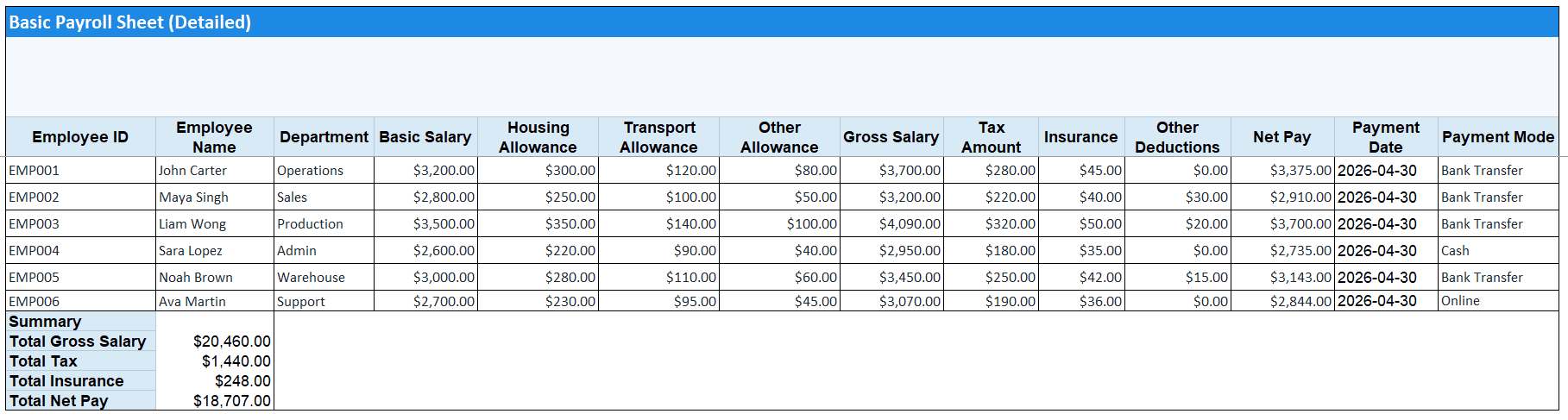
To make setup easier, we offer free ready payroll sheet templates here. Select the required sheet (Basic/Attendance/Register) in the downloaded Excel file.
Basic Automated Payroll Sheet
Use this template when you want a clean payroll sheet for manual salary entry. It includes employee details, pay components, deductions, payment details, allowance fields, tax, insurance, and net pay calculation. It contains formulas for gross salary, deductions, and net salary.
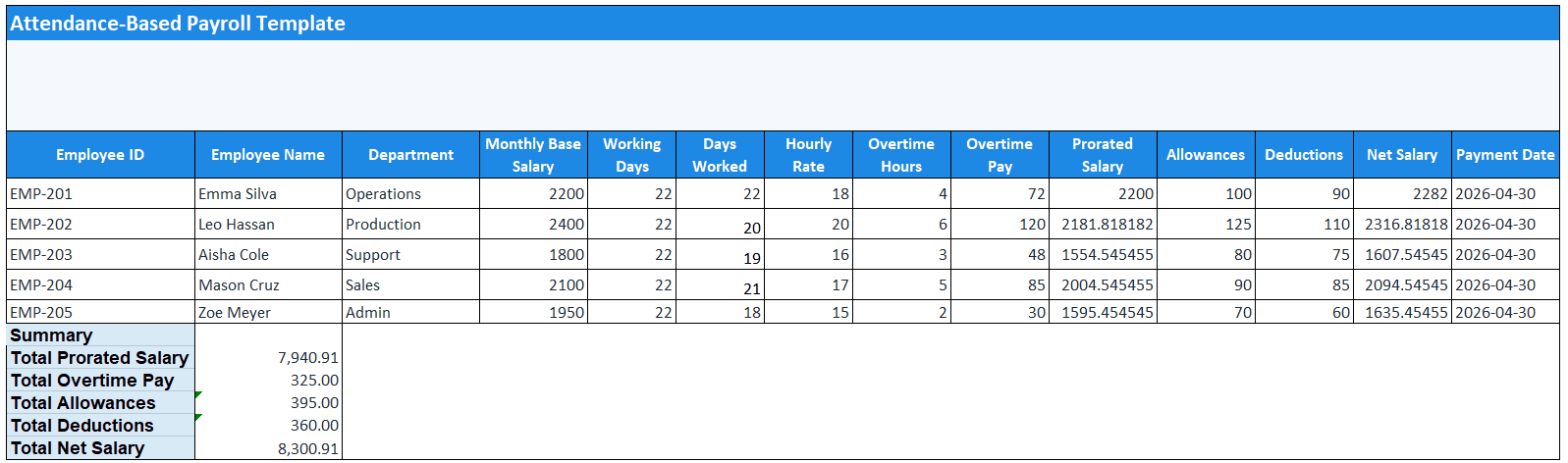
Attendance-Based Payroll Sheet
Use this payroll sheet when salary depends on days worked, hourly rates, or overtime. The file calculates prorated salary and combines it with allowances and deductions.
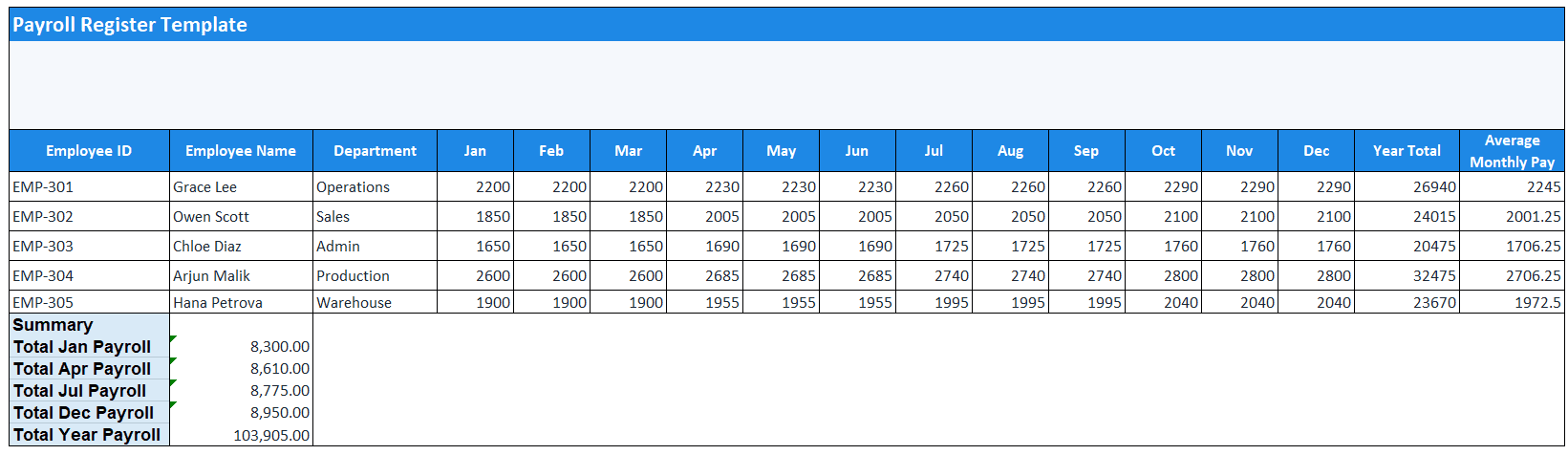
Payroll Register
Use this sheet to keep monthly salary history for each employee across the full year. It is useful for payroll tracking, comparisons, and yearly totals.
How to Link Payroll with Other Excel Sheets
A payroll file works better when it is linked to other records.
You can connect it with:
- an attendance sheet
- an overtime log
- a deductions or tax-rate tab
- a summary tab for reports
- a separate format for salary slips
This reduces repeated data entry and keeps the workbook more organized. For example, attendance data can feed salary calculation, while deduction rates can stay on a separate sheet for quick updates.
One point matters here: payroll calculation and salary slip generation are two different tasks. First, you calculate payroll for the whole team in the payroll register. Then, if needed, you create individual salary slips from approved payroll data.
Looking for more ready-made Excel and document formats?
The Templates section in the Kladana blog includes practical formats for payroll, inventory, production, and daily operations. These materials help small businesses start with a clear structure and adapt it to their own process.
Popular templates:
Best Practices for Managing Payroll in Excel
Use one master payroll file per financial year and separate tabs for payroll, attendance, and deductions. This keeps the workbook easier to manage.
Keep formulas consistent across all rows. When salary structures change, update the formulas carefully and test them before the next payroll cycle.
Back up the file to cloud storage and limit editing access. Payroll data is sensitive, and spreadsheet mistakes often happen when too many people work in the same file without clear rules.
Always review the sheet before making payments. Check attendance, gross pay, deductions, and net salary totals. A final review can catch missing values or broken formulas before they turn into payroll mistakes.
Excel works best when the team is small and the payroll structure is still manageable. Once payroll becomes tied to more complex rules, large teams, approvals, or production-based pay, spreadsheets may start causing more work than they save.
Need a more organized payroll workflow?
Kladana helps when the process needs more structure.
FAQs on How to Make Payroll Sheet
Now, let’s answer a few common questions about salary calculation in Excel.
What formulas are used in Excel for payroll calculation?
The most common formulas are SUM for totals and subtraction for net salary. Attendance-based payroll often uses multiplication and division, such as salary × days worked / total days.
Can Excel calculate tax and overtime automatically?
Yes. You can build formulas for overtime pay, percentage-based deductions, and attendance-based salary. Once the logic is in place, Excel can calculate these values automatically.
What’s the difference between a payroll register and a payslip?
A payroll register is the internal sheet used to calculate payroll for the whole team. A payslip is an individual document for one employee.
How do I convert payroll data into monthly reports?
You can add a summary row, create a summary tab, or build charts from payroll totals. Department-level and month-level summaries are easy to prepare once the main payroll sheet is structured well.
Can I link multiple sheets together?
Yes. You can link payroll with attendance, overtime, deductions, and summary tabs. That reduces repeated entry and keeps the workbook more organized.
Is it safe to store salary data in Excel?
It can work for a small team if you protect the file, restrict editing access, and keep backups. Still, Excel has limits when payroll data becomes more sensitive or more complex.
How can I share payroll sheets securely?
Use restricted access in cloud storage, protect workbook structure, and avoid sending unprotected files unless necessary.
Where can I download free Excel payroll templates?
You can offer them directly in this article as downloadable payroll sheet templates: a basic sheet, an automated sheet, an attendance-based sheet, and a payroll register.
To Sum It Up
If you want to make a payroll sheet in Excel, start with a simple structure and build from there.
Use this checklist:
- add clear payroll columns
- enter one employee per row
- set formulas for gross salary, deductions, and net pay
- connect attendance if needed
- add a summary row
- protect formula cells
- save the file as a reusable template
This approach works well for small teams and straightforward payroll structures. It gives you a low-cost way to manage salary calculation in Excel without losing clarity.
List of Resources
- Microsoft Support — SUM function
- Microsoft Support — Protect an Excel file