
Tracking small inventory can also become tricky as if you’re managing a big warehouse. Paper notes and shared spreadsheets can fall behind as soon as goods move. A missed sale makes stock look higher than it is. An unrecorded delivery hides products you could sell. You spend time recounting shelves instead of serving customers.
Here’s how to track inventory in a small business without spreadsheets: create a product list in inventory software, count your stock, and record every delivery, sale, and return. Set low-stock alerts so you know when to reorder.
This guide walks you through five steps in Kladana, with examples for small shops, cafés, and online sellers. It includes a product-card template and a daily stock checklist. You’ll know what to enter, what to check, and how to keep your records current.
- Why Tracking Inventory Matters (Even for a Tiny Business)
- Step 1 — Create Your First Product List
- Step 2 — Record Stock Levels & Locations
- Step 3 — Use Barcodes (Optional but Powerful)
- Step 4 — Set Low-Stock Alerts
- Step 5 — Keep Everything Up to Date (Simple Routines)
- Why Kladana Works for Beginners
- How Different Small Businesses Can Track Inventory
- To Sum It Up
- Frequently Asked Questions on Tracking Inventory in a Small Business
- List of Resources
Why Tracking Inventory Matters (Even for a Tiny Business)
Small business stock control answers three questions: what do you have, where is it, and what needs a reorder? You don’t need hundreds of products to benefit.
Lost Sales and Cash Drain from Poor Stock Control
A café can run out of coffee beans while cash sits in syrup bottles that rarely sell. Accurate stock records help the owner spot shortages and avoid unnecessary purchases.
The same applies to a boutique: ten unsold shirts in one size cannot replace a missing size that customers want.
Manual Methods Mean Errors and Wasted Time
A missed sale or duplicate entry can make your spreadsheet disagree with the shelf. You then have to recount products before you can confirm an order.
An inventory system updates totals after each recorded stock transaction. However physical counts still help catch missed entries, damage, or losses.
| Task | Paper or spreadsheets | Inventory software |
Update stock |
Edit quantities and totals |
Record the stock transaction |
Find low stock |
Check each item |
Receive alerts after setup |
Check locations |
Compare separate records |
View stock by location |
Step 1 — Create Your First Product List
Your product list tells the system what you sell or use. Include products, materials, and packaging that you need to track.
In Kladana, open Inventory → Products and Services and click +Product. Enter the product name, choose a folder, select the unit of measurement, and save the card.
Use names that identify the exact item. “Black cotton T-shirt, M” is clearer than “T-shirt.” Group similar products in folders, such as Clothing or Packaging.
A SKU is your own product code. Give each item or variant a unique code. Different sizes and colours need separate records so their quantities don’t get mixed together.
Product-Card Template
Use this example as a basic checklist for each new item. You may add more fields if necessary.
| Field | Example |
Product name |
Black cotton T-shirt, M |
Category or folder |
Clothing |
SKU |
TS-BLK-M |
Unit of measurement |
Piece |
Tip: Keep units consistent: count T-shirts in pieces and coffee beans in kilograms. Keep your SKU separate from the supplier’s product code.
See Kladana’s product-card setup instructions for more details.
Step 2 — Record Stock Levels & Locations
Count what you physically have before you start. Name each storage location clearly, such as Shop or Backroom.
- Count each item at each location. Pause stock movements during the count, or record them separately.
- Open Inventory → Stock Adjustments → +Stock Adjustment. Select the warehouse, add products, enter quantities and unit costs, then save. Create a separate adjustment for each warehouse.
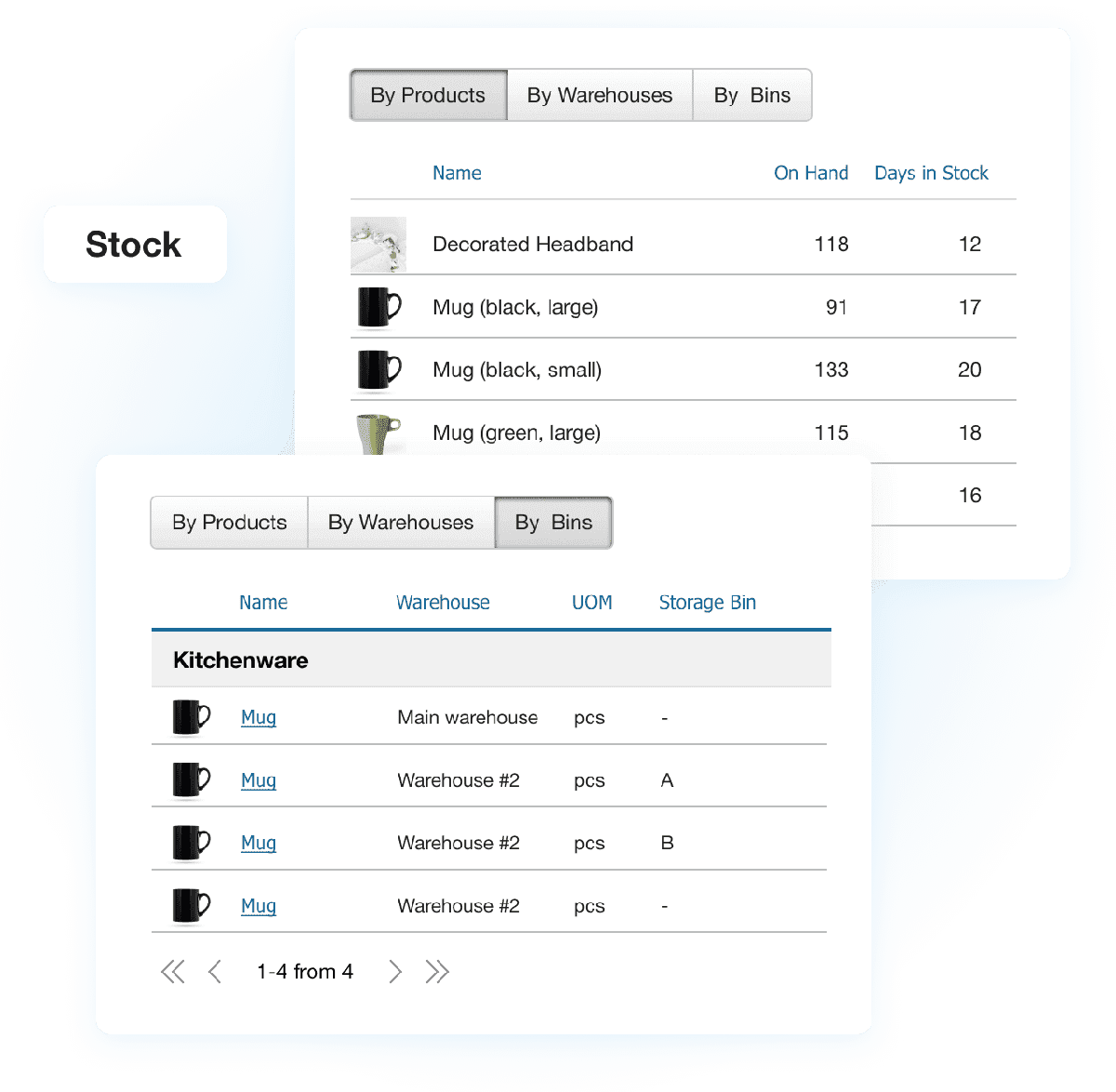
- Open Inventory → Stock → By Warehouses to check the result.
Check On Hand for goods physically in stock and Committed for quantities reserved for orders. In Transit goods have not arrived yet.
Enter opening quantities once. Don’t record the same goods again as a new delivery. Deliveries add stock; shipments remove it. Transfers move goods between locations without increasing your total inventory.
Step 3 — Use Barcodes (Optional but Powerful)
You can start tracking inventory without barcodes. Add them when product searches or manual entry slow you down.
- Open a product card and find Product Barcodes.
- Add an existing barcode or generate one in Kladana.
- Print labels and test them with a compatible scanner.
- Scan items into a Receiving, Shipment, or Inventory Count.
A scan identifies the item and adds it to the document. Check the quantity and save the stock transaction. Scanning alone does not change stock.
Give different sizes and colours separate codes. For codes shared with retailers, check GS1 barcode standards.
See our barcode basics guide for label and scanner advice, or explore Kladana barcode features.
Step 4 — Set Low-Stock Alerts
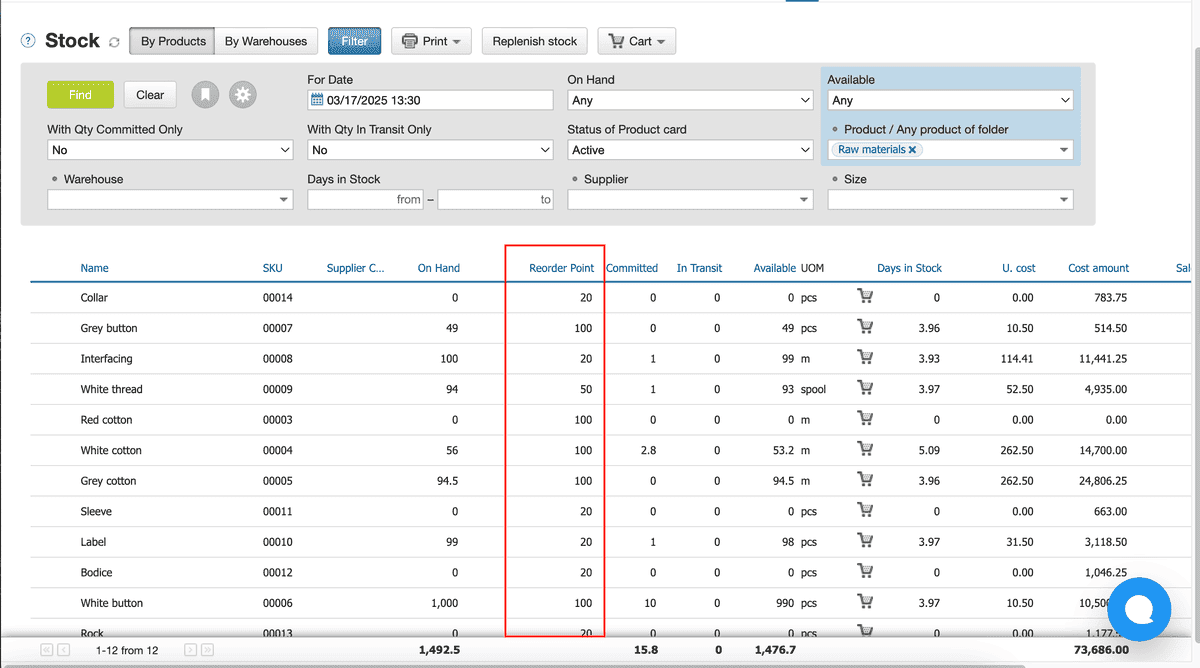
A reorder point is the stock level that tells you to buy more. Base it on how much you sell during the supplier’s delivery time, plus a buffer.
Reorder point = average daily sales × delivery days + buffer stock
For example, you sell two mugs daily. Delivery takes five days, and you keep four spare mugs. Your starting reorder point is 14 mugs. Review it when demand or delivery times change.
In Kladana:
- Open the product card.
- In Reorder Point, choose the warehouse and enter the minimum quantity.
- Open My Profile → Notifications, switch on Stock, choose email or push notifications, and save.
An alert tells you to act; it does not place the supplier order for you. Check existing orders before you buy more.
Read our stock replenishment guide for more examples. The delivery-time calculation follows ACCA’s stock control guidance.
Step 5 — Keep Everything Up to Date (Simple Routines)
Record stock movements when they happen. Use the right document so you can see why quantities changed.
| What happened | What to record in Kladana |
Supplier delivery |
Receiving with the actual quantities accepted |
Customer shipment |
Shipment for goods that leave the location |
Move between locations |
|
Customer return |
Sales Return; inspect before resale |
Damage, spoilage, or loss |
Write-off with the reason |
Physical count differs |
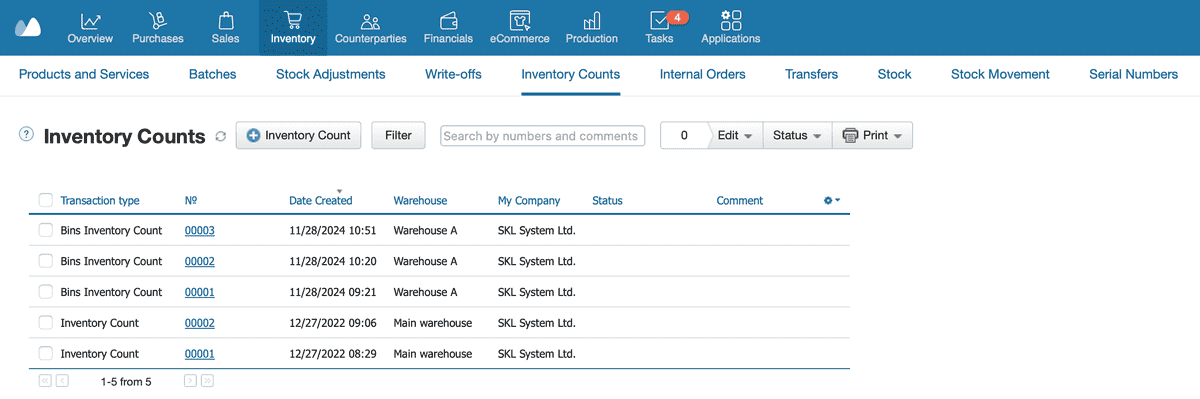
Inventory Count, then Stock Adjustment for excess or Write-off for shortages |
Kladana uses these transactions to record stock movements and correct differences after a count.
A sales order records demand; a shipment records goods that leave. A purchase order does not add physical stock: record a Receiving when the goods arrive. Keep damaged returns separate from sellable stock.
Daily Stock Checklist Template
Copy this routine into your task list.
- Record deliveries and shipments.
- Process returns and damage.
- Review low-stock alerts.
- Check unusual stock balances.
Each week, count a small group of fast-selling or valuable items. Recount differences and check transactions before you correct them.
Why Kladana Works for Beginners
Kladana runs in your browser both on PC and smartphone. You can begin with an item catalog and basic stock transactions, then add other tools as you need them.
The free plan currently allows one user, 200 items, and 200 transactions. Check the current plan limits before you commit to it. A busy shop may reach the transaction limit before the item limit.
Start Your Free Kladana Plan
Create your product list, record opening stock, and set reorder alerts in one system. New accounts begin with a 14-day trial; a free plan is available for ongoing basic use within its limits.
How Different Small Businesses Can Track Inventory
The same five steps work across business types. Adjust the items and units you track.
| Business | Example setup |
🛍️ Small boutique |
Separate sizes and colours; record sales and returns |
☕ Local café |
Track beans in kilograms and milk in litres; record usage and spoilage |
💻 Online shop |
Track stock by location; reserve orders and record shipments |
🕯️Candle maker |
Track wax, wicks, and finished candles; record materials used and goods produced |
For online sales, connect supported sales channels and test how orders and stock updates work before you rely on automatic sync.
To Sum It Up
To cope with inventory tracking in the early stages of your business growth create your product list, count opening stock, set reorder alerts, and record every movement. Add barcodes when they save time. Keep physical checks in your routine so your digital records match the shelf.
Frequently Asked Questions on Tracking Inventory in a Small Business
These answers cover the basic choices you need to make before you start.
What’s the easiest way to start tracking inventory in a small business?
Create an item catalog, count opening stock, and record deliveries and shipments in inventory software. Start with one location.
Can I track inventory without spreadsheets?
Yes. Inventory software stores product records and calculates stock balances from transactions. You still need to record movements and check physical stock.
What’s the difference between inventory management and stock tracking?
Stock tracking records quantities and movements. Inventory management also covers purchases, storage, stock costs, and decisions about what to reorder.
Do I need barcodes to start inventory tracking?
No. You can select products by name or SKU. Barcodes help when you handle many similar items or frequent transactions.
How do I know how much stock to keep?
Start with expected sales during supplier delivery time, plus a buffer. Adjust for seasonality, shelf life, storage space, and cash available.
What is a SKU and why is it important?
A SKU is your own product code. Unique codes help you distinguish similar items and track each size or colour separately.
How can I track stock across multiple locations?
Create separate locations in your system. Assign each receipt and shipment to a location, and record internal transfers.
How do I handle returns and damaged goods in an inventory system?
Record the customer return, inspect the item, and separate damaged goods. Use a write-off for stock you cannot sell or use.
Is free inventory management software enough for a small business?
It can cover basic needs if your stock records, transaction volume, and user count fit the plan limits. Check these before signup.
How can inventory tracking help reduce costs and errors?
It helps you spot shortages, avoid duplicate purchases, and find stock differences sooner. Consistent records reduce repeated counts and manual calculations.