Need a quotation format in Word that is easy to edit and ready to send?
This guide includes a quotation format in Word free download collection for small businesses, freelancers, and service providers. You can use these files as an editable quotation format Word solution for daily quotes, service proposals, and product pricing.
- Free Quotation Format Templates in Word
- What is a Quotation format?
- Quotation vs Estimate vs Invoice vs Proforma Invoice
- Why Use Word for Quotations?
- When to Use Word, Excel, PDF, or Quotation Software
- Who Can Use These Templates?
- What Should a Good Quotation Format Include?
- GST Quotation Format in Word: What to Include
- How to Create a Quotation in Word
- Best Practices for Professional Quotations
- When Word Templates Stop Being Enough
- Top 5 Quotation Mistakes to Avoid
- To Sum Up
- Frequently Asked Questions on Quotation Format in Word
Free Quotation Format Templates in Word
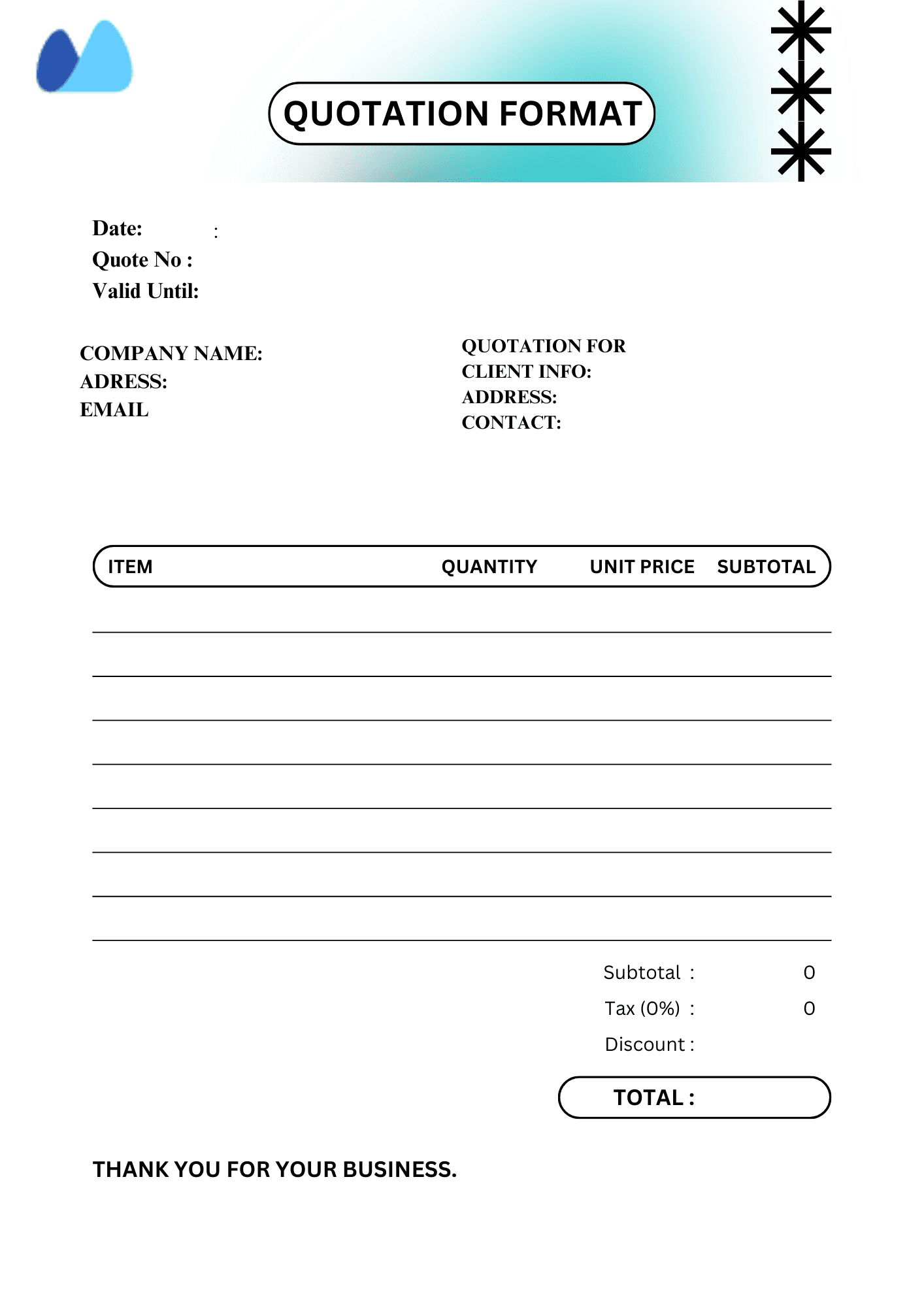
Use these templates when you need a document that is quick to edit, easy to share, and professional enough for daily business use. Each quotation template Word file below can be reused, customized, and saved as PDF before sending.
If you prefer offline editing, each quotation word file download option can be prepared as a Word document your team can update anytime.
📝 Simple Quotation Format in Word
Best for: small businesses, freelancers, one-time quotes
This simple quotation format Word template works well when you need a clear and fast layout with basic pricing and terms.
It should include:
- business name and contact details
- client details
- quotation number and date
- item or service description
- total amount
- validity period
- payment terms
- signature block
This layout also works as a professional quotation format for businesses that want a simple but clean-looking quotation.
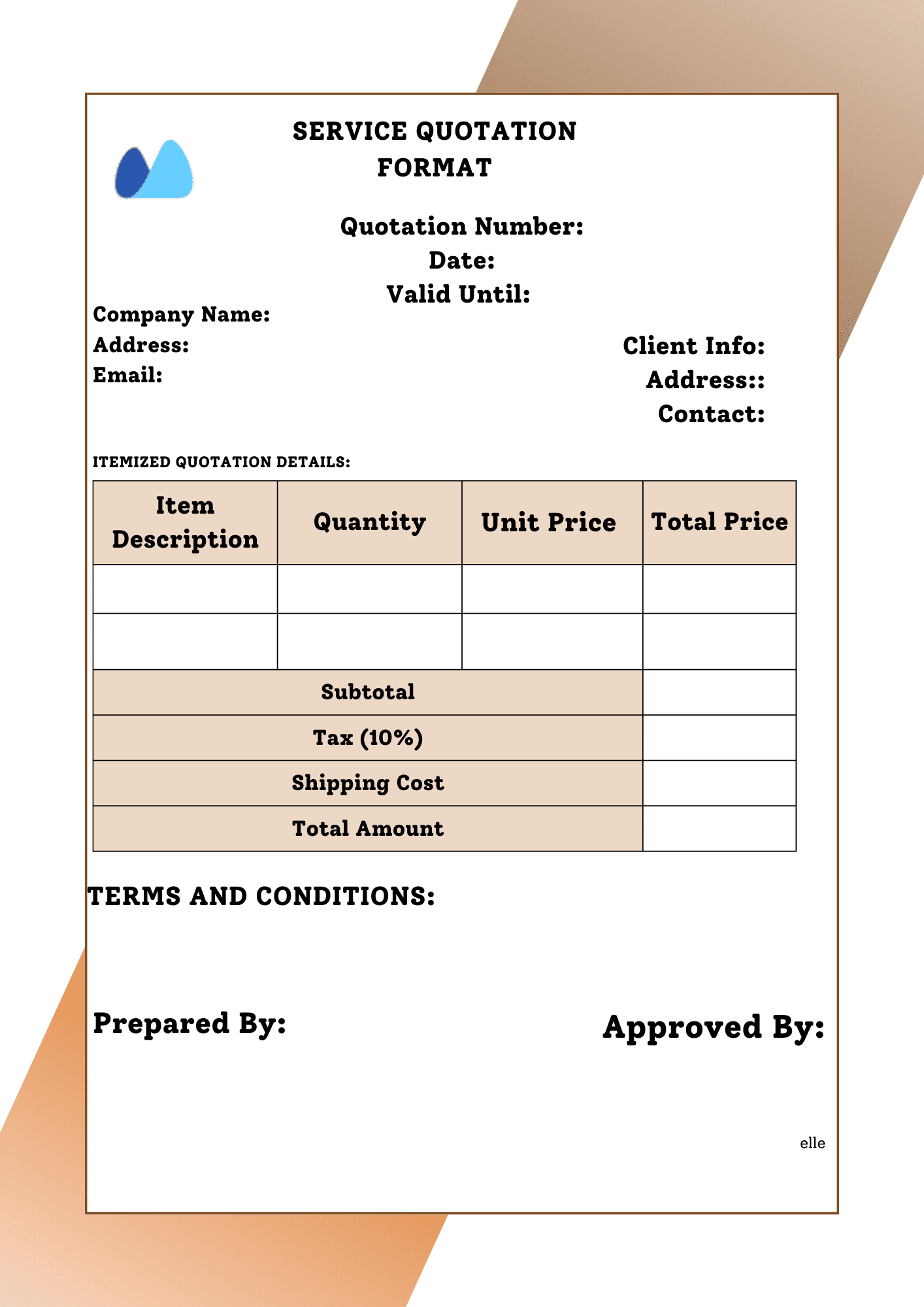
📝 Service Quotation Format in Word
Best for: agencies, consultants, repair services, maintenance providers
This simple service quotation template is useful when you sell work by project, package, or scope rather than by units.
It should include:
- service scope
- deliverables
- timeline
- service fee
- optional add-ons
- terms and exclusions
If you work independently, this section can also serve as a freelance quotation format for consultants, designers, writers, and developers.
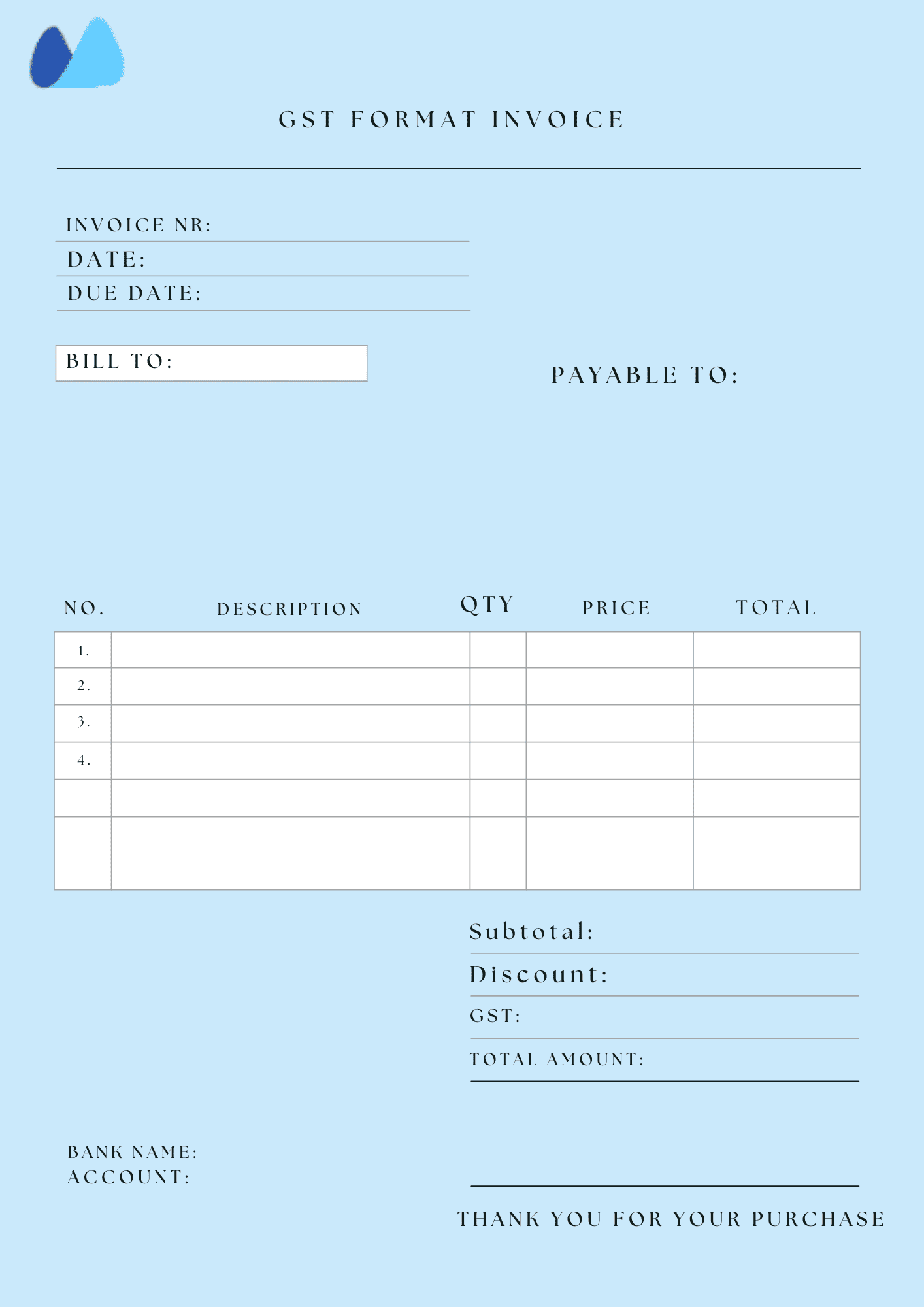
📝 GST Quotation Format in Word
Best for: Indian SMEs and MSMEs
Use this format when your quotation needs tax-related fields.
It should include:
- GSTIN
- taxable value
- GST rate
- GST amount
- total before tax
- total after tax
- HSN/SAC fields if needed
What Is a Quotation Format?
A quotation format in Word is the structure of a quotation document created in Word. It shows how you present your business details, pricing, terms, and client information in a way that is easy to read and edit.
A quotation is usually sent before the work starts or before goods are supplied. It tells the customer what you are offering, how much it costs, and under what conditions. A clear quotation helps the client make a decision faster and gives both sides a written record of the offer.
In simple terms, a quotation should answer these questions:
- what is being offered
- how much it costs
- what is included
- how long the price is valid
- when and how payment should happen
Quotation vs Estimate vs Invoice vs Proforma Invoice
These documents are often confused, but they serve different purposes.
| Document | Used when | Main purpose | Requests payment? |
| Quotation | Before the sale or job starts | Gives a price offer | No |
| Estimate | Before the sale or job starts | Gives an approximate cost | No |
| Invoice | After goods or services are delivered | Requests payment | Yes |
| Proforma Invoice | Before final sale | Gives a pre-sale commercial summary | Usually not as a final payment request |
A quotation is the best choice when the customer asks for pricing before approving the work. An invoice comes later, after the sale is confirmed or the service is completed.
Why Use Word for Quotations?
Word is a practical choice for quotations because it is simple, editable, and easy to format.
Easy to edit
Most teams already know how to work in Word. You can open the file, update the details, save it, and send it in minutes.
This makes Word a good choice if you need an editable quotation format Word file that does not require special software.
Good for service-based quotes
If you sell design, repair, consulting, installation, or other services, the quote often needs explanations, notes, and terms more than formulas. Word handles that well.
Professional presentation
You can add your logo, brand colors, headers, and spacing without much effort. That is why many teams prefer a business quotation template Word file instead of building each quote from scratch.
Easy to share
You can prepare the quotation in Word and then save it as PDF before sending it to the client.
Useful for low-volume quotation workflows
If your business creates quotations manually and does not need automation yet, Word is often enough.
When to Use Word, Excel, PDF, or Quotation Software
Use the format that matches your workflow.
| Format | Best for | Main advantage | Main limitation |
| Word | service quotes, custom offers, branded documents | easy to edit and present | not ideal for complex calculations |
| Excel | item-heavy quotes, pricing calculations | handles formulas well | can look less polished |
| final version sent to clients | hard to accidentally change | not easy to edit | |
| Quotation software | growing businesses with repeat workflows | faster tracking and reuse | needs setup |
A practical workflow is simple: create or edit the quotation in Word, then export it as PDF before sending it.
Who Can Use These Templates?
These quotation templates are suitable for many business types.
Freelancers
Writers, designers, developers, and consultants often need simple quotation documents they can adapt quickly.
A freelance quotation format helps independent professionals present pricing, timelines, and terms in a clear and professional way.
Small businesses
If you handle quotations yourself, a ready-made template helps you respond faster and keep documents consistent.
This business quotation template Word format is useful for small teams that prepare quotations manually and want a cleaner document standard.
Sales and admin teams
Teams that send repeat quotations benefit from a standard format that reduces formatting mistakes.
MSMEs
For Indian businesses, Word templates can be adapted with GST fields, INR formatting, and validity terms.
What Should a Good Quotation Format Include?
A good quotation should be easy to read, complete, and professional.
1. Business details
Add your:
- business name
- logo
- phone number
- address
- GSTIN, if applicable
2. Client details
Add:
- client name
- company name
- address
- contact details
3. Quotation number and date
Use a unique quotation number so you can track the document later.
Example: QUO-%%2026%%-014
Also include:
- issue date
- quotation subject
- validity period
4. Item or service details
Describe clearly what you are offering.
For products, include:
- item name
- quantity
- unit price
- total
For services, include:
- scope of work
- package or project name
- service fee
- optional additions
5. Taxes and totals
Show:
- subtotal
- tax amount
- final total
6. Terms and conditions
Include only the terms that matter for approval:
- validity period
- delivery timeline
- payment terms
- revision policy, if relevant
- exclusions, if relevant
7. Signature or approval section
This can include:
- authorized signature
- business stamp, if used
- acceptance line for the client
A strong professional quotation format should make all of these elements easy to scan.
GST Quotation Format in Word: What to Include
For Indian businesses, GST details are often an important part of the quotation format.
A GST quotation in Word should usually include:
- supplier name and address
- GSTIN
- client name and address
- quotation number and date
- item or service description
- taxable amount
- GST rate
- GST amount
- final payable amount
- validity period
- payment terms
You may also add HSN or SAC codes where relevant.
How to Create a Quotation in Word
Creating a quotation in Word is simple if you follow a clear structure.
Step 1. Open a blank document
Start with a clean page or an existing template.
Step 2. Add your business header
Insert your business name, logo, and contact details at the top.
Step 3. Add client details and quotation metadata
Enter the client name, quotation number, issue date, and validity period.
Step 4. Insert the pricing table
Add a simple table for products or services. Keep item names clear and totals easy to scan.
Step 5. Add taxes, terms, and signature
Mention payment terms, delivery details, and tax information if needed.
Step 6. Save the file and export as PDF
Keep the Word version for editing, but send the quotation as a PDF to avoid accidental changes.
You can also keep a quotation template doc version in your system and duplicate it whenever a new quotation is needed.
Best Practices for Professional Quotations
A quotation should look clear and reliable from the first glance.
- keep the layout simple
- use the same structure every time
- make line items specific
- show taxes clearly
- add a clear validity period
- convert the final version to PDF
- check spelling, totals, and names before sending
If you use a professional quotation format, clients can review the document faster and ask fewer clarifying questions.
🔗 Explore More Flexible Templates At Kladana
Kladana offers a broader collection of professionally crafted templates, not restricted to only GST or invoice formats. You will find additional templates, such as:
- Purchase Orders
- Delivery Challans
- Sales reports
- Inventory management
- E-Way Bill
- BOM (Bill Of Materials)
You can explore all these ready-to-use templates available for free over at Kladana’s blog template section. It is an excellent resource for building a library of business documents beyond quotes.
When Word Templates Stop Being Enough
Word templates work well for manual quotation workflows. But once your business starts handling more quotations, orders, inventory, and payments together, manual files become harder to track.
That is when business software becomes more useful. Instead of creating a quotation as a standalone file every time, you can connect quotations with your wider sales and stock workflow.
Create quotations, track orders, and manage stock in one system
Kladana helps small businesses move from disconnected files to a single workflow for sales, inventory, and purchasing.
Top 5 Quotation Mistakes to Avoid
Small mistakes can make a quotation look unclear or unprofessional.
Using vague descriptions
A line like “services as discussed” is too vague. Spell out what is included.
Missing validity terms
Without a validity date, the client may assume the price stays open for too long.
Sending editable files to clients
Edit in Word, but usually send the final file as PDF.
Forgetting taxes
If tax applies, show it clearly. Do not make the client guess whether it is included.
Reusing old quotations without checking details
Always update the date, quotation number, price, and client name.
To Sum Up
A good quotation format in Word should be easy to edit, clear to read, and fast to send. For freelancers and small businesses, Word is often the simplest way to create professional quotations without extra tools.
The best page should help the reader do three things quickly: download a template, understand what to include, and send a professional quote without confusion.
🔊 Need to send quotes faster? Kladana helps you track inventory, convert orders to invoices, and manage sales — all in one place. Try it for free.
Frequently Asked Questions on Quotation Format in Word
Here are a few FAQs that you can read for your reference:
What is the best format for sending a quotation?
The best format is a Word document that you can edit, save, and convert to PDF. PDF is ideal for sharing with clients as it preserves the formatting and looks professional
Can I create a quotation in Word without using any template?
Yes. You can start with a blank document and add your company details, a quotation number, client, item table, and total. But using a ready-made template saves time and ensures consistency.
How do I calculate totals in a Word quotation?
Unlike Excel, Word doesn’t support formulas. You must manually calculate Quantity x Unit Price and enter the totals. For complex pricing, consider calculating in Excel first and then copying the result into Word.
Is it ok to send quotations as Word documents?
Yep, it is, but PDF files work better than Word documents. PDFs preserve your formatting and can’t be accidentally edited by the client, which protects the document’s integrity.
Can I use quotation templates in Word on Mobile?
Yes. You can edit Word templates using Word mobile, Google Docs, or an app like WPS Office. Just make sure your layout adapts well to smaller screens.
How do I add GST to a quotation in Word?
Use a table with a separate row for CGST, SGST, or IGST based on your business type. Add columns like HSN code if required. Our GST-ready template makes this easier.
What is the difference between a quote and an invoice?
A quotation is a price offer sent before a deal is confirmed. An invoice is a bill sent after a service or product is delivered, requesting payment. The quotation helps secure the contract; the invoice closes it.
Can I Include Payment terms in a quotation?
Absolutely. You should include payment terms in a Terms & Conditions section, for example, 50% in advance and 50% after delivery. This avoids disputes and sets clear expectations.
How can I personalize a quotation template in Word?
You can add your logo, change fonts, edit table headers, and update the color scheme. Save your edited version as a custom template to reuse for future quotes
Are Word quotations legally binding?
A quotation is not a legal contract, but it can serve as a formal offer. If the client approves the quote in writing or signs it, it can support your position in a business dispute.
How do I create a quotation in Word?
Open a blank document or template, add your business and client details, insert the pricing section, include terms, and save the final version as PDF.
What should be included in a quotation format?
A quotation should include business details, client details, quotation number, date, line items or service scope, totals, taxes if needed, validity, and payment terms.
Is a quotation the same as an invoice?
No. A quotation is sent before the sale is confirmed. An invoice is sent later to request payment.
Can I make a GST quotation in Word?
Yes. You can create a GST quotation in Word by adding GSTIN, taxable value, GST rate, GST amount, and total payable amount.
Should I send a quotation in Word or PDF?
It is better to create the quotation in Word and send it as a PDF. That keeps the layout stable and prevents accidental edits.
Is Word or Excel better for quotations?
Word is better for service-based and presentation-focused quotations. Excel is better when you need formulas and many item calculations.