
You receive 20 identical devices. Same model, box, and color. Two weeks later a customer returns one unit and says, “This one keeps rebooting.”
Now you have a problem. Which exact unit did you sell to them? Was it from the same delivery? Was it already repaired once? Does it still have warranty?
Serial number tracking fixes this. A serial number is one unique code that belongs to one physical unit. When you record it at receiving and keep it through sales and returns, you can always answer basic questions fast:
- Which unit was shipped to which customer?
- Which unit came back as a return?
- Which unit is still in stock, and where?
- Which unit already went through repair?
This guide explains the concept in simple terms, then shows how to apply it step by step. Kladana can help you with its built-in serial number workflow.
Why Kladana Makes Serial Tracking Simple
Serial tracking can feel heavy in spreadsheets. You copy rows, miss returns, and lose history.
Kladana keeps serials inside the same flow as stock and sales.
What makes it easier:
- Per-product setup. Turn serial tracking on only for items that need it.
- Clear workflow. Receive serials → ship the exact serial → return the exact serial → check the serial history in one place.
- Fits scanning. You can scan serial labels and reduce manual typing.
- Audit-friendly. You can open one serial and review where it came from and where it went.
- What Is a Serial Number & How It Differs from Lot/Batch
- Why Serial Number Tracking Helps Small Businesses
- Step 1 — Decide Which Products Need Serial Numbers
- Step 2 — Enable Serial Number Feature in Kladana
- Step 3 — Add Serial Numbers to Incoming Stock
- Step 4 — Manage Serial Numbers During Sales & Returns
- Step 5 — Use Serial Reports & Audit Trails
- Best Practices & Tips
- Frequently Asked Questions on Serial Number Tracking for Beginners
What Is a Serial Number & How It Differs from Lot/Batch
Identical items create blind spots. You can see the quantity, but you can’t tell one unit from another. A serial number fixes that by giving each unit its own ID. In this section, you’ll learn what a serial number is and when you should use a lot or batch number instead.
Definition: one unique code per unit
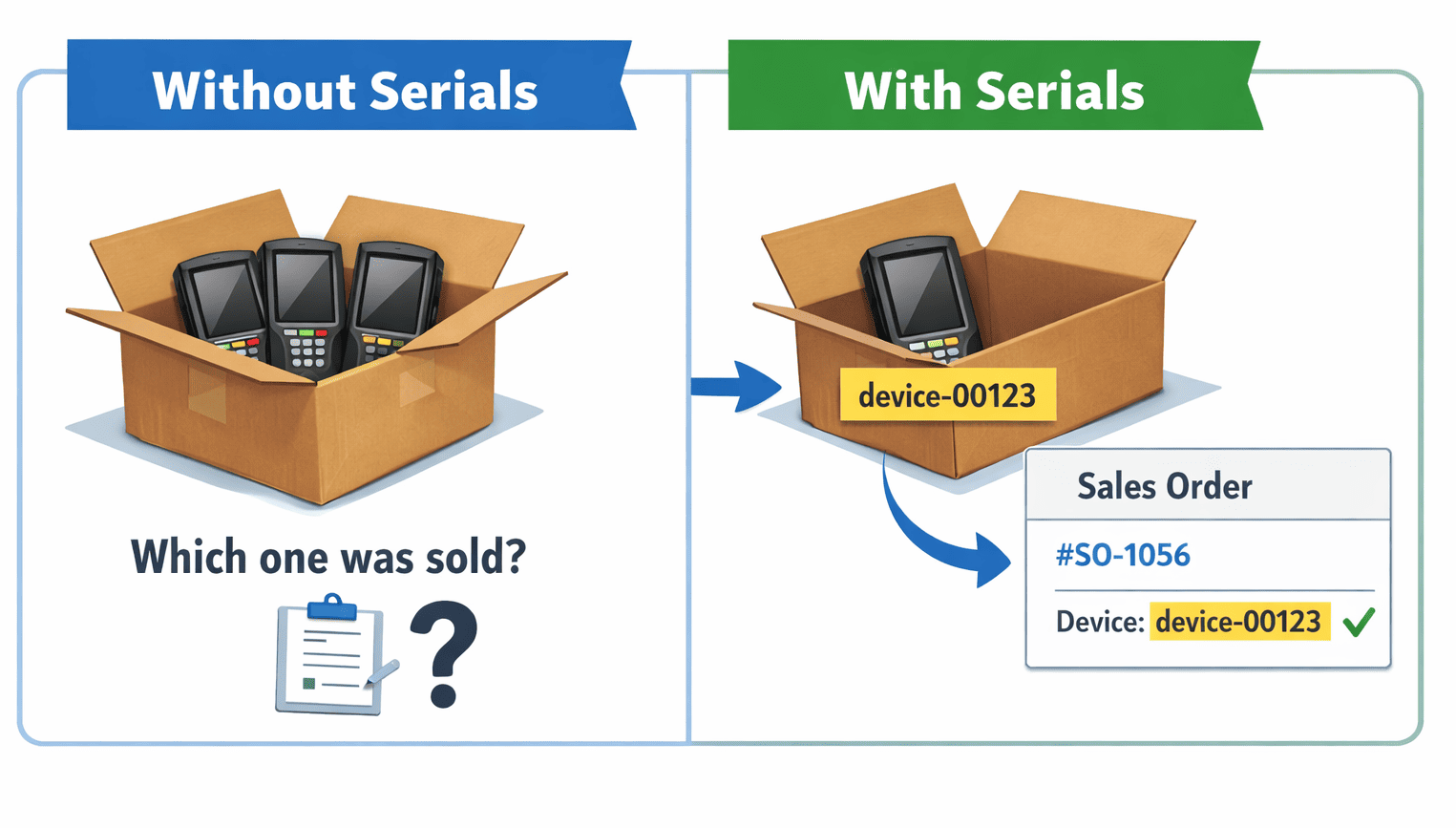
A serial number is a unique identifier assigned to one product unit. Electronics sellers use it a lot because it helps control the movement of each unit.
Serial number examples:
- device-00123
- SN-A7K9-44102
- IMEI-3569xxxxxxx
A serial number is not the same as a SKU. A SKU groups identical items (“iPhone 14, 128 GB, black”). A serial number points to one exact unit of that SKU.
Lot vs serial: group vs unit-level tracking
Both lot (batch) and serial tracking improve traceability. The difference is the level of detail.
- Lot / batch number = one code for a group of units made or received together
Use it when you care aboutgroups: food batches, chemicals, cosmetics, raw materials. - Serial number = one code for one unit
Use it when you care abouteach unit: phones, laptops, power tools, meters, medical devices, warranty items.
Quick comparison:
| You need to answer… | Use lot/batch | Use serial |
| “Which production batch had a defect?” | ✅ | ❌ |
| “Which exact unit did we sell to this customer?” | ❌ | ✅ |
| “Which unit came back under warranty?” | ❌ | ✅ |
| “Recall only affected items” | ✅ (batch-level) | ✅ (unit-level) |
Many companies use both, but for beginners the simplest rule is:
If returns, warranty, repairs, or service parts depend on the exact unit, pick serial numbers.
Why Serial Number Tracking Helps Small Businesses
Serial numbers matter when you sell or store items that look identical but must be treated as separate units. This is common in electronics, tools, hardware parts, and serviceable equipment.
Here’s what serial number tracking solves in daily work:
1) Warranty and service tracking
A warranty claim is about one exact unit, not the whole product model. With serial number inventory records, you can:
- confirm the sale date for that unit
- see who bought it
- check if it was repaired before
- find the same unit again after service
This is useful for warranty codes, service parts, and product activation cases where proof matters.
2) Return and repair traceability
Returns become messy when you cannot prove which unit came back. Serial tracking gives clean return tracking:
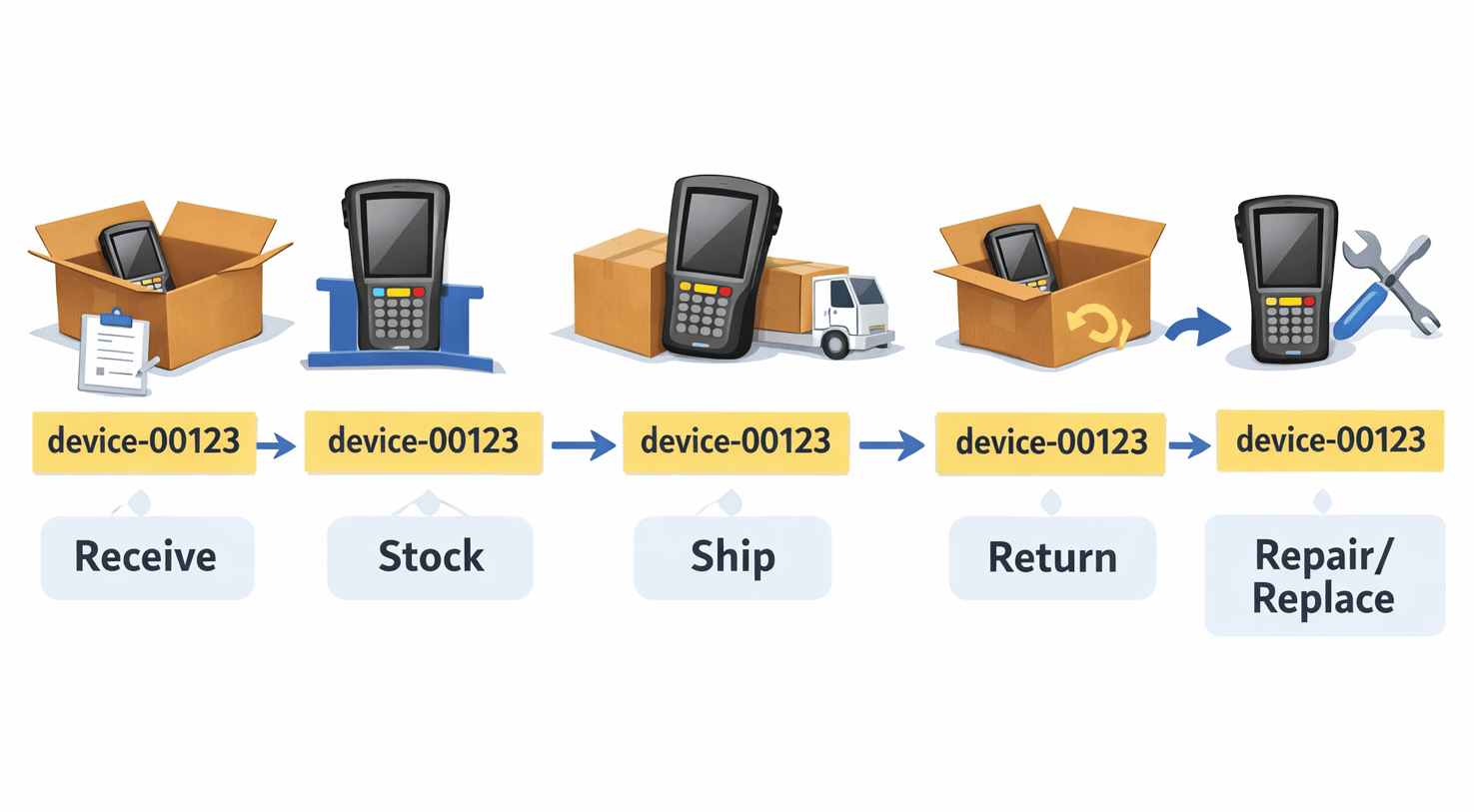
- You ship unit device-00123 to Customer A.
- Customer A returns a device.
- You confirm it is device-00123, not another unit from your shelf.
This reduces fraud, mix-ups, and wrong refunds.
3) Fewer mix-ups with high-value items
If two units have different internal histories (one repaired, one new), a mix-up becomes expensive. Serialized stock tracking helps you pick the right unit every time, then prove what you shipped.
💻 Mini-case: small electronics seller
A laptop reseller sells 15 identical laptops in one week. Two customers report problems. Without serials, the team can only see “Laptop model X” in the sales history./p>
With serial number management, the team sees:
- which exact laptops were sold
- which one returned
- which one is still in stock
- which one had a past repair note
This saves hours of back-and-forth with customers.
Signs you should serialize items
Use serial number control if you have at least one of these:
- you offer warranty, service, or repairs
- you sell spare parts that must match a unit
- returns happen often
- you manage expensive items
- customers ask for serials on invoices or service documents
You can track serials in a spreadsheet, but it breaks fast once volume grows. A specialized software keeps serial history linked to receipts, sales, and returns.
Step 1 — Decide Which Products Need Serial Numbers
Serial numbers work best when you need unit-level control. Start with a simple rule:
If you need to identify one exact unit after the sale, use serial number tracking. This is also called product serialization.
Serialize these products
Pick serialized items from categories like:
- High-value units: laptops, phones, POS devices, routers, power tools
- Warranty items: anything that customers can return for repair or replacement
- Serviceable equipment: items that come back for diagnosis, repair, or refurbishment
- Spare parts with compatibility risk: parts that must match a specific unit or version
- Regulated or traceable goods (in your industry): where audits require unit history
This supports warranty tracking, repair history, and clean serial number control.
Skip serialization for these items
Serial numbers create extra work. Avoid them when the unit identity does not matter:
- Low-cost fast movers (pens, cables, basic consumables)
- Bulk goods sold by weight or length
- Raw materials and ingredients
- Items you never service or accept returns for
- Goods tracked better by batch (food lots, production batches, chemicals)
If a defect affects a whole production run, use a lot/batch number instead of a serial.
Quick decision checklist
✔️ Answer “yes” or “no” for each product group:
- Do customers request warranty or service?
- Do we accept returns or exchanges?
- Can two identical units have different history (repair, activation, upgrade)?
- Would a mix-up cost money or trust?
- Do we need to prove which unit was shipped?
If you have 2+ yes answers, the item is a good fit for serial number inventory tracking.
Set a serial number format (keep it boring)
Beginners often overthink formatting. Pick one format and stick to it.
Good examples:
- LTP-2026-000124 (prefix + year + sequence)
- device-00123 (prefix + sequence)
Tips:
- Use uppercase letters, digits, and hyphens.
- Avoid spaces.
- Keep it short enough to read and type.
- One unit = one serial. Never reuse a serial.
Step 2 — Enable Serial Number Feature in Kladana
In Kladana, serial number tracking is enabled per product, not as a global switch. You choose which items are serialized, then the system expects serials in every related transaction.
Turn on serial tracking for one product
- Go to Inventory → Products and Services and open the product card.
- Find Advanced Inventory Tracking.
- Set Type → Track by Serial Numbers.
- Confirm Yes, then click Save.
Two rules to know before you click “Save”
- You can’t disable it later. Once the option is on, it stays on for that product.
- After that, you must enter serial numbers in every transaction that includes this item (receivings, shipments, sales orders, returns, adjustments).
What Kladana will not do for you
Kladana does not generate serial numbers. You add them manually.
One limitation (important for manufacturers)
❗ Products tracked by serial numbers cannot be used in Production (not as components and not as finished goods).
Quick check before enabling
- You already decided this product needs unit-level tracking (warranty/returns/service).
- You have a serial source (supplier label, device sticker, your own format).
- Your team is ready to enter or scan serials at receiving.
Step 3 — Add Serial Numbers to Incoming Stock
Serial number tracking only works if you capture serials at the first touchpoint. For most teams, that is receiving goods from a supplier.
In Kladana, once an item is set to track by serial numbers, you must enter serials when you add stock for that item.
Where serials usually come from
Use the source that matches your process:
- Supplier label on the box or device (common for electronics)
- Device sticker (phones, routers, tools)
- Your own label (asset tag or internal serial like device-00123)
If the supplier uses a serial format you don’t like, don’t rewrite it. Record the real serial. Keep your internal code in a separate field or on an asset tag label.
Receiving workflow (simple)
- Create a receipt / stock entry for the delivery.
- Add the serialized product and quantity.
- Enter serial numbers for each unit (type them or scan them).
- Save the document.
Rule: quantity and serial count must match. If you receive 10 units, you need 10 unique serials.
Example: receiving 5 devices
You receive 5 handheld terminals. You record:
- device-00121
- device-00122
- device-00123
- device-00124
- device-00125
After that, each unit exists as its own tracked item. This supports later steps like track serial numbers during shipping, warranty work, and return tracking.
Tips that prevent mistakes
- Scan when possible. If serials are printed as barcodes, scanning is faster and avoids typos.
- Use one format rule for internal serials. Uppercase + digits + hyphens works well.
- Reject duplicates at the door. If two units share the same serial, stop and confirm with the supplier before you put them into stock.
Common receiving problems and what to do
- Serial is unreadable: put the unit on hold, ask the supplier for confirmation, then record the serial.
- Serial entered wrong: fix it right away while the box is still there. Later it becomes hard to prove what happened.
- You received fewer units than the invoice: record actual received quantity and serials. Don’t “plan to fix later.”
📖 Recommended Next Reads for Beginners
If you’re still choosing your niche or setting up your first workflows, these guides will help you build the basics around stock, sales, and daily operations.
- Barcode Basics for Small Business
Learn how barcodes, scanners, and label rules reduce picking mistakes and speed up stock work. - Small Business Management Guide
A practical overview of the routines that keep a small business stable: stock, cash flow, team, and daily control. - How to Start a Food Processing Business
Steps, compliance points, and process setup tips if you plan to produce and sell food products. - Distributor Management System Guide
What distributors track day to day: orders, stock across locations, pricing, and delivery control. - E-Commerce Business Models Guide
Choose a model that fits your budget and operations: marketplace, D2C, dropshipping, wholesale, and hybrid setups. - Inventory Management Mistakes to Avoid
Common errors that cause stockouts, dead stock, and wrong reports, with simple fixes.
Step 4 — Manage Serial Numbers During Sales & Returns
Once serials are in stock, the next risk is shipping the wrong unit. This is where serial number tracking in software pays off.
During sales: pick the exact unit you ship
In Kladana, you add serial numbers right inside the shipment document. The main rule stays the same: the number of serials must match the quantity.
Basic flow:
- Go to Sales → Shipments.
- Click +Shipment.
- Add the serialized product.
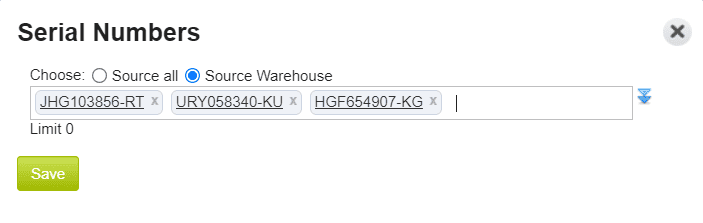
- Click the serial numbers icon in the line and select the serials you want to ship.
- Remove any extra serials from the list, then Save.
Practical tip: use FIFO or “closest to the picker” rules in your process, but always confirm the serial at packing. If the customer calls later, you can prove which unit left your warehouse.
During returns: return the serial that was actually shipped
The safest return workflow is to create the return from the original shipment. That way you don’t return “any unit of the same model.” You return the unit that was sold.
Flow:
- Open the shipment you want to return from.
- Click Add Related → Sales Return.
- In the item line, open the serial list and keep only the serials that came back.
- Save the return.
This supports return tracking, reduces mix-ups, and helps with warranty claims.
If your team handles repairs or replacements
Use the serial number as the “case ID” for the unit:
- received for repair: record the returned serial
- shipped back to customer: ship the same serial, or record a replacement serial
This keeps service parts and warranty work clean.
Step 5 — Use Serial Reports & Audit Trails
After you start tracking serials, you need one place to answer: “Where is this unit now, and what happened to it?”
In Kladana, that place is the Serial Numbers Report. This is where serial number management becomes practical: one unit, one history.
Check what is in stock by serial number
Use the report to see how many serialized units you have at each warehouse:
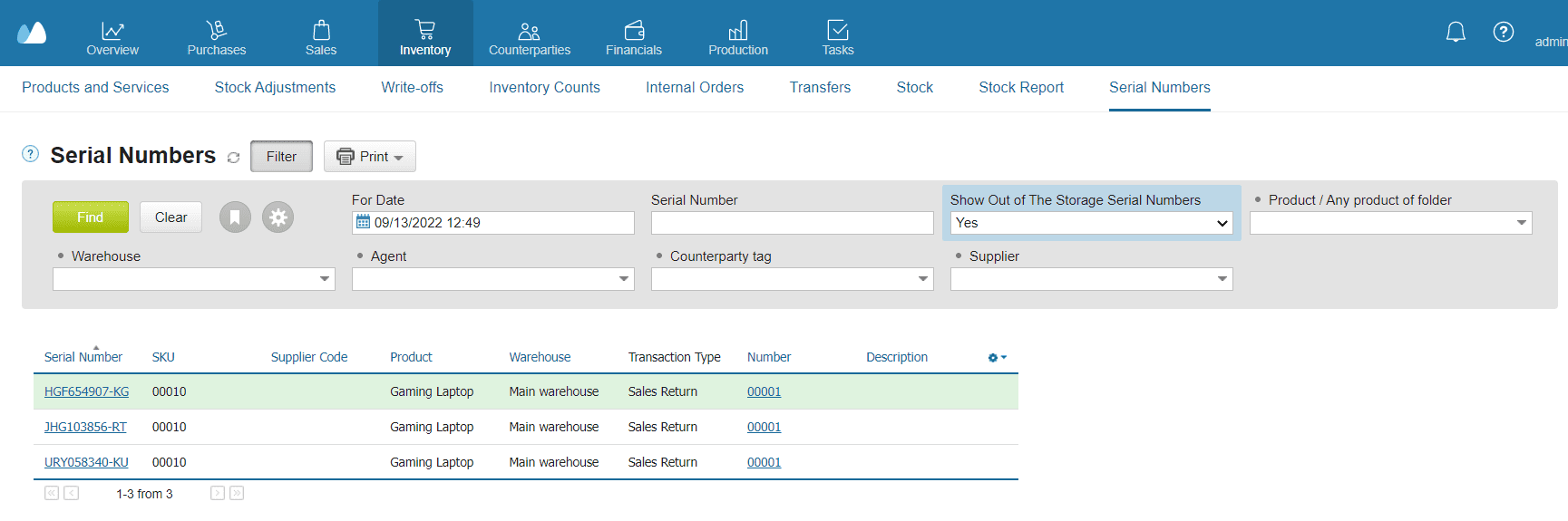
- Go to Inventory → Serial Numbers.
- Review the list to confirm what is currently in storage and where.
This is your base tool for quick audits and “do we still have it?” checks.
See sold serials (not in storage)
Sometimes you need to view serials that already left your warehouse (sold, shipped, returned, written off).
- Open Filter.
- Set Show Out of The Storage Serial Numbers = Yes.
This helps with warranty claims and return disputes, because you can find the exact unit even after it is sold.
Open the unit’s history (audit trail)
To investigate one exact unit, open its movement details:
- Click the serial number line in the report to see the unit’s movement in detail.
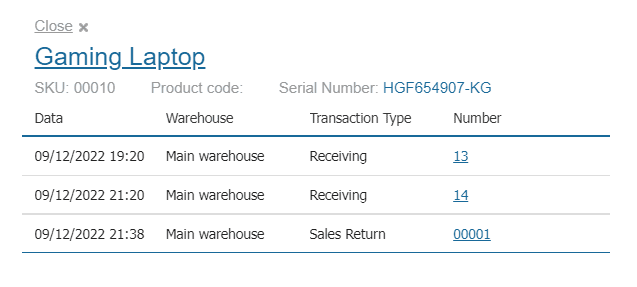
Use this when:
- a customer says “I returned it, but you didn’t refund”
- a unit “disappeared” during picking or transfer
- you need proof of which unit went to which document
Notes for finance and control
Two points that matter for beginners:
- Kladana can allow sales of serialized items even if the serials are not shown as in stock. Treat this as a control risk. Your team should still receive and record serials before shipping.
- Sale costs for serialized products are calculated using FIFO.
✔️ Quick audit checklist (use weekly or monthly)
- Open Inventory → Serial Numbers and spot-check 5–10 units.
Filter out of storage serials when you review returns and warranty cases. - Open movement details for any serial that looks suspicious (wrong warehouse, unexpected document).
- Fix issues while you still have the item physically (wrong serial typed, duplicate serial label).
Stop unit mix-ups in stock and returns
Turn on serial number tracking in Kladana and link each unit to receiving, shipments, and returns.
Best Practices & Tips
Serial number tracking works when the process is consistent. These tips prevent most mistakes.
1) Combine barcodes and serials
Use barcodes to speed up routine steps, then confirm the serial number for the exact unit.
- Barcode scan can add the item to a document.
- Serial scan (or selection) locks the unit.
This reduces typos and speeds up receiving and packing.
2) Set one “serial capture moment”
Pick one step where your team must record serials every time. For most SMBs, that is receiving.
If serials enter the system late, you’ll get gaps:
- “We sold it, but we never recorded the serial.”
- “We have it in stock, but no serial is attached.”
3) Make serial entry part of the checklist
A short packing and receiving checklist helps more than a long policy.
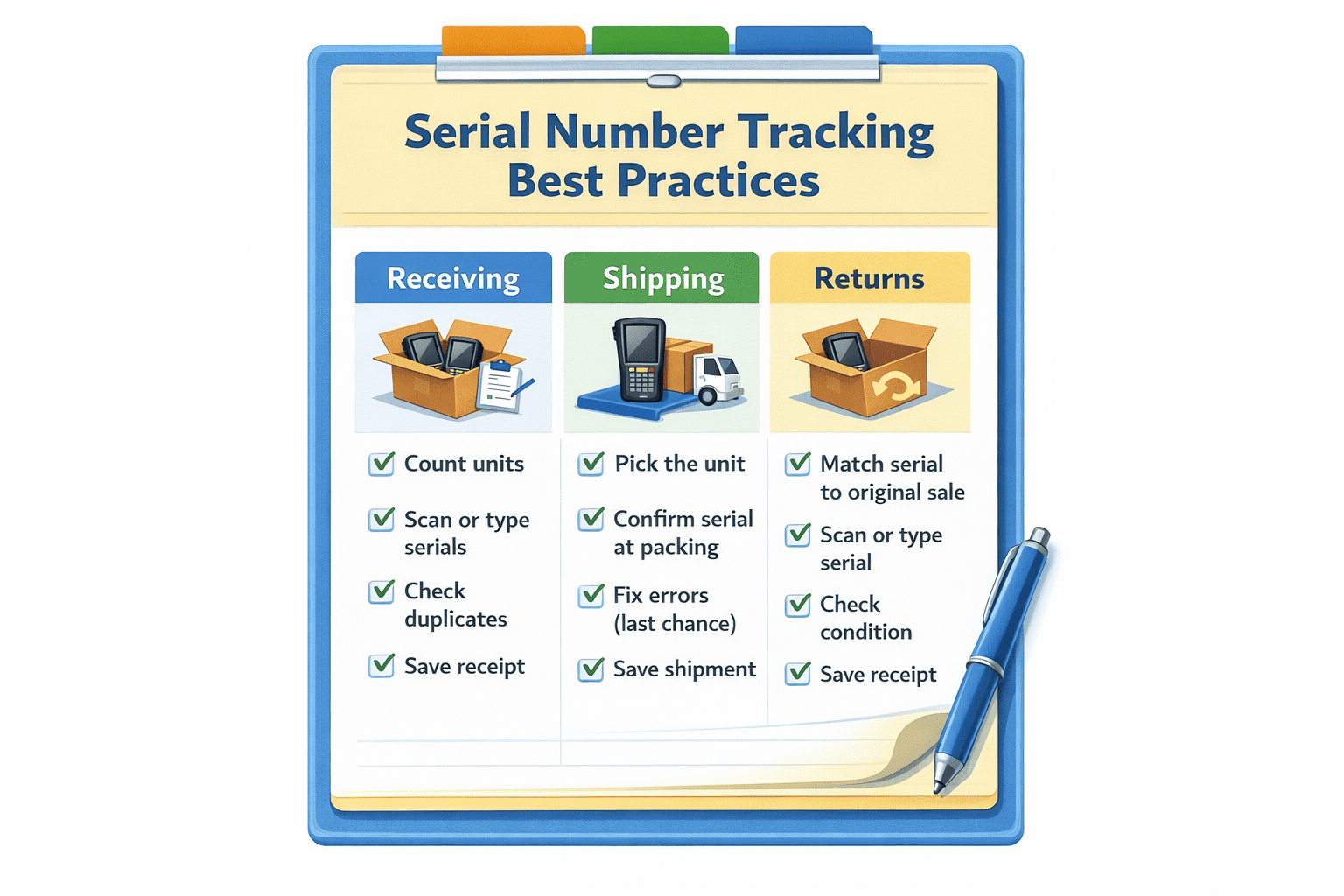
Receiving checklist:
- Count units
- Record serials (scan or type)
- Check duplicates
- Save the receipt
Shipping checklist:
- Pick the unit
- Confirm serial at packing
- Save the shipment
4) Handle duplicates fast
Duplicates usually come from one of these:
- supplier label error
- typo during entry
- copied serial list
What to do:
- Stop the document and verify the physical labels.
- Keep the unit on hold if the serial is unclear.
- Fix the record while the item is still on your desk.
5) Decide how you’ll label items that arrive without serials
Some items come without any clear unit ID. If you still need unit control (service parts, warranty), create your own internal serial format and print labels.
Example format:
- TOOL-2026-000045
Keep one rule. Don’t mix formats across teams.
6) Train one simple habit: “No serial, no move”
Don’t allow transfers, shipments, or returns for serialized items unless the serial is selected or scanned. This keeps your serial history clean.
📝 Serial Tracking Cheat Sheet
Use this as a quick reference for new staff.
- Serial number = one code per unit
- Lot/batch = one code per group
- Track serials for: warranty items, repairs, returns, high-value units
- Skip serials for: bulk goods, raw materials, low-cost consumables
- Best capture point: receiving
- Always match: quantity = number of serials
- Fix duplicates right away
Frequently Asked Questions on Serial Number Tracking for Beginners
Still unsure how serial number tracking works in real life? These quick answers cover the questions beginners ask most often: what to track, how to record serials, and how to handle returns, duplicates, and audits.
What is a serial number vs a lot number?
A serial number identifies one unit. A lot or batch number identifies a group of units made or received together.
Do I need serial number tracking for all items?
No. Use it for warranty items, serviceable units, high-value goods, and parts that need unit history. Skip it for low-cost consumables and bulk goods.
How do I record serials during stock receipt?
Record serial numbers when you receive goods. The count of serials must match the received quantity.
What if two units have the same serial by mistake?
Stop and verify the physical labels. Keep the items on hold until you confirm the correct serials. Fix the record before the units move to sales.
How do I choose the correct serial when fulfilling orders?
Pick the exact serial you ship, then confirm it at packing. Use scanning if you have barcode labels.
How does return tracking work with serials?
You return the exact serial that the customer sends back. This links the return to the original shipment and reduces disputes.
Can I scan serial numbers with a barcode scanner?
Yes, if the serial is printed as a scannable barcode. Scanning helps prevent typos and speeds up work.
Do serials affect inventory cost calculations?
Serials control unit identity. Costing still follows your inventory costing method in the system.
Is serial tracking supported in free inventory tools?
Some free tools support it in a limited way, often without clean history across receiving, sales, and returns. Test your full workflow before you rely on it.
How do I audit missing or lost serial units?
Use a serial report to check what is in stock and what left storage. Open the serial history to trace the documents that moved the unit.