
No matter if you are launching your inventory management processes or just want to try something new, in this article you’ll find a free spreadsheet template and our detailed instruction on how to adapt it to the needs of your business. Let’s learn how to work with the template with the example of Mr. Chopra and his startup.
The template is ready to use in Microsoft Excel or Google Sheets. Below, you’ll find a step-by-step setup guide, practical examples, inventory formulas, and specialized templates for retail, manufacturing, e-commerce, food businesses, and more.
Start your acquaintance with the world of inventory management with our guide for beginners. Here you’ll find basic techniques and trends, learn how to fight challenges and implement the most efficient practices.
- Kladana’s Free Inventory Management Template
- How to Use Excel Template in 7 Steps
- Tips for Using a Premade Inventory Form
- Additional Excel Inventory Templates
- Is Excel Good for Inventory Management?
- How Is Inventory Calculated in the Spreadsheet?
- What is an Inventory Template in Excel Format
- Advantages of Employing Excel for Inventory Management
- Common Inventory Spreadsheet Mistakes
- To Sum It Up
- Frequently Asked Questions About Inventory Management in Excel
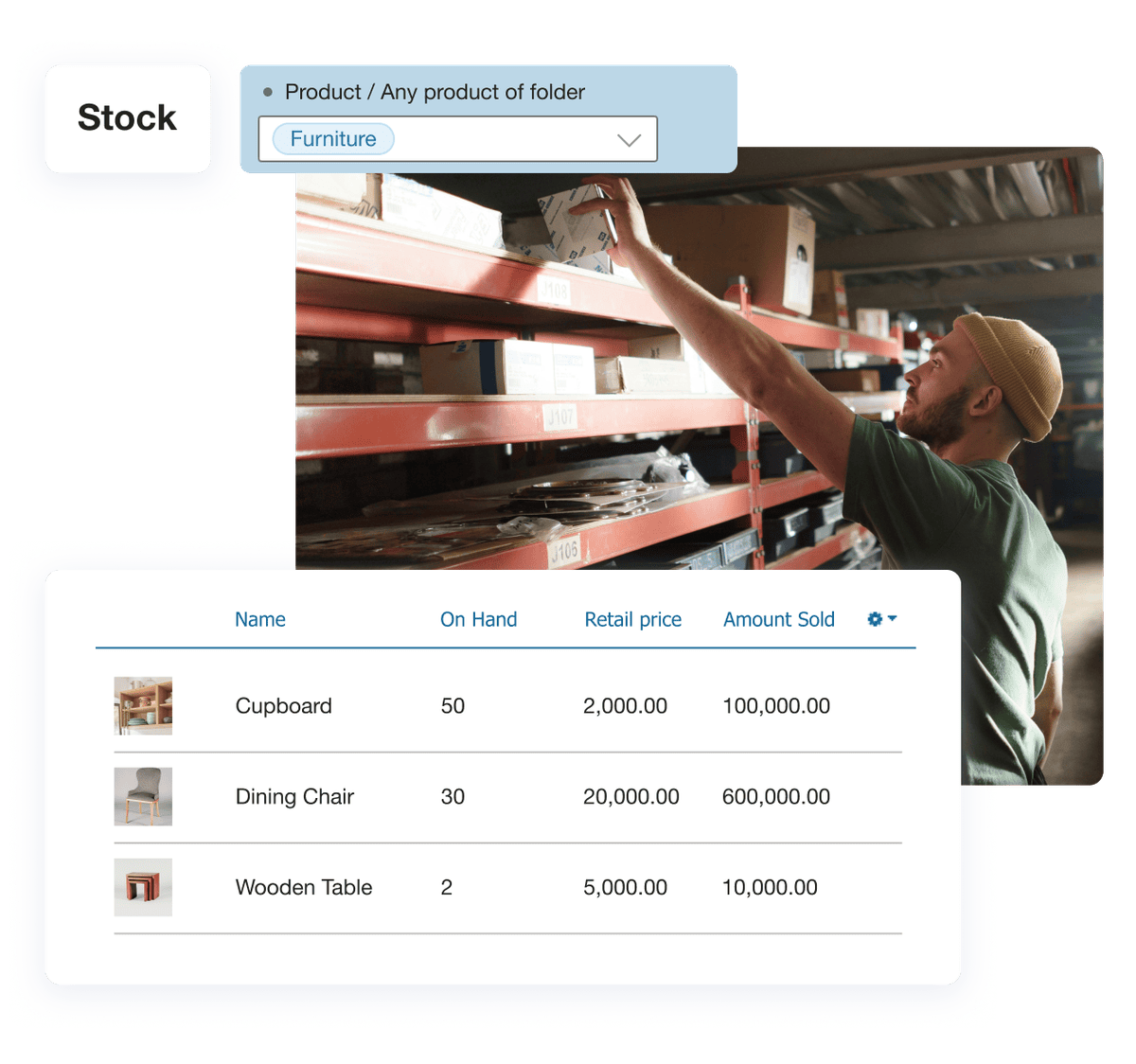
Kladana’s Free Inventory Management Template
An inventory management Excel template is a pre-built spreadsheet for recording products, incoming and outgoing stock, suppliers, customers, storage locations, and current inventory balances. It is best suited to small businesses with relatively simple inventory operations.
Our free inventory template helps you track:
- products, SKUs, barcodes, and serial numbers;
- stock quantities;
- warehouses and storage locations;
- suppliers and customers;
- stock receipts;
- shipments and sales;
- current stock balances.
If you’re currently on the path to building an effective inventory management process and need a simple tool that does not require complex installation and can be used right away, our premade Excel form is here to help you.
If you opt for Excel stock management and don’t want to start from scratch, try our free Excel inventory template.
What Does the Inventory Template Track?
| Template section | What you can track | Why it matters |
Inventory |
SKU, product name, barcode, unit, category |
Creates one structured product database |
Locations |
Warehouses, shops, production sites, bins |
Shows where inventory is physically stored |
Suppliers and customers |
Names, codes, contact details |
Connects stock movements with business partners |
Receipts |
Incoming items, quantity, purchase price |
Records stock entering your business |
Shipments |
Outgoing items, customers, selling price |
Records inventory leaving the business |
Stock |
Current quantity on hand |
Helps detect shortages and plan replenishment |
The template links these records so that stock balances can be calculated from the inventory movements you enter. This gives small businesses a simple starting point for stock control without building a spreadsheet from scratch.
How to Use Excel Template in 7 Steps
Mr Chopra launched his first startup a few months ago. He exports sea and river fish, so he named his company Swordfish. Over time, as the initial burst of enthusiasm faded, Mr. Chopra found it hard to keep track of product inventories, customer orders, supplier deliveries, and product balances in the warehouse.
Sometimes the notes he made in the notebook to record inventory were incomplete, so he had to go to the warehouse to do the inventory counting. Since only he could understand his writing, his employees could not help him.
He soon realized he should upgrade his inventory management system to save his business. Today he has downloaded our Excel management template. Let’s learn how to use it together with Mr. Chopra. Follow 7 steps to start streamlining your inventory processes.
Step 1. Make a Copy of the Template
Go to File menu → Make a copy → Rename the document the way you want.
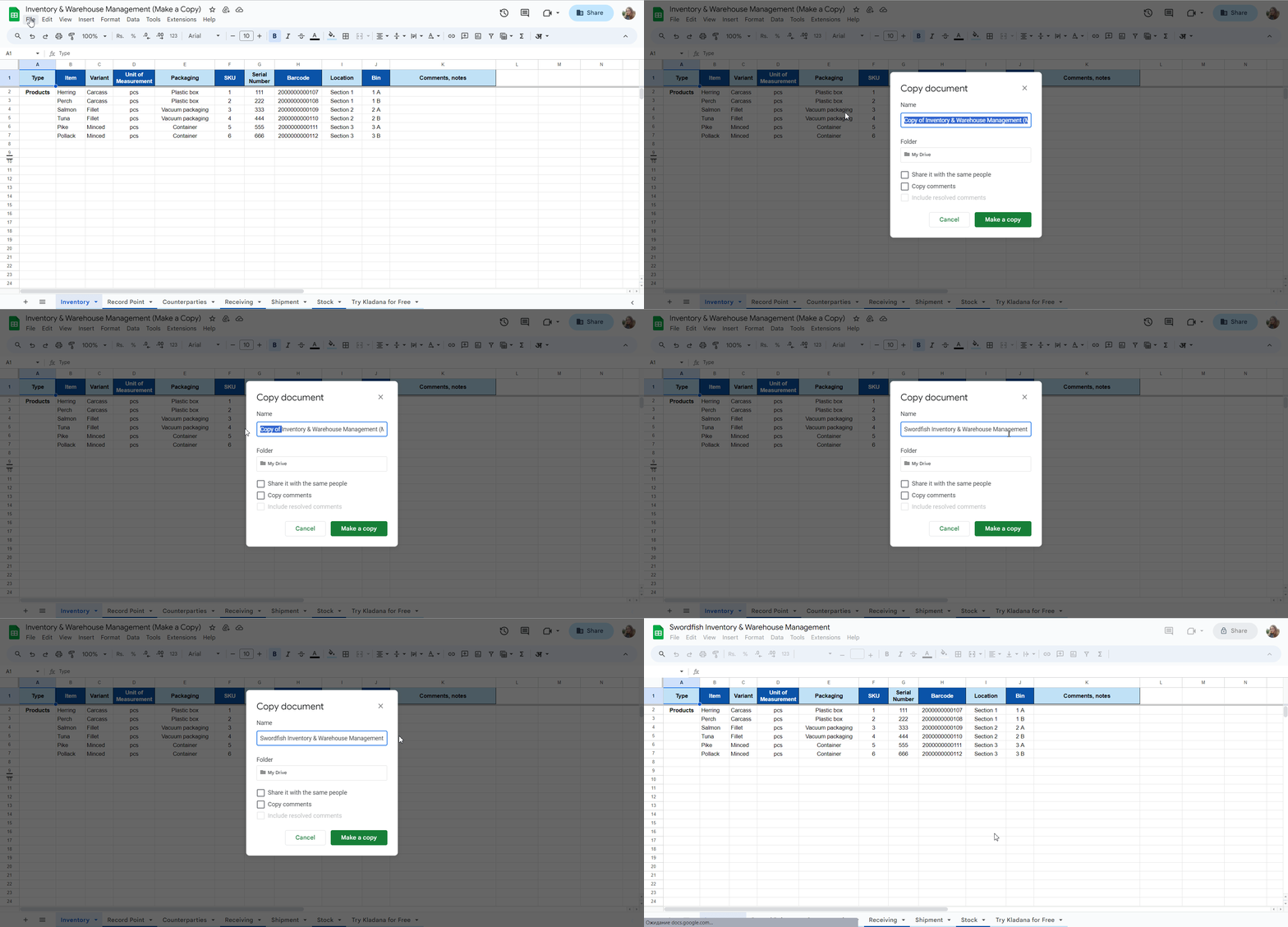
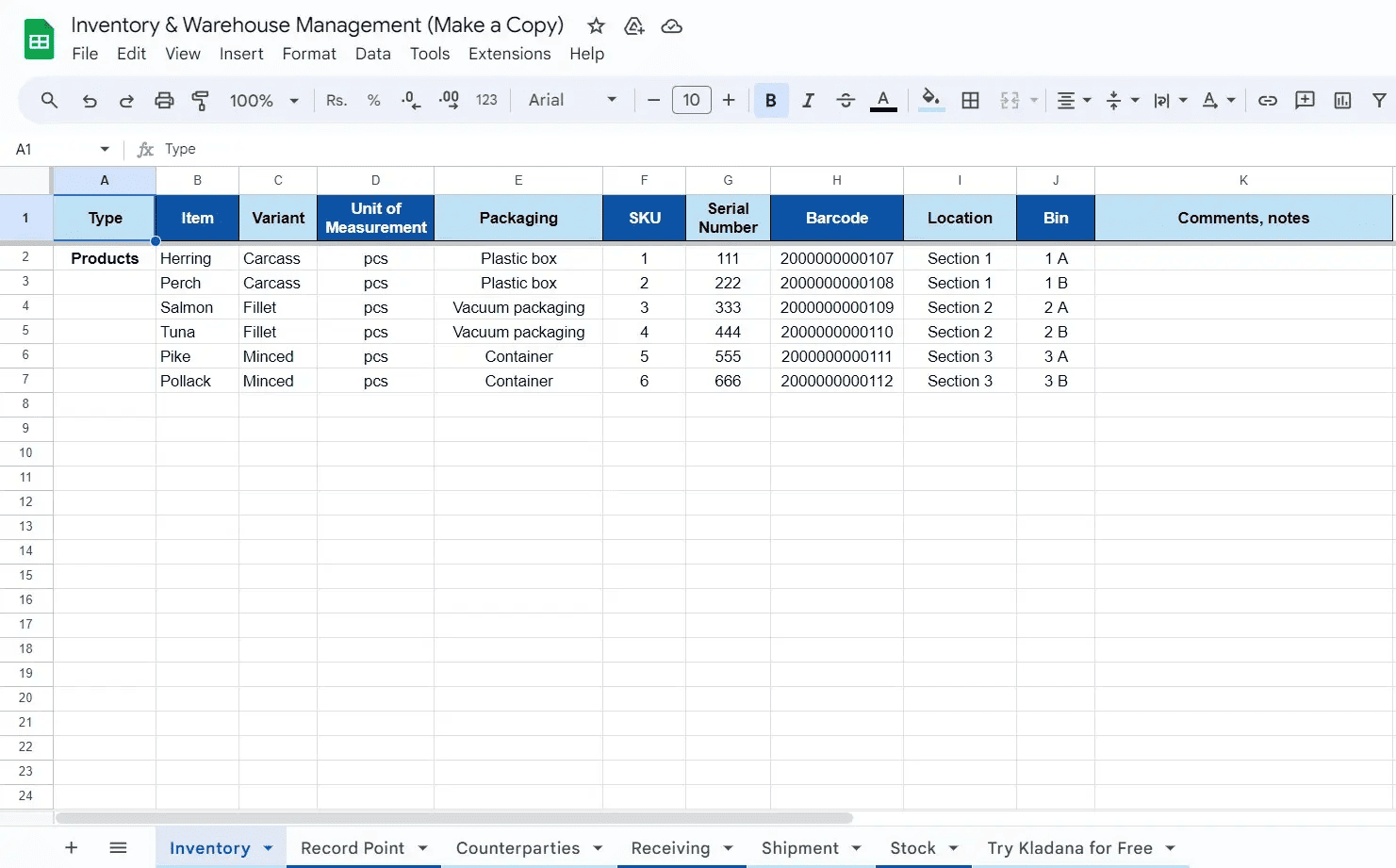
Step 2. Input Item Characteristics
Go to the Sheet named Inventory → Fill in data on all your products with their variants, UOM, and packaging. SKU, serial number, and barcode tracking could help you identify your items. Locations & bins are handy at a warehouse — thus every product has its storage place, it can’t be lost, and receiving & shipment take way less time.

Step 3. List All Production, Warehouse, and Retail Premises
Go to Record Point sheet → indicate all your shops, showrooms, warehouses, and production facilities.
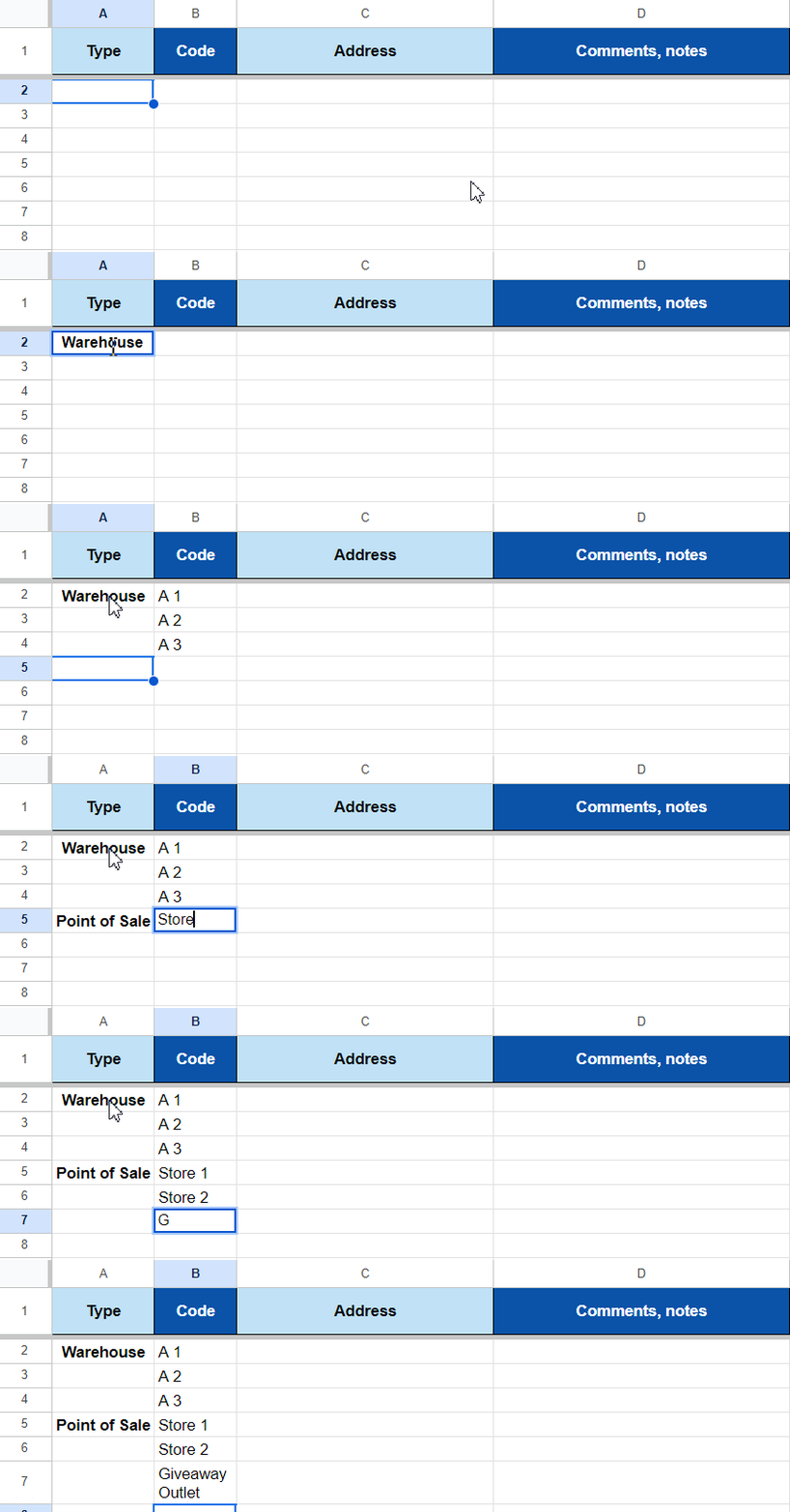
Step 4. Record the Information about Your Contractors
In the sheet named Counterparties input the information about the companies you trade with.
While filling in relevant data, use unique codes to identify each customer or supplier. Also, you can set particular statuses for your counterparties. For instance, you can give discounts to your regulars.
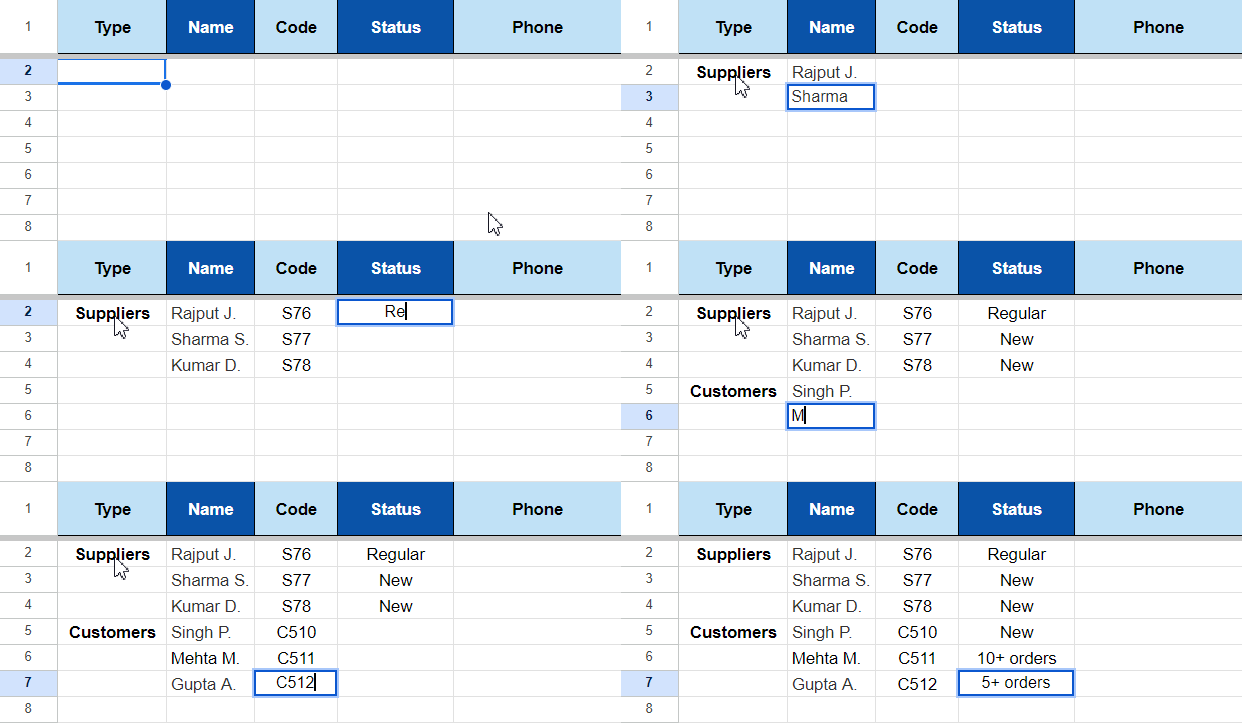
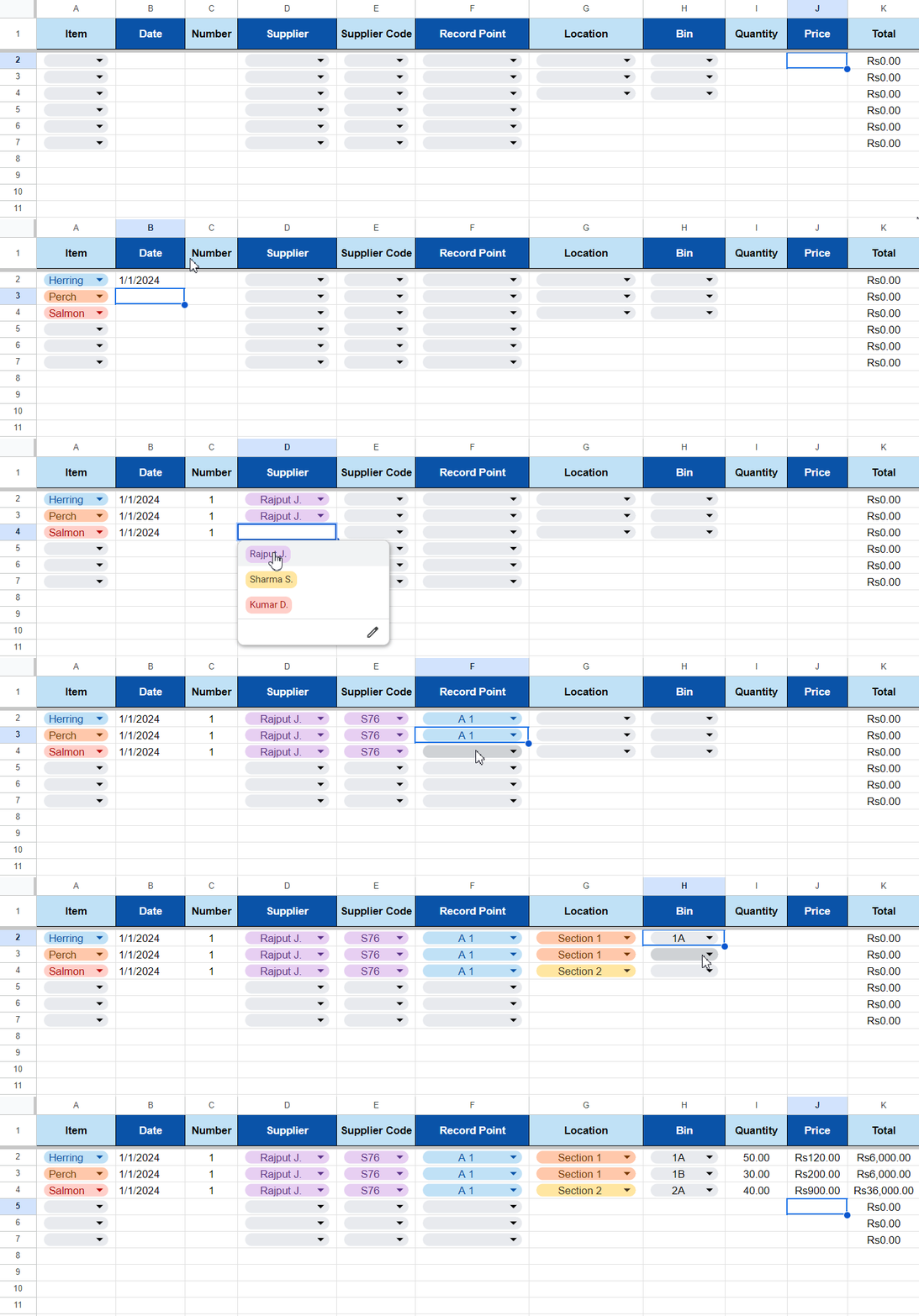
Step 5. Record the Receiving
Choose the correct options, set the date, the number of receiving, the quantity of goods, and the price of each product. The information about items, suppliers, supplier codes, record points, locations, and bins is based on the previous sheets. The total will be calculated automatically.
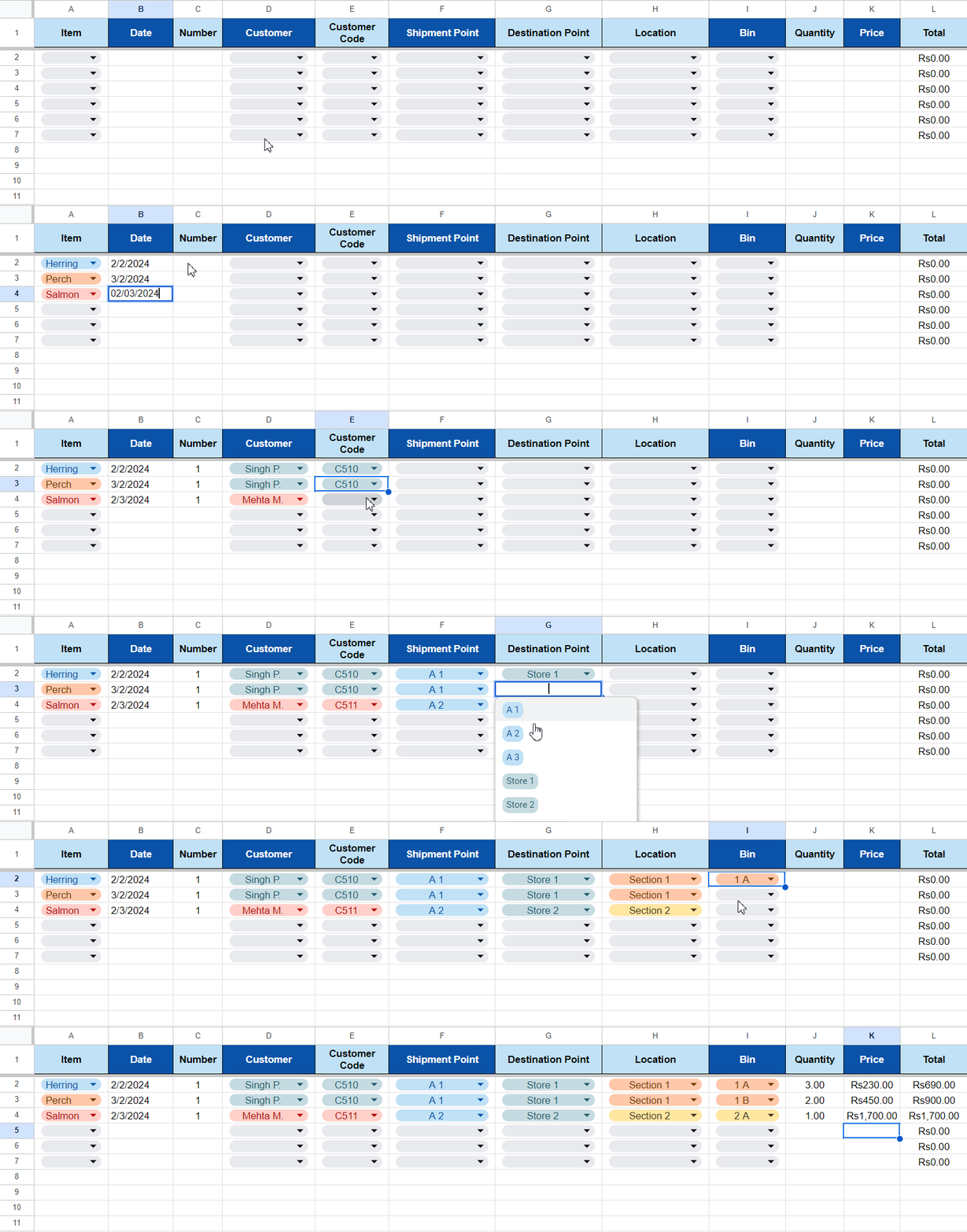
Step 6. Fill in the Information about Each Shipment
Choose the items you are shipping, select the correct shipment date and customer information. Make sure to change purchase prices to the sales prices. Also, you need to specify shipment & destination points. The data here is also based on the previous sheets.
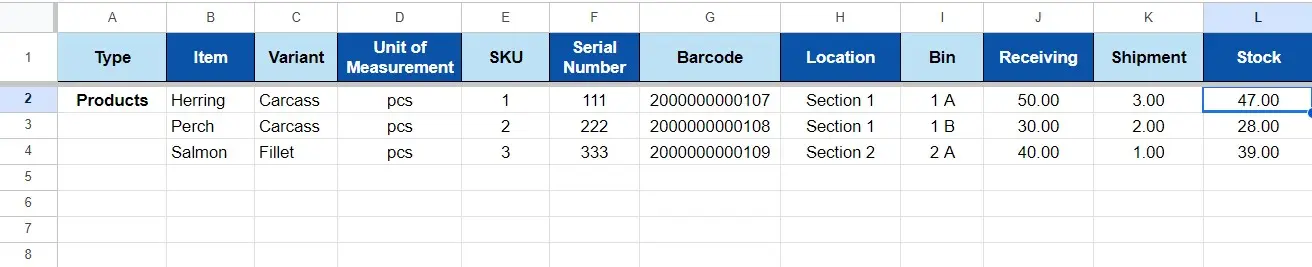
Step 7. Check out the Stock Sheet
The information here is based on the data from Inventory sheet and the calculations from Receivings and Shipment Sheets. Knowing what products you have on hand, you’ll sell only available items, and you’ll be able to order new supplies if the stock is insufficient.
Start working on inventory management with Kladana free inventory management sheet.
Bonus
You can use the template, modify it, and customize it for your needs. If you’d like to fully automate inventory management, run the business processes faster and more accurately and get lots of additional functions like generating barcodes, regular inventory countings, alerts for low stock, online sales tools, business profitability calculations, etc., then visit the last sheet of the form and try Kladana ERP.
4 Free Inventory Checklists by Kladana
Learn how to manage stock, set up your warehouse, track barcodes, and build product cards for e‑commerce — even if you’ve never done it before.
✅ Inventory management
✅ Warehouse setup
✅ Barcode tracking
✅ E-commerce product cards
Tips for Using a Premade Inventory Form
You can make Excel inventory management templates more efficient and secure the data you enter. Follow these simple tips to ensure all the calculations are correct.
Input the information specific to your company
It’s quite expected that you won’t find all the necessary positions in a ready-to-use inventory template. Add the missing ones, but make sure that new information input doesn’t break the correlations between indicators on different sheets of the table.
Customize the premade template according to your needs
Change category names, and highlight indicators in different colors. You can also create a new sheet with supporting materials: links to the necessary documents, information about products and their characteristics, etc.
Keep customization purposeful. Too many fields can make manual data entry slower and increase the chance that employees skip important updates.
Update Every Inventory Movement
Do not wait until the end of the week or month to enter stock movements.
Ideally, record receipts, sales, shipments, write-offs, and other changes when they happen. The longer the delay between the physical movement and spreadsheet entry, the less reliable your available-stock figure becomes.
Protect Formulas
Avoid typing over cells that contain inventory formulas. Clearly distinguish input cells from calculation cells and, where possible, protect formula ranges against accidental editing.
Keep an untouched master copy of the original template so you can restore formulas if necessary.
Manage User Permissions
Control access to the form by setting user permissions. Not everyone may need full access, so assign appropriate roles to maintain data integrity and security.
Implement Quality Control Checks
Establish regular quality control checks to verify the accuracy of the data entered into the inventory form. This can involve physical counts, spot checks, or reconciliations with other records.
Schedule Backups
Implement a system for regular backups of your inventory data. This precautionary measure helps in case of accidental data loss, human errors, or other unforeseen issues.
Additional Excel Inventory Templates
Here are even more Excel inventory templates designed for specific industries and needs. Each one is ready to download and easy to customize — whether you manage a restaurant, a construction site, or an online store.
Retail Inventory Management Template
Track product quantities, sales, and restocking needs with this ready-to-use Excel template for retail.
Manufacturing Inventory Tracker
Designed for small manufacturing inventory tracking, this Excel template helps monitor raw materials, finished goods, and consumption per unit. It supports calculating how many units can be produced based on current raw material stock.
E-Commerce Product Inventory Template
Perfect for e-commerce inventory, this template allows you to track stock across SKUs and update inventory based on daily sales. It includes formulas for calculating daily turnover and total stock value.
Daily Stock Maintenance Sheet
If you prefer to maintain daily Excel stock management manually, this clean and simple format is ideal. Log incoming and outgoing items, and check daily closing balance.
Food & Beverage Inventory Template
This Excel template is tailored for cafés, restaurants, or any business dealing with perishable stock. It tracks inventory by category, monitors expiry dates, and calculates how many days remain before spoilage.
Construction Equipment Inventory Template
Designed for contractors and site managers, this Excel sheet helps you track construction tools and equipment. You can log quantities, usage locations, conditions, and last maintenance dates. It’s ideal for keeping large teams aligned on asset availability across sites.
Is Excel Good for Inventory Management?
Yes, Excel can work well for inventory management when a business has a relatively small product catalog, limited stock movements, and a simple warehouse structure. It is inexpensive to start with, flexible, and familiar to many users.
Its limitations become more noticeable when inventory operations grow. Multiple users, warehouses, online channels, frequent transactions, production processes, and the need for real-time information make manual spreadsheet management harder.
| Excel works well when | Consider inventory software when |
You manage a relatively small product list |
You manage a large or rapidly growing SKU catalog |
One or two people maintain inventory |
Several employees update stock |
You have simple warehouse operations |
You manage several warehouses or complex locations |
Stock movements are limited |
Receipts, sales, and transfers happen frequently |
Manual updates are manageable |
You need stock to update automatically |
Basic reports are enough |
You need deeper inventory and operational reporting |
You have few connected sales channels |
You sell through multiple online and offline channels |
Inventory is mainly bought and sold |
You also manufacture or assemble products |
The decision should depend less on company size alone and more on operational complexity. A small company with thousands of SKUs and several sales channels may outgrow spreadsheets faster than a larger business with simple inventory.
How Is Inventory Calculated in the Spreadsheet?
The basic inventory balance follows a simple formula:
Current Stock = Opening Stock + Stock Received − Stock Shipped
For example, suppose you start with 100 units of a product, receive another 40 units, and ship 65 units:
100 + 40 − 65 = 75 units currently in stock
| Product | Opening stock | Received | Shipped | Current stock |
Product A |
100 |
40 |
65 |
75 |
You can also estimate the value of current inventory:
Inventory Value = Current Quantity × Unit Cost
If the 75 remaining units cost $10 each, the inventory value is $750.
These formulas are useful for simple inventory control. More complex businesses may also need calculations for returns, transfers, damaged goods, reserved stock, multiple cost methods, or production consumption.
What is an Inventory Template in Excel Format
An inventory management Excel template is a pre-designed spreadsheet used to record and calculate inventory data. Instead of building a workbook from scratch, businesses can use predefined columns, sheets, and formulas for products, stock movements, quantities, suppliers, and other inventory records.
It can be a practical starting point for smaller companies because Excel and Google Sheets are familiar tools and spreadsheets can be customized for different workflows.
However, the accuracy of an inventory spreadsheet depends heavily on how consistently users enter data. Excel does not automatically know that an item was received, sold, damaged, or moved unless that movement is entered or imported into the file.
What Should an Inventory Spreadsheet Include?
At minimum, a useful inventory spreadsheet should include:
- SKU or item code;
- product name;
- category;
- unit of measurement;
- quantity;
- warehouse or location;
- unit cost;
- stock received;
- stock sold or issued;
- current balance.
Depending on the business, you may also need:
- barcode;
- serial or batch number;
- supplier;
- reorder level;
- expiry date;
- stock value;
- bin location;
- last stock count date.
Do not add fields simply because they are available. The best inventory sheet contains the information your team can realistically maintain accurately.
Advantages of Employing Excel for Inventory Management
Excel proves to be an invaluable tool for those who seek cheap and user‑friendly solutions that don’t require complicated installation and customization processes.
One of the key advantages is its accessibility. Excel is widely available and familiar to many users and requires minimal training. Additionally, its customizable templates allow businesses to tailor inventory Excel sheets to their specific needs, whether it’s tracking stock levels, monitoring sales, or managing reorder points. The simplicity of Excel ensures quick data entry and efficient updates and enables businesses to keep real‑time tabs on their inventory status.
Moreover, Excel facilitates data analysis and reporting and empowers businesses to make informed decisions based on accurate and up‑to‑date information. With its affordability, flexibility, and user‑friendly interface, Excel emerges as a practical choice for small and medium businesses who want to streamline their inventory management processes.
Common Inventory Spreadsheet Mistakes
Updating Inventory Too Late
A spreadsheet quickly becomes outdated when receipts and shipments are entered days after they happen. Record stock movements as close to the actual transaction as possible.
Using Product Names Instead of Unique SKUs
Two products can have similar or identical names. A unique SKU or item code makes products easier to identify and reduces confusion when entering stock movements.
Editing or Deleting Formulas
A single overwritten formula can affect stock balances across a workbook. Protect calculation cells and maintain a backup copy of the original spreadsheet.
Mixing Several Locations Into One Stock Figure
If goods are stored in different warehouses or shops, a single total quantity does not tell employees where the inventory is actually available. Track locations separately when this matters to fulfillment.
Skipping Physical Stock Counts
A spreadsheet shows what your records say you have. Physical counts reveal what is actually on the shelf. Regular reconciliation helps identify missing transactions, damaged goods, theft, data-entry errors, and other discrepancies.
Letting Everyone Edit Everything
Uncontrolled access increases the risk of accidental changes. Define who can update products, transactions, formulas, and reference data.
💡 Ready to Move Beyond Excel?
If Excel stock sheets are getting too clunky for your growing business, it’s time to explore a smarter way to manage your inventory.
Kladana ERP offers:
- Automated stock updates across locations
- Barcode support and batch tracking
- Smooth integration with sales, purchases, and production
- Real-time visibility of inventory, orders, and reports
📽️ Watch this short demo to get a picture of inventory management in Kladana:
To Sum It Up
An Excel inventory template is a practical starting point for businesses that need a simple and low-cost way to organize stock records. With a structured spreadsheet, you can track products, receipts, shipments, locations, suppliers, and current inventory without creating a workbook from scratch.
The most important rule is consistency: every inventory movement must be recorded accurately and on time. Regular physical counts and backups are also essential.
As transaction volumes, product ranges, warehouses, or sales channels grow, manual spreadsheets may become harder to maintain. At that stage, inventory software can automate stock updates and connect inventory with purchasing, sales, warehouse operations, and production.
Start with the free inventory Excel template, adapt it to your workflow, and move to automation when spreadsheets no longer give your team the accuracy and visibility it needs.
Frequently Asked Questions About Inventory Management in Excel
Here are quick answers to common questions about using Excel spreadsheets for stock and inventory management.
How Do I Create an Inventory Spreadsheet in Excel?
Create columns for SKU, product name, opening stock, stock received, stock sold or issued, and current quantity. Add separate fields for location, supplier, cost, and reorder level if needed. Use formulas to calculate the current balance and update the spreadsheet whenever inventory moves.
A ready-made inventory template can save time because the basic sheets and formulas are already structured.
What Columns Should an Inventory Excel Sheet Include?
The core columns usually include SKU, product name, category, quantity, unit cost, location, stock received, stock issued, and current stock. Depending on your workflow, you may also add barcode, supplier, reorder level, batch number, expiry date, or stock value.
What Is the Formula for Inventory Balance in Excel?
A simple inventory balance formula is:
Current Stock = Opening Stock + Stock Received − Stock Shipped
More complex inventory workflows may also need to account for returns, write-offs, warehouse transfers, reservations, or production consumption.
Can Excel Automatically Update Inventory?
Excel formulas can automatically recalculate balances after new data is entered. However, the spreadsheet normally cannot detect a physical receipt, sale, or shipment by itself. Those inventory movements still need to be entered manually or imported through additional integrations or automation.
Can I Use Barcodes With an Excel Inventory Spreadsheet?
Yes. Barcode numbers can be stored as product identifiers in Excel, and businesses can use compatible scanners to enter barcode values. However, Excel alone does not provide a complete barcode warehouse workflow such as automatic receiving, picking, stock transfers, or real-time inventory updates.
Can I Manage Multiple Warehouses in Excel?
Yes, you can add a warehouse or location field and track quantities separately by location. However, manual management becomes harder as the number of warehouses, SKUs, users, and daily transactions increases.
For more complex multi-location operations, dedicated warehouse or inventory software can reduce manual work.
Is Excel Enough for a Small Business?
Excel can be enough for a small business with simple stock operations, a manageable number of products, and few daily transactions. It becomes less practical when several employees update inventory, the business expands to multiple locations or sales channels, or real-time stock information becomes critical.
What Is the Difference Between an Inventory Spreadsheet and Inventory Software?
An inventory spreadsheet is primarily a file where users manually record and calculate stock data. Inventory software connects inventory records with operational transactions and can automate updates after receipts, sales, transfers, production, and other events.
Spreadsheets offer flexibility and a low barrier to entry. Inventory software provides more automation, controls, multi-user workflows, and real-time visibility as operations become more complex.
Do I Need Advanced Excel Skills to Use an Inventory Template?
No. A well-designed inventory template can be used with basic spreadsheet skills.
However, understanding simple formulas, filters, sorting, and data validation can help you customize and maintain the file safely.
Can I Customize the Inventory Template?
Yes. You can add or remove fields, change categories, modify formatting, and adapt the file to your inventory workflow.
Before changing formulas or the structure of linked sheets, create a backup copy.
How Often Should I Update Inventory Records?
Update inventory whenever a meaningful stock movement occurs — ideally immediately after receiving, selling, shipping, transferring, returning, or writing off goods.
Frequent updates make the spreadsheet more reliable and reduce discrepancies between recorded and physical stock.